On this page
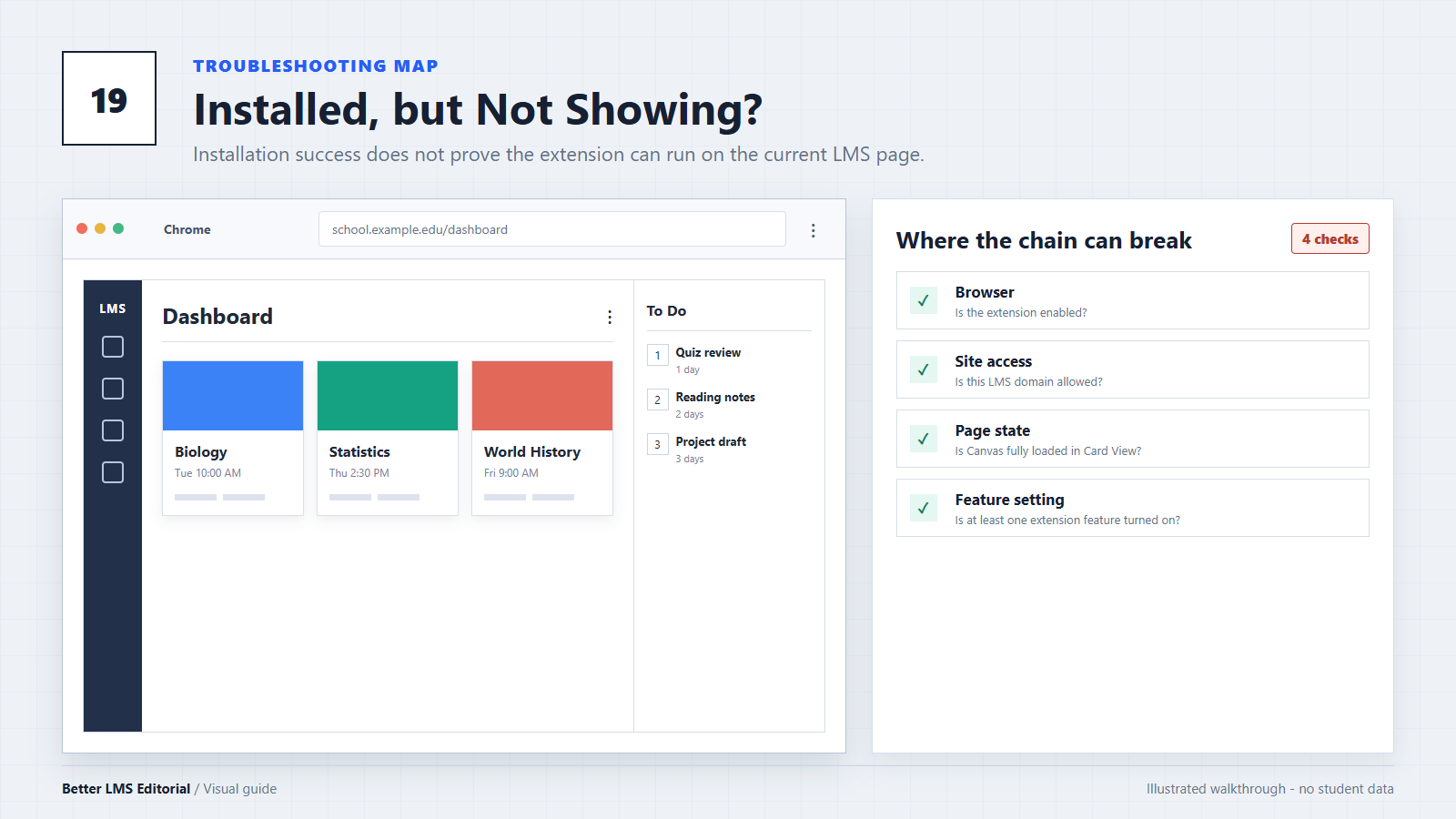
You installed the Better Canvas extension, opened your school’s Canvas dashboard, and expected something to change. Instead, the page looks exactly the same.
This can happen for several different reasons. The extension may be disabled, connected to the wrong Canvas address, blocked from accessing the site, or waiting for the Canvas page to reload.
Before changing any settings, identify which problem you have:
- The extension is missing from the browser: Start with Fix 2.
- The extension opens, but Canvas does not change: Start with Fix 4 or Fix 5.
- Some features work, but themes or colors do not: Use this diagnosis instead: Better Canvas themes not loading.
- Only dashboard features are missing: Check Fix 6.
Work through the following fixes in order. Avoid uninstalling the extension until you have tried the simpler checks first.
If the Canvas login page, Dashboard, or several courses fail at the same time, ask: is Canvas down right now?
1. Reload Every Open Canvas Tab
If Canvas was already open when you installed the extension, the extension may not have been loaded into that existing tab.
Try this first:
- Save any unfinished work in Canvas.
- Close every open Canvas tab.
- Open a new tab.
- Sign in to your school’s Canvas website again.
- Wait for the Dashboard to finish loading.
You can also press:
- Windows:
Ctrl + Shift + R - Mac:
Command + Shift + R
A normal reload is usually enough. A hard reload can help if the browser continues displaying an older cached version of the page.
Do not clear all browser data yet. That is rarely necessary for this problem and may sign you out of other websites.
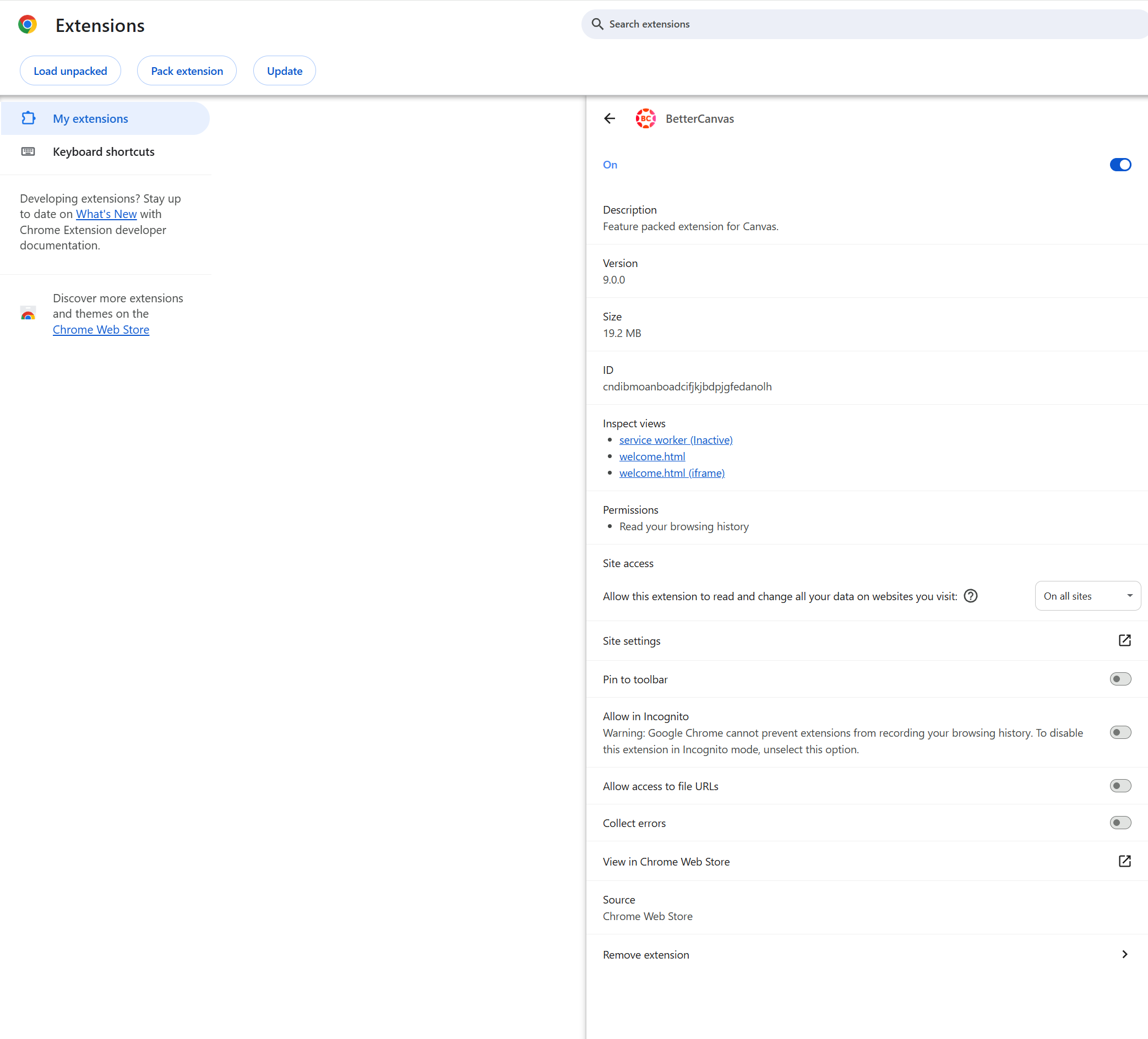
2. Confirm That the Extension Is Enabled
An extension can remain installed while being disabled. Pinning an extension to the toolbar is also different from enabling it: an unpinned extension can still run normally.
Google Chrome
- Enter
chrome://extensionsin the address bar. - Find Better Canvas.
- Confirm that its toggle is turned on.
- Select Details if you need to review its permissions.
Microsoft Edge
- Enter
edge://extensionsin the address bar. - Find Better Canvas.
- Confirm that the extension is enabled.
Mozilla Firefox
- Enter
about:addonsin the address bar. - Select Extensions.
- Find Better Canvas.
- Confirm that its toggle is enabled.
If the extension does not appear on these pages, it is not currently installed in that browser profile.
3. Test It in a Supported Browser and Normal Window
The Better Canvas project publicly lists Google Chrome and Mozilla Firefox as its supported browsers. Compare Canvas Chrome extensions and Canvas Firefox add-ons when checking whether the correct browser build is installed.
Microsoft Edge can install many extensions from the Chrome Web Store, but that does not guarantee that every Better Canvas feature will work in Edge. If the extension fails in Edge, test it in Chrome or Firefox before assuming that the extension itself is broken. Compare Canvas browser compatibility before changing the installation.
You should also test in a regular browser window. Extensions may be disabled in Incognito or Private Browsing unless you have separately allowed them to run there.
If you use multiple browser profiles, make sure you installed the extension in the same profile you use for school.
4. Make Sure You Are on Canvas LMS
Better Canvas is designed for Canvas LMS. It does not work with:
- Canva, the graphic-design platform
- Moodle
- Blackboard or Blackboard Ultra
- D2L Brightspace
- Google Classroom
- Other learning-management systems
Your school may use a single sign-on page before sending you to Canvas. The extension will not normally change the sign-in provider’s page. Finish signing in and wait until you reach the actual Canvas Dashboard.
A standard Canvas address may look like:
https://school.instructure.comSome institutions use a custom address, such as:
https://canvas.school.eduA custom domain does not automatically mean that the extension cannot work. The important question is whether you have reached the institution’s actual Canvas website.
5. Check the Canvas URL Saved in Better Canvas
The public Better Canvas troubleshooting information specifically recommends checking the Canvas URL stored in the extension.
- Open your school’s Canvas Dashboard.
- Note the address shown in the browser.
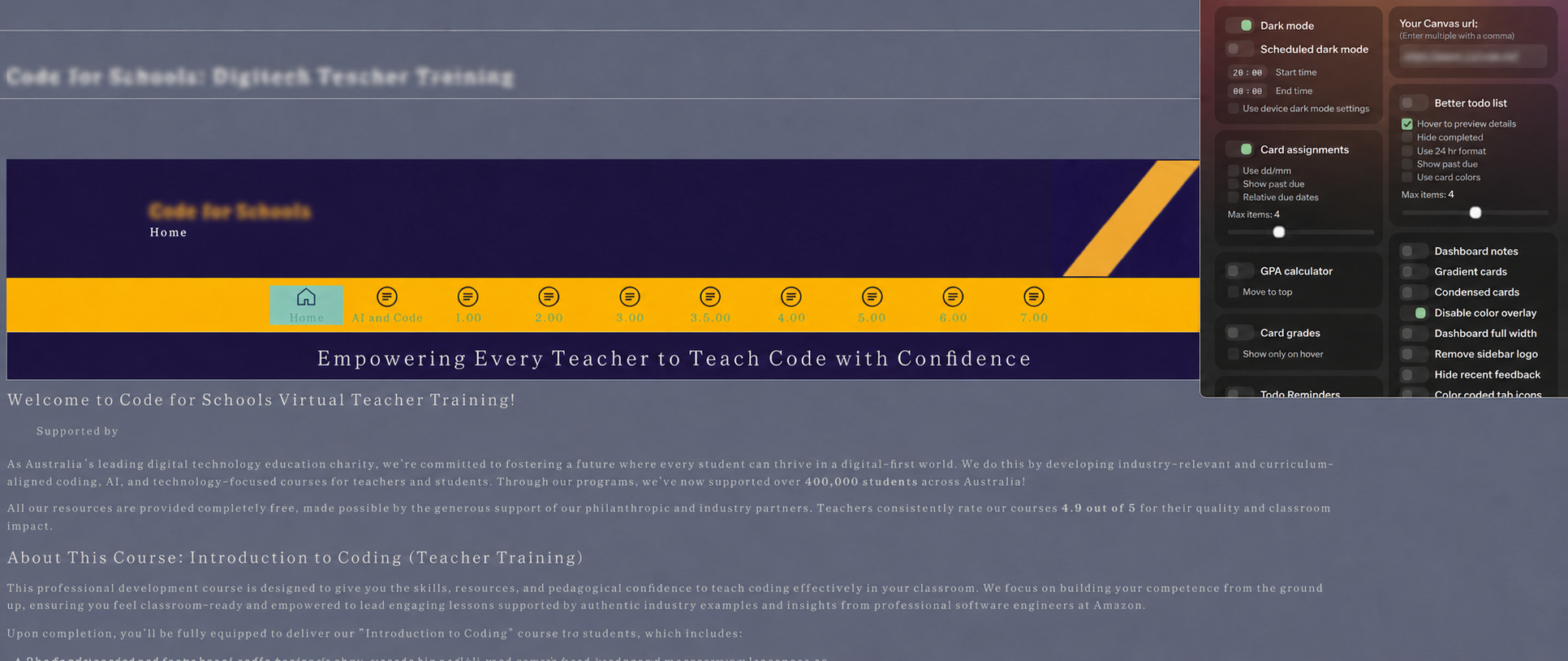
- Open the Better Canvas extension menu.
- Find its Canvas URL or school URL setting.
- Compare it with the address of your actual Dashboard.
- Correct the saved address if the two do not match.
- Reload Canvas.
For example, an extension configured for one school’s Canvas domain may not activate when you sign in to a different institution.
Use the Dashboard address shown by your browser. Do not enter the address of Moodle, a school portal, an assignment page from another LMS, or the single sign-on provider.
6. Switch the Canvas Dashboard to Card View
If the extension opens but its dashboard features are missing, check your Canvas Dashboard layout.
According to the Better Canvas project’s troubleshooting information, many dashboard features work only in Card View.
To change the view:
- Open the Canvas Dashboard.
- Open the Dashboard options menu.
- Select Card View.
- Reload the page.
- Open Better Canvas and test the feature again.
This is particularly relevant to features that change course cards, display grades on cards, or add information to the Dashboard.
Changing to Card View will not necessarily solve a browser-level installation problem. It is intended for cases where the extension is active but its dashboard features are not visible.
7. Review the Extension’s Site Access
Browsers can limit which websites an extension is allowed to access. If Better Canvas cannot access your school’s Canvas domain, it may appear installed without changing the page.
In Chrome:
- Open
chrome://extensions. - Find Better Canvas.
- Select Details.
- Review the available Site access setting.
- If the browser provides this control, allow access to your school’s Canvas website.
- Return to Canvas and reload the page.
The wording may differ between browser versions. Do not grant broader access than you are comfortable with. The goal is to confirm that the extension can run on the Canvas domain you actually use.
If the browser says that a setting is controlled by your organization, continue to Fix 9.
8. Update and Restart the Browser
Outdated browsers can create extension compatibility problems, especially after the extension or Canvas has been updated.
Chrome
Open:
chrome://settings/helpChrome will check for updates. Restart the browser if requested.
Edge
Open:
edge://settings/helpFirefox
Open the Firefox menu and go to:
Help > About FirefoxBrowsers normally update store-installed extensions automatically. After updating the browser, close it completely, reopen it, and load Canvas again.
If the problem began immediately after an extension update, check the developer’s public issue tracker before repeatedly changing browser settings.
9. Check for School or Organization Policies
Schools can manage browsers and restrict which extensions may run. This can affect school-owned computers and managed school browser profiles.
In Chrome, open:
chrome://managementYou can also inspect active browser policies at:
chrome://policyChrome may display Managed by your organization at the bottom of its main menu when management policies are active.
A managed policy may:
- Block an extension from running
- Restrict access to the school’s Canvas domain
- Disable extension settings
- Remove extensions that are not approved
Do not attempt to bypass school security policies. Contact your school’s IT department and ask whether student-installed browser extensions are permitted.
Using a personal computer does not always solve the issue if you are still using a managed school browser profile. Testing with a personal browser profile can help determine whether the restriction is attached to the device or the school profile.
Quick Diagnosis Table
| What you see | Start with | Likely issue |
|---|---|---|
| Better Canvas is not listed in the browser | Fix 2 | Installed in another browser or profile |
| Extension is listed but disabled | Fix 2 | Browser disabled the extension |
| Extension menu opens but Canvas does not change | Fix 4 or Fix 5 | Wrong website or saved Canvas URL |
| Dashboard tools are missing | Fix 6 | Canvas is using List View |
| Extension works on one school site but not another | Fix 5 or Fix 7 | URL or site-access setting |
| It works in Chrome but not Edge | Fix 3 | Browser compatibility difference |
| Settings cannot be changed | Fix 9 | Managed browser policy |
| Only colors or themes are missing | Theme troubleshooting guide | Styling-specific problem |
Still Not Working?
If none of the nine fixes works, try these final steps.
Temporarily Disable Conflicting Extensions
Extensions such as Dark Reader, Night Eye, Stylus, or other Canvas customization tools may modify the same page elements.
Disable them one at a time, reload Canvas, and test again. If Better Canvas begins working, re-enable the other extensions individually to identify the conflict.
Reinstall Better Canvas
Reinstallation should be a final step because removing the extension may also remove locally stored preferences.
Before uninstalling:
- Export or record any themes and custom settings you want to keep.
- Remove Better Canvas from the browser’s extension manager.
- Restart the browser.
- Reinstall Better Canvas from the current browser-store listing.
- Open Canvas in a new tab.
- Confirm the Canvas URL and Card View settings again.
Report a Reproducible Problem
If the extension still does not work, prepare the following information:
- Browser name and version
- Better Canvas version
- Your school’s Canvas domain
- Whether the Dashboard is in Card View
- Whether the extension menu opens
- The exact feature that is missing
- Any visible browser error message
Submit technical extension problems through the developer’s public support channel or GitHub issue tracker. Do not include passwords, course content, grades, student IDs, or other private school information.
Conclusion
When Better Canvas is installed but does not appear, the extension itself is not always broken. The most useful checks are:
- Reload the Canvas tab.
- Confirm the extension is enabled.
- Open the correct Canvas LMS website.
- Match the saved Canvas URL to the Dashboard address.
- Use Card View for dashboard-related features.
- Check whether the browser or school restricts extension access.
If the extension is active and only its themes are missing, treat that as a separate styling problem rather than repeating the full installation process.
Editorial note: This guide was prepared using current browser documentation, Canvas documentation, and the public Better Canvas project’s support materials. Better LMS is an independent editorial resource. We do not develop Better Canvas and are not its official support provider.