On this page
A Better Canvas theme can fail in several different ways. Sometimes nothing changes after you select a theme. In other cases, dark mode works but course-card colors do not, or the theme appears briefly and disappears after a refresh.
These symptoms do not always have the same cause. The problem may involve the selected Dashboard view, extension permissions, a scheduled setting, another visual extension, or a school-specific Canvas configuration.
Use this guide to identify the symptom first, then apply the relevant fix. Avoid resetting or reinstalling the extension until you have tried the less disruptive checks.
Quick Checks Before Changing Anything
Complete these checks first:
- Confirm that you are using Canvas LMS, not Canva or another learning platform.
- Make sure the Better Canvas extension is enabled.
- Open your school’s main Canvas Dashboard.
- Change the Dashboard to Card View.
- Select a built-in theme and confirm that you applied it.
- Reload the Canvas page once.
- Close additional Canvas tabs during testing.
Many course-card and theme features depend on Card View. If the theme works there but not in List View, the extension is running; the unsupported Dashboard view is the likely limitation.
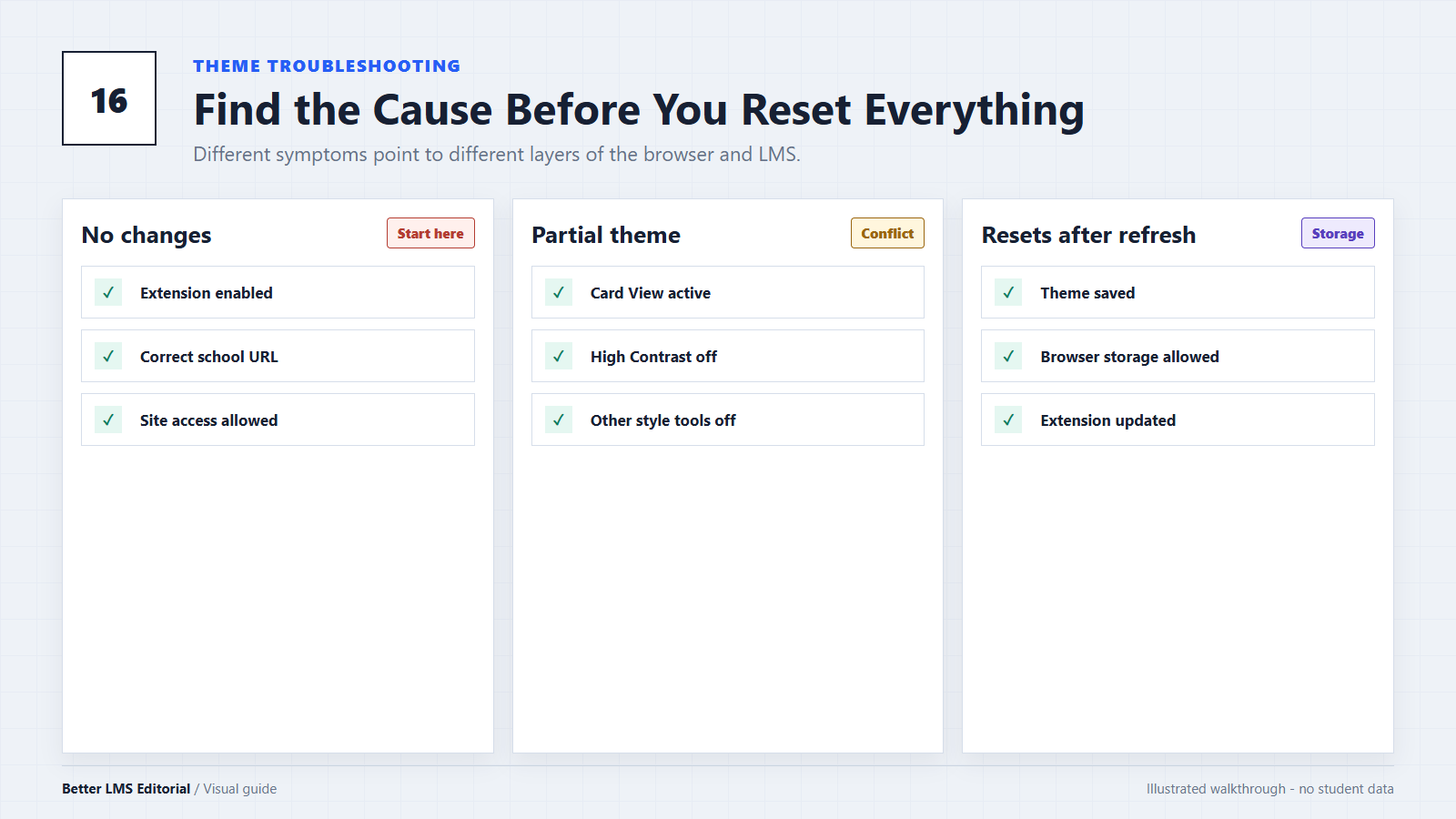
Identify the Symptom
| What you see | Start by checking |
|---|---|
| Nothing changes anywhere | Extension status, browser support, site access and Canvas URL |
| Dark mode works but cards do not change | Card View, High Contrast UI and card settings |
| Theme works and then resets | Scheduled settings, browser storage and multiple tabs |
| Only one theme fails | Theme data, missing images or an incomplete custom theme |
| Some sections remain white | Page compatibility, extension conflicts or school styling |
| Theme works on one school site but not another | Site permissions and configured Canvas URL |
Work through the section that matches your result.
Symptom 1: Nothing Changes After Applying a Theme
If Canvas looks completely unchanged, start with Better Canvas installed but not showing to confirm that the extension is running on the page.
Confirm That the Extension Is Enabled
In Chrome:
- Open
chrome://extensions. - Find Better Canvas.
- Confirm that its switch is enabled.
- Return to Canvas and reload the page.
In Firefox, open about:addons, select Extensions, and confirm that Better Canvas is active.
If you are using a school-managed browser or computer, an administrator may restrict extensions. A disabled or policy-blocked extension cannot inject theme styles into Canvas.
Check Browser Compatibility
Better Canvas’s public developer documentation identifies Chrome and Firefox as its supported browsers. It may also run in some Chromium-based browsers, but behavior can differ.
If the theme fails in Edge, Brave, or another Chromium browser, test the same Canvas page in Chrome. This does not mean the other browser is necessarily incompatible; it helps determine whether the problem is browser-specific. Use Canvas browser compatibility to compare supported options.
Check Site Access
Browser extensions need permission to run on the current Canvas domain.
In Chrome:
- Open
chrome://extensions. - Select Details under Better Canvas.
- Review Site access.
- Confirm that your school’s Canvas domain is allowed.
- Reload Canvas.
Schools may use addresses such as school.instructure.com or a custom address such as canvas.school.edu. Better Canvas’s public manifest requests access to HTTPS pages broadly, so a custom domain does not normally need to be added by the developer. However, the user or browser may have restricted that access.
If your extension version contains a Canvas URL setting, confirm that it matches the base URL shown on your Dashboard.
Symptom 2: Dark Mode Works but Course Cards Do Not Change
When dark mode changes the background but card images, colors, or fonts remain unchanged, the extension is already running. Concentrate on Card View and card-specific settings.
Switch to Card View
Open the Canvas Dashboard Options menu and select Card View. Better Canvas’s developer documentation notes that many card features do not work in List View.
After switching views:
- Reload the Dashboard.
- Open the extension menu.
- Reapply the selected theme.
- Check whether card colors or images appear.
Test High Contrast UI
Canvas has an accessibility feature called High Contrast UI. It changes text, button, and interface colors, and may override or mute parts of a custom visual theme.
To test it:
- Open the Account menu in Canvas.
- Locate the Use High Contrast UI setting.
- Note its current state.
- Temporarily turn it off.
- Reload the Dashboard.
If the theme now works, the two styling systems are conflicting.
High Contrast UI improves accessibility. If you rely on it to read Canvas comfortably, keep it enabled and use only theme options that remain readable rather than sacrificing accessibility for appearance. Browse Canvas themes when testing alternatives.
Check Card-Specific Settings
A theme can contain dark-mode colors without including card images, card colors, or custom fonts. Open the theme settings and confirm which components the theme actually changes.
If your version provides separate controls for card images, gradients, colors, or Color Overlay, test each option individually.
Symptom 3: The Theme Appears and Then Resets
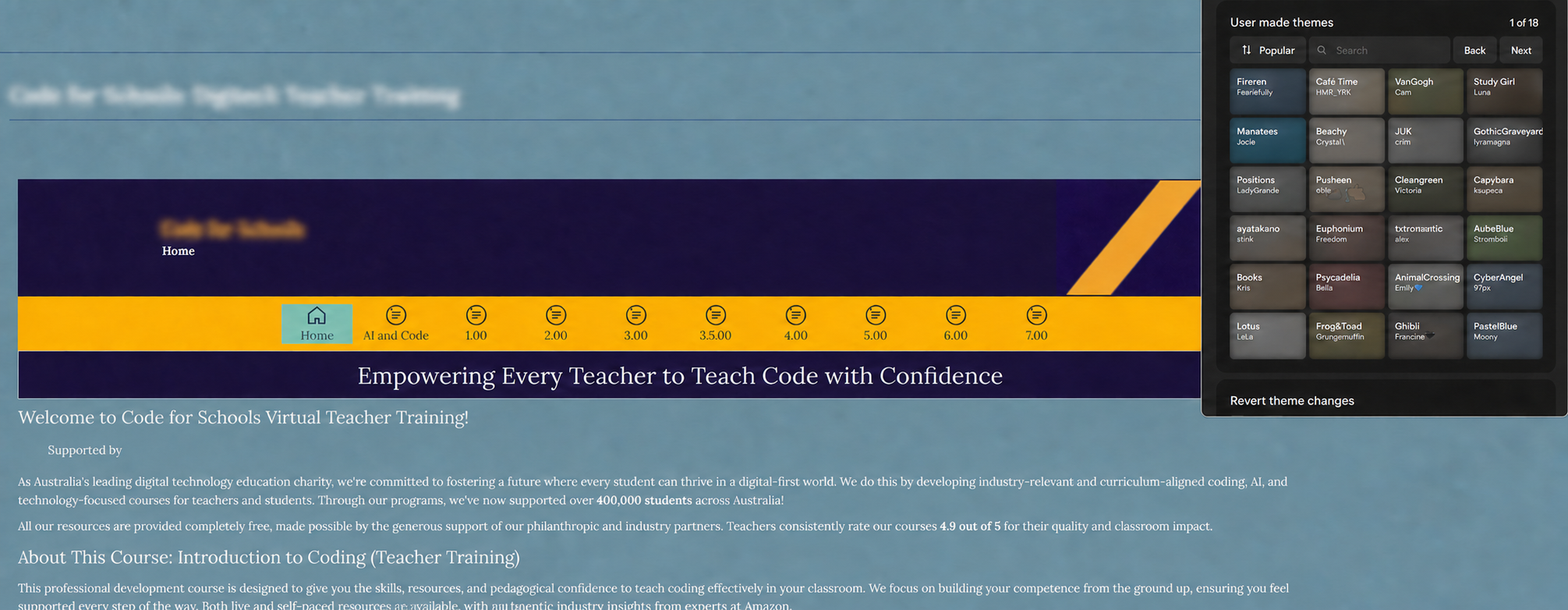
A theme that works briefly but disappears after reopening Canvas usually points to a saved setting, scheduled option, browser profile, or synchronization issue.
Check Scheduled Dark Mode
Better Canvas can schedule dark mode according to time or device settings. A scheduled option may turn dark mode off even though you previously enabled it manually. If dark mode itself is inconsistent, compare Canvas dark mode options.
Open the extension settings and check whether:
- Scheduled Dark Mode is enabled
- Device Dark Mode synchronization is enabled
- The active schedule includes the current time
- A theme and a separate dark-mode option are overriding each other
Temporarily disable scheduling and apply the theme manually. Reload Canvas to see whether the theme remains active.
Test With One Canvas Tab
Older Better Canvas support material notes that some card settings may behave incorrectly when multiple Canvas pages are open.
Close all Canvas tabs, open one fresh Dashboard tab, and apply the theme again. If the setting now remains, another open tab may have been saving an older configuration.
Check the Browser Profile
Extension settings may differ between browser profiles. Confirm that you are using the same Chrome or Firefox profile in which the theme was configured.
Private or incognito windows may not allow the extension to run unless you have explicitly enabled incognito access.
Symptom 4: Only One Theme Fails
If one theme fails but another built-in theme works, the extension and site permissions are probably functioning correctly.
The failed theme may contain:
- An unavailable image URL
- Incomplete card settings
- Invalid or outdated theme data
- Settings created for an older extension version
- A color or font option that no longer exists
Select a built-in theme, apply it, and reload Canvas. Then return to the failing theme.
For a custom or imported theme:
- Export or record your current settings if that option is available.
- Remove the failed theme.
- Re-import or recreate it one component at a time.
- Test dark mode before adding card images, colors, or fonts.
- Avoid downloading theme files from unknown websites.
Do not reset the entire extension if only one imported theme is affected.
Symptom 5: The Theme Is Only Partially Applied
Canvas contains many page types, including the Dashboard, Assignments, Discussions, Grades, Quizzes, and institution-specific tools. An extension may not style every element on every page.
If only one area remains white or unreadable:
- Check whether the problem occurs on the Dashboard or only inside a course.
- Disable other dark-mode or Canvas-style extensions.
- Reload the affected page.
- Test another Better Canvas theme.
- Check whether your extension version provides a Dark Mode Fixer option.
A school can also apply custom Canvas CSS or third-party learning tools. Those areas may use styles that the extension does not recognize.
Do not assume that a white section means the entire theme failed. Record the exact page and component before changing global settings.
Check for Extension Conflicts
Dark Reader, Night Eye, Canvas customization extensions, and browser color filters can all modify the same page.
To isolate a conflict:
- Leave Better Canvas enabled.
- Temporarily disable one other visual extension.
- Reload Canvas.
- Repeat until the theme displays correctly.
- Re-enable unrelated extensions after testing.
Multiple visual extensions can sometimes coexist, but testing them individually is the fastest way to identify which combination causes the problem.
Reload and Cache Steps
Use increasingly disruptive steps in this order:
- Reload Canvas normally.
- Disable and re-enable Better Canvas.
- Close all Canvas tabs and reopen the Dashboard.
- Perform a hard refresh.
- Clear cached files for the Canvas site.
- Restart the browser.
Hard-refresh shortcuts:
- Windows and Linux:
Ctrl + Shift + R - macOS:
Command + Shift + R
A hard refresh requests the page resources again. It does not necessarily erase all cached browser data. Avoid clearing cookies or all browsing data unless necessary, because doing so may sign you out of Canvas and other websites.
Update the Extension and Browser
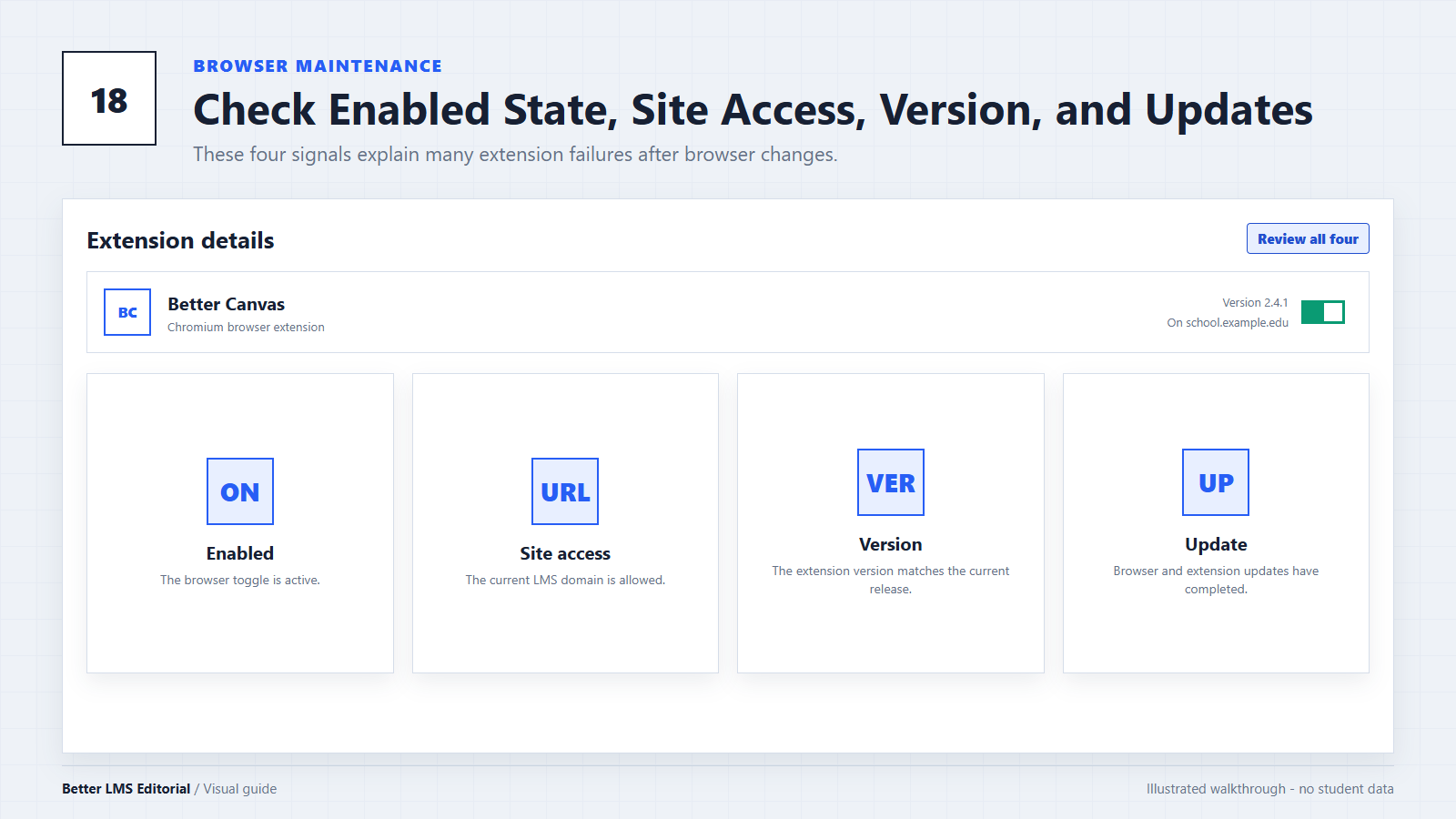
Chrome normally checks for extension updates automatically. If an update is available but has not been applied, restarting the browser may complete it.
To force an update check in Chrome:
- Open
chrome://extensions. - Enable Developer mode.
- Select Update.
- Restart Chrome and reopen Canvas.
For Edge, use edge://extensions. In Firefox, open about:addons, use the settings menu, and check for updates.
Also update the browser itself. On managed school devices, extension and browser updates may be controlled by an administrator.
Reset or Reinstall Only as a Last Step
Resetting or reinstalling may remove custom themes and saved settings. If reinstalling becomes necessary, use the current Better Canvas download.
Before doing so:
- Export your theme or record its settings if possible.
- Confirm that the problem affects every theme.
- Note the installed extension version.
- Remove the extension through the browser.
- Restart the browser.
- Reinstall it only from a trusted browser-extension store.
- Test a built-in theme before restoring custom settings.
Do not install random .crx, .zip, or modified extension packages offered by third-party download sites. For broader browser and Canvas checks, continue with Canvas troubleshooting.
How to Report a Reproducible Problem
If the problem remains, report it through the extension developer’s current support channel or public issue tracker.
Include:
- Browser name and exact version
- Better Canvas version
- Operating system
- Canvas URL format, without login tokens
- Card View, List View, or another Dashboard type
- Name or type of theme
- Whether built-in themes work
- Whether High Contrast UI is enabled
- Other visual extensions installed
- Exact steps required to reproduce the problem
Use screenshots only after hiding your name, school ID, course names, grades, assignments, and other student information.
Better LMS provides independent troubleshooting information but does not develop Better Canvas or provide official product support.
Conclusion
When a Better Canvas theme does not load, begin by identifying the exact symptom. A completely inactive extension requires different checks from a single broken theme or a page with a few unstyled sections.
Start with Card View, extension status, the selected theme, Canvas URL, and site access. Then test scheduled settings, High Contrast UI, other visual extensions, updates, and browser cache. Save resetting or reinstalling for last.
For installation, performance, and other extension problems, see our Full Troubleshooting Guide.
Editorial note: This guide is based on current Canvas documentation and publicly available Better Canvas support materials. Features and menu names may vary by browser, institution, and extension version. Better LMS is an independent editorial resource and is not affiliated with or endorsed by Canvas LMS or the Better Canvas developer.