On this page
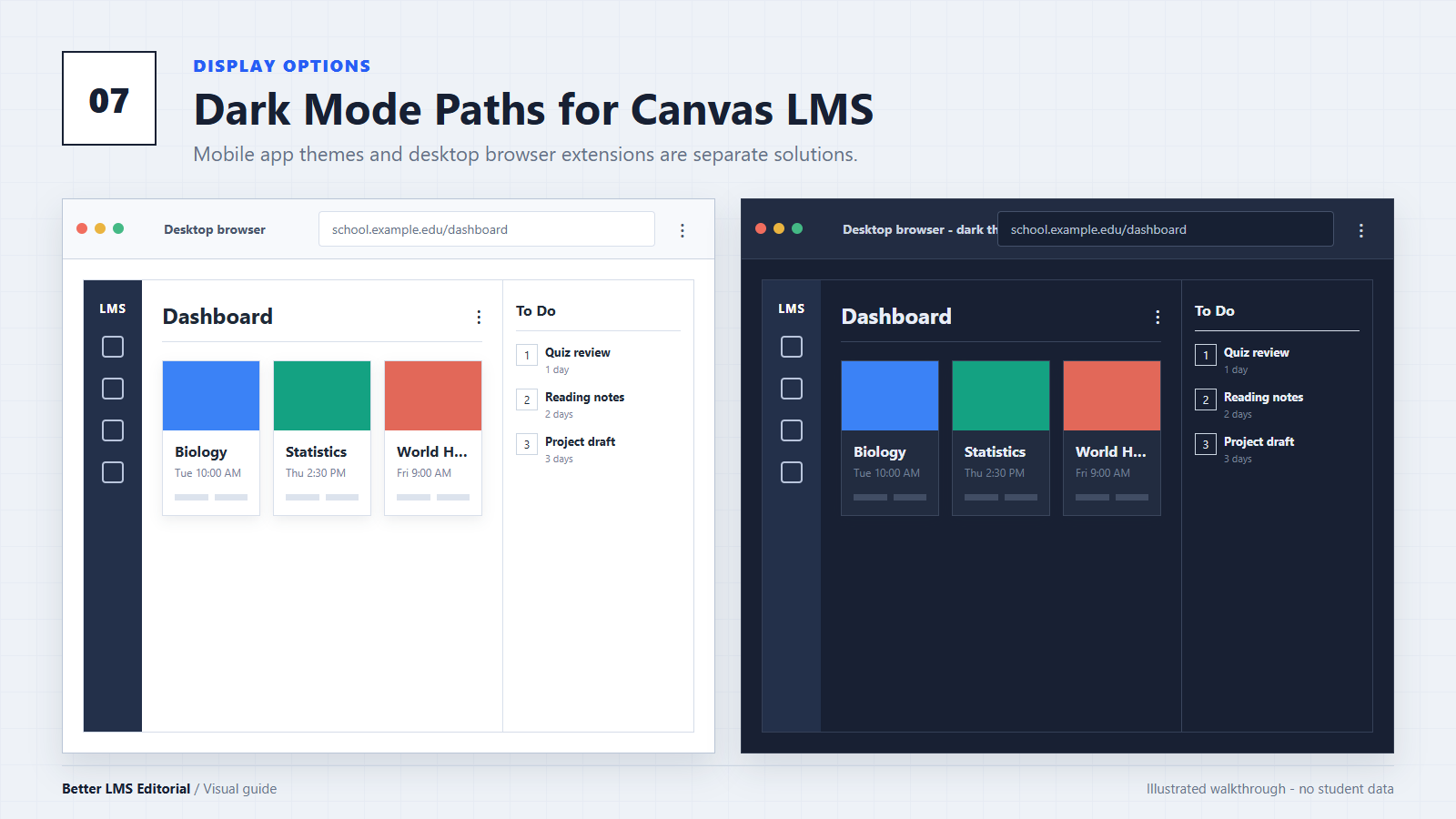
Canvas LMS looks different depending on whether you use it in a desktop browser or in the Canvas Student mobile app. That distinction matters when you are looking for dark mode.
The short answer is:
- Canvas Student on iPhone, iPad, and Android: The mobile app includes a native dark theme.
- Canvas in a desktop browser: Canvas documents a High Contrast UI option, but this is not the same as a standard dark theme. Students who want a dark desktop interface generally need a browser-based option.
- Better Canvas: This is one browser-extension option for adding a customizable dark mode to Canvas on supported desktop browsers.
This guide covers each method, explains the difference between dark mode and High Contrast UI, and shows how to troubleshoot common display problems.
Does Canvas LMS Have a Native Dark Mode?
The answer depends on how you access Canvas.
Canvas Student Mobile App
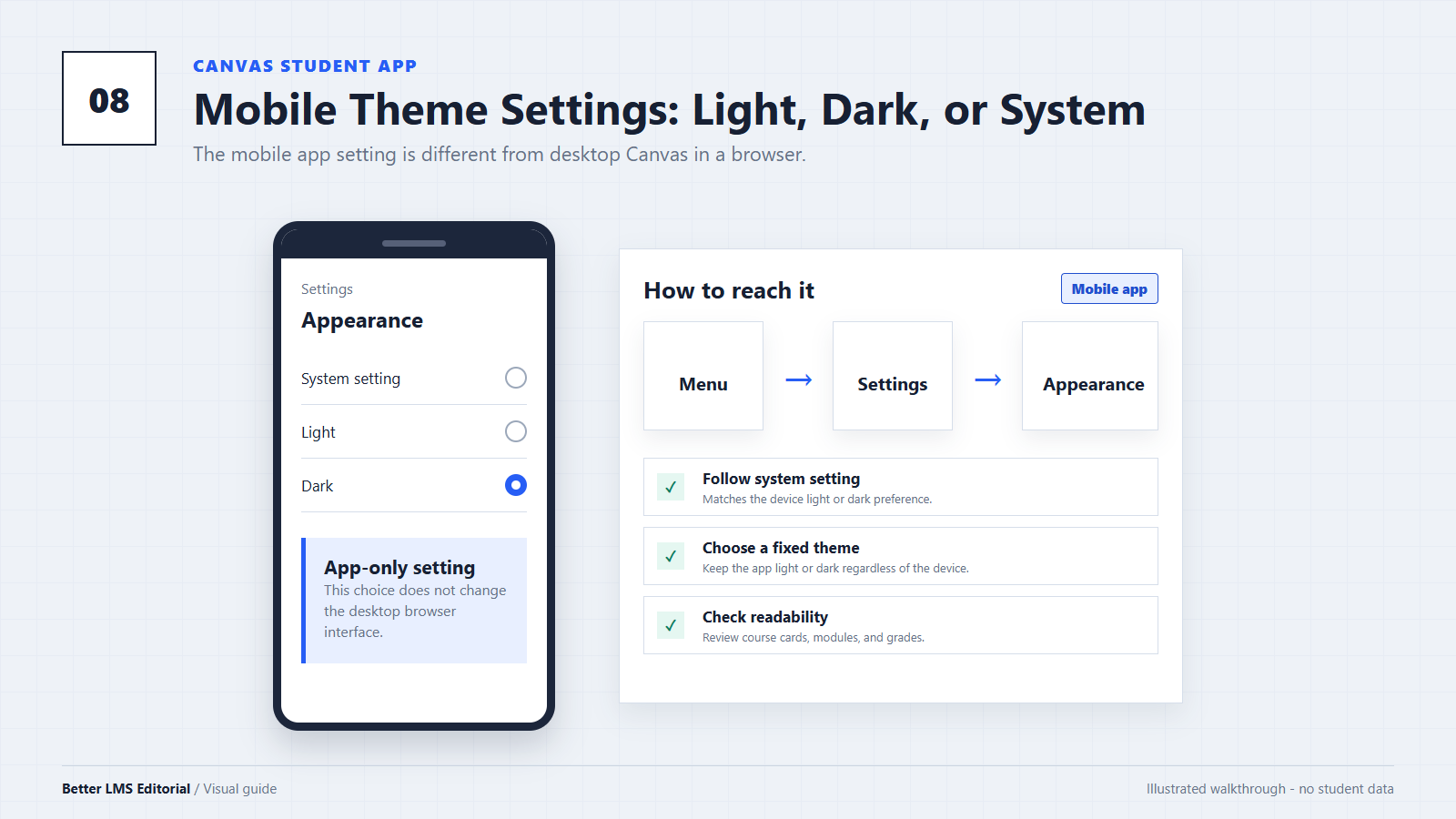
The Canvas Student apps for iOS and Android include native display themes. Current Canvas documentation describes Light, Dark, and system-based theme choices in the mobile apps.
That means students using the Canvas Student app normally do not need a browser extension just to obtain a dark interface.
Canvas in a Desktop Browser
Canvas documents a High Contrast UI option for the web interface. High Contrast UI increases the visual distinction between text, buttons, links, and other interface elements. It may also hide some institutional branding.
High Contrast UI is an accessibility setting, but it does not convert the standard Canvas web interface into a complete dark theme. A school may apply its own branding or custom styles, so individual Canvas sites can look different, but this is not the same as a standard student-controlled dark-mode switch.
Canvas explains the current High Contrast UI feature in its user feature-options documentation.
Method 1: Enable Dark Mode in the Canvas Student Mobile App
If you use Canvas on a phone or tablet, start with the native app setting.
On iPhone or iPad
- Open the Canvas Student app.
- Open the user menu from the Dashboard.
- Select Settings.
- Open Appearance or the current theme setting.
- Choose Dark, or choose the option that follows your device setting.
Canvas currently documents Light, Dark, and System Settings choices for the iOS app. Menu wording can change between app releases, so update the app if the appearance option is missing.
See the current Canvas Student iOS theme instructions.
On Android
- Open the Canvas Student app.
- Open the user menu.
- Select Settings.
- Find the display or theme option.
- Choose Dark, or select the option that follows the device theme.
The current Canvas Student Android guide describes Light, Dark, and Same as Device choices. If your app shows different wording, check for an available update before troubleshooting further.
The native mobile setting affects the Canvas Student app. It does not automatically change the Canvas website when you later open it in Chrome, Firefox, Safari, or another desktop browser.
Method 2: Check High Contrast UI on the Canvas Website
High Contrast UI is worth checking because it may improve the visibility of controls even though it is not a dark theme.
- Sign in to your school's Canvas website.
- Open Account in the global navigation.
- Select Settings.
- Look for the user feature options or the High Contrast UI control.
- Enable it and review several Canvas pages before deciding whether to keep it on.
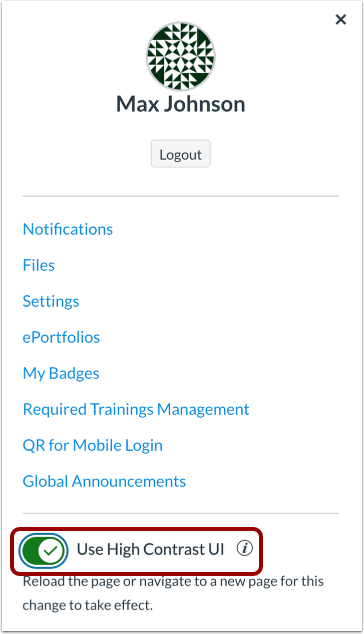
High Contrast UI may change institutional colors, logos, and other branding. It should be evaluated as a contrast and accessibility option, not as a replacement for dark mode.
If you later use a browser extension to restyle Canvas, High Contrast UI may also affect how the final page appears. When troubleshooting, compare the page once with High Contrast UI enabled and once with it disabled.
Method 3: Use Better Canvas Dark Mode on Desktop
Better Canvas is a third-party browser extension that adds interface customization features to Canvas. Its public project documentation describes customizable dark mode, automatic dark-mode scheduling, user-created themes, and an option to follow the device dark-mode setting.
The project currently lists Chrome and Firefox as supported browsers. Other Chromium browsers may be able to install the Chrome version, but browser-level compatibility should not be treated as guaranteed support for every feature. Compare Canvas browser compatibility before relying on an unlisted Chromium browser.
Step 1: Choose the Correct Browser Version
First, install Better Canvas for the browser you plan to use:
- Chrome users should use the Chrome Web Store listing.
- Firefox users should use the Firefox Add-ons listing.
- Edge and other Chromium-browser users should first check whether their browser permits Chrome Web Store extensions and then verify features individually.
Before installing, review the publisher information, requested site access, privacy details, current version, and any pricing information shown by the browser store.
Step 2: Install and Enable the Extension
Install the extension through the browser store and review its requested permissions. After installation, open your browser's Extensions menu and confirm that the extension is enabled.
The extension may need permission to run on your school's Canvas domain. If it is installed but cannot change the page, work through Better Canvas installed but not showing before changing site-access settings.
Step 3: Open the Extension Menu
Sign in to your school's Canvas website. Open the browser's Extensions menu near the address bar, then select Better Canvas.
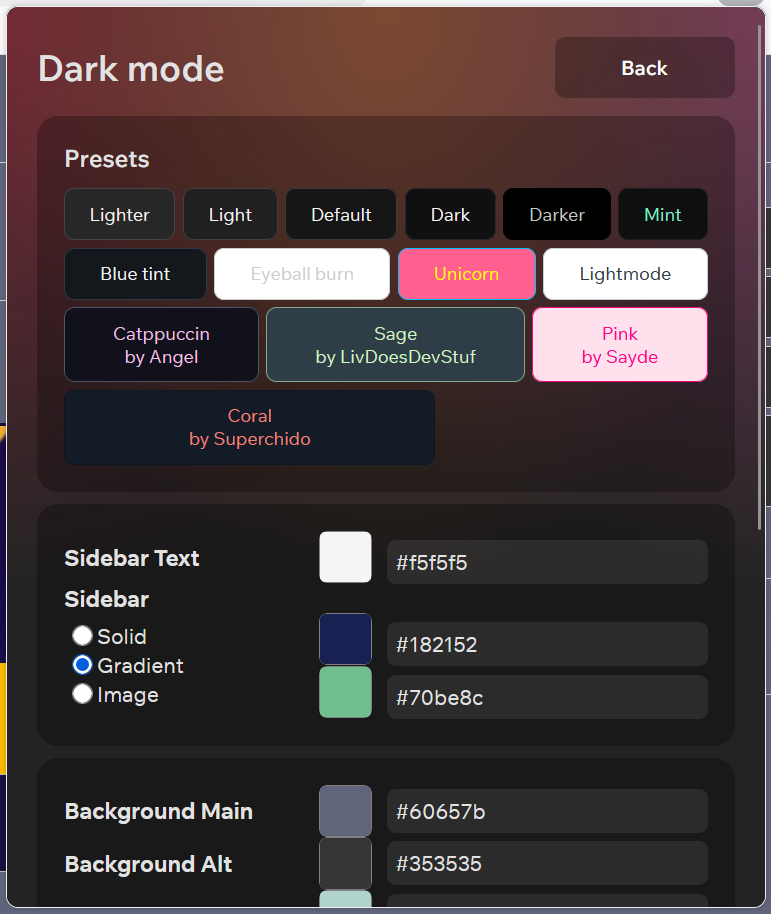
The exact menu layout and labels can change as the extension is updated. Look for a section related to dark mode, appearance, or themes rather than relying on a fixed button position from an older guide. Browse Canvas themes to compare available appearance options.
Step 4: Enable a Dark Option
Enable the available dark-mode option or select a dark preset. If the current version offers manual color controls, start with a preset before creating a custom combination.
Test one change at a time. This makes it easier to identify which setting caused a readability or layout problem.
Step 5: Check Important Canvas Pages
Do not judge compatibility only from the Dashboard. Review the parts of Canvas that you actually use:
- Dashboard and course cards
- Modules and Pages
- Assignments and submission screens
- Discussions
- Calendar and To-Do pages
- Grades
- Quizzes
- Embedded documents, PDFs, and external learning tools
Some embedded content may be controlled by a separate website or document viewer and may remain light even when the surrounding Canvas interface is dark.
The extension's public feature list is available in its public repository. Current browser-store behavior may change after this article is published.
Better Canvas Dark-Mode Features to Verify
The public project documentation identifies several dark-mode capabilities, but the current controls should still be checked in the installed version.
| Capability | What to verify |
|---|---|
| Dark-mode presets | The selected preset applies to the Dashboard and course pages you use. |
| Manual customization | Text and background colors maintain readable contrast. |
| Automatic scheduling | The mode changes at the expected time and uses the correct time zone. |
| Device-theme matching | Canvas follows the operating-system theme without switching unexpectedly. |
| User-created themes | Theme colors do not hide navigation, grades, warnings, or assignment controls. |
Do not assume that a theme name or control shown in an older screenshot still exists. Extension interfaces and available themes can change between releases.
Better Canvas vs. General Dark-Mode Extensions
Students can also use general-purpose browser extensions that attempt to restyle many websites, not only Canvas.
The two approaches serve different purposes:
| Option | Main advantage | Main limitation |
|---|---|---|
| Canvas-specific extension | May provide Canvas-focused controls, themes, and dashboard customization. | Depends on the extension keeping up with Canvas interface changes. |
| General dark-mode extension | Can apply a dark appearance across many websites. | May alter images, charts, embedded tools, or page colors in unexpected ways. |
| Browser or operating-system display setting | Does not require a Canvas-specific extension. | Brightness, color temperature, or browser chrome settings may not make the Canvas webpage itself dark. |
No single option is automatically best for every user. Choose based on browser support, permissions, visual comfort, and whether important Canvas content remains readable.
Common Problems and Fixes
The Canvas Page Is Still Light
- Confirm that the extension is enabled in the browser.
- Confirm that a dark-mode setting is enabled inside the extension.
- Review the extension's site access for your school's Canvas domain.
- Reload the Canvas tab.
- Close and reopen the browser if the extension was installed while Canvas was already open.
If your school uses more than one Canvas domain, the extension may have access to one address but not another. If the extension is active but the appearance still does not change, use Better Canvas themes not loading.
Only Part of Canvas Is Dark
Canvas can display PDFs, videos, external tools, publisher content, and embedded pages from other services. A browser extension may style the main Canvas interface without being able to restyle every embedded item.
Check whether the light area belongs to Canvas itself or to a separate website. Do not broaden extension permissions unless you understand why the additional access is needed.
Text or Buttons Are Difficult to Read
Return to the extension's default dark preset or temporarily disable custom colors. Check the same page with High Contrast UI both on and off.
If grades, warnings, submission controls, or quiz text become difficult to read, disable the theme for that task. Appearance should never make important academic information harder to understand.
The Page Briefly Flashes White While Loading
A brief light appearance can occur before an extension applies its styles. Updating the browser and extension may help, but it may not remove the transition on every page.
Avoid enabling experimental browser flags solely to force dark mode across all websites. Such settings can affect unrelated pages and can conflict with an installed dark-mode extension.
Dark Mode Stopped Working After an Update
Canvas and browser extensions both change over time. When a previously working feature stops:
- Update the browser.
- Check the browser store for an extension update.
- Disable other Canvas or dark-mode extensions temporarily.
- Test the default dark preset instead of a custom theme.
- Record which Canvas page and feature are affected.
If only one page type is affected, keep the extension disabled on that page until the compatibility problem is resolved.
Does Dark Mode Protect Your Eyes?
Dark mode is a display preference, not a medical treatment. Some users find a darker interface more comfortable in a dim room, while others read more easily with dark text on a light background.
For general viewing comfort:
- Match screen brightness to the surrounding room.
- Avoid studying in complete darkness with a very bright display.
- Increase text size when necessary.
- Take regular breaks from close-up screen work.
- Use the color scheme that keeps text and controls easiest for you to read.
Do not describe a browser theme as preventing eye damage, improving concentration, or treating eye strain. Persistent discomfort, headaches, or vision changes should be discussed with an appropriate healthcare professional.
Frequently Asked Questions
Is High Contrast UI the Same as Dark Mode?
No. High Contrast UI increases the distinction between interface elements, but it does not provide the same dark-background experience as a full dark theme.
Does Canvas Have Dark Mode on iPhone and Android?
Yes. The Canvas Student mobile apps document native dark-theme options. These settings apply to the mobile app, not automatically to the desktop website.
Does Better Canvas Work in Safari?
The project's current public documentation lists Chrome and Firefox but does not identify a Safari version. Mac users can use a listed browser instead. See our separate Safari and Mac compatibility guide for more detail.
Does Better Canvas Work in Microsoft Edge?
Edge can install many Chrome Web Store extensions because it is Chromium-based. However, the Better Canvas public documentation currently lists Chrome and Firefox, so Edge compatibility should be verified rather than described as guaranteed.
Will Dark Mode Apply to PDFs and External Tools?
Not always. PDFs, videos, publisher tools, and embedded websites may use their own viewer or color scheme. A Canvas theme may affect the surrounding page without changing the embedded content.
Conclusion
The correct way to enable Canvas dark mode depends on the platform:
- Use the native theme setting in the Canvas Student mobile app.
- Use High Contrast UI when you need stronger interface contrast on the Canvas website.
- Use a compatible browser extension when you want a dark desktop-web interface.
Better Canvas is one extension option for Chrome and Firefox users, with compatibility-based possibilities in some other Chromium browsers. Review permissions, test important Canvas pages, and choose settings that preserve readability rather than assuming every theme will work everywhere.
For browser-store links, visit our download page. For additional appearance options, see Canvas Themes and the FAQ page.
Editorial note: This independent guide was prepared by the Better LMS Editorial Team using current Canvas documentation and the extension's public project information. It does not claim undocumented testing, medical benefits, or official support from Canvas or the extension developer. Better LMS is not the developer, owner, or official support provider of the extension. Features, menus, browser support, and store information can change after publication.