On this page
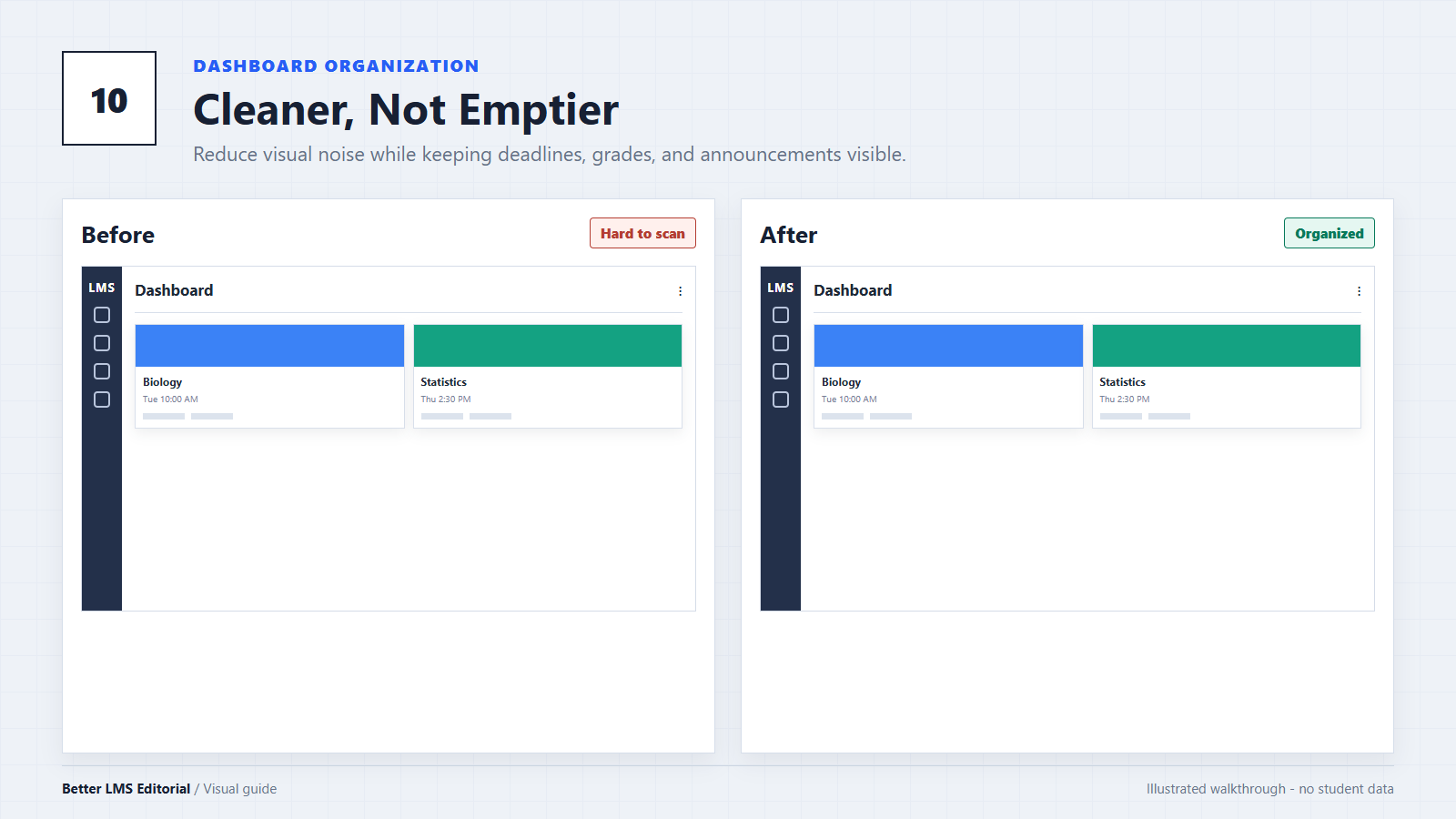
Your Canvas Dashboard should make it easier to understand what needs your attention. Unfortunately, course cards with unrelated images, similar colors, long course names, and crowded notifications can make the page difficult to scan.
A cleaner dashboard does not require hiding assignments, announcements, grades, or deadlines. Canvas already includes several useful customization options, and some institutions now offer a newer widget-based Dashboard. Browser extensions can provide additional visual controls, but they should be treated as optional.
This guide explains how to organize your Dashboard while keeping important academic information easy to find.
Start by Identifying Your Dashboard Version
Canvas now has more than one Dashboard experience. The available options depend on your institution and account.
New Customizable Dashboard
If your school has enabled it, you may see a Switch to new dashboard view button. This version lets students add, remove, and rearrange widgets such as:
- Course work: Shows assignments that are due, missing, or submitted.
- Course grades: Provides access to available course grades.
- Announcements: Displays recent announcements with read and unread filters.
- People: Provides access to course participants and Canvas Inbox messaging.
This is the best place to begin because you can change the layout without installing anything. Keep Course Work and Announcements visible before removing less important widgets.
If the switch is not available, your institution may not have enabled the new Dashboard. You can still customize the classic Dashboard.
Choose the Right Classic Dashboard View
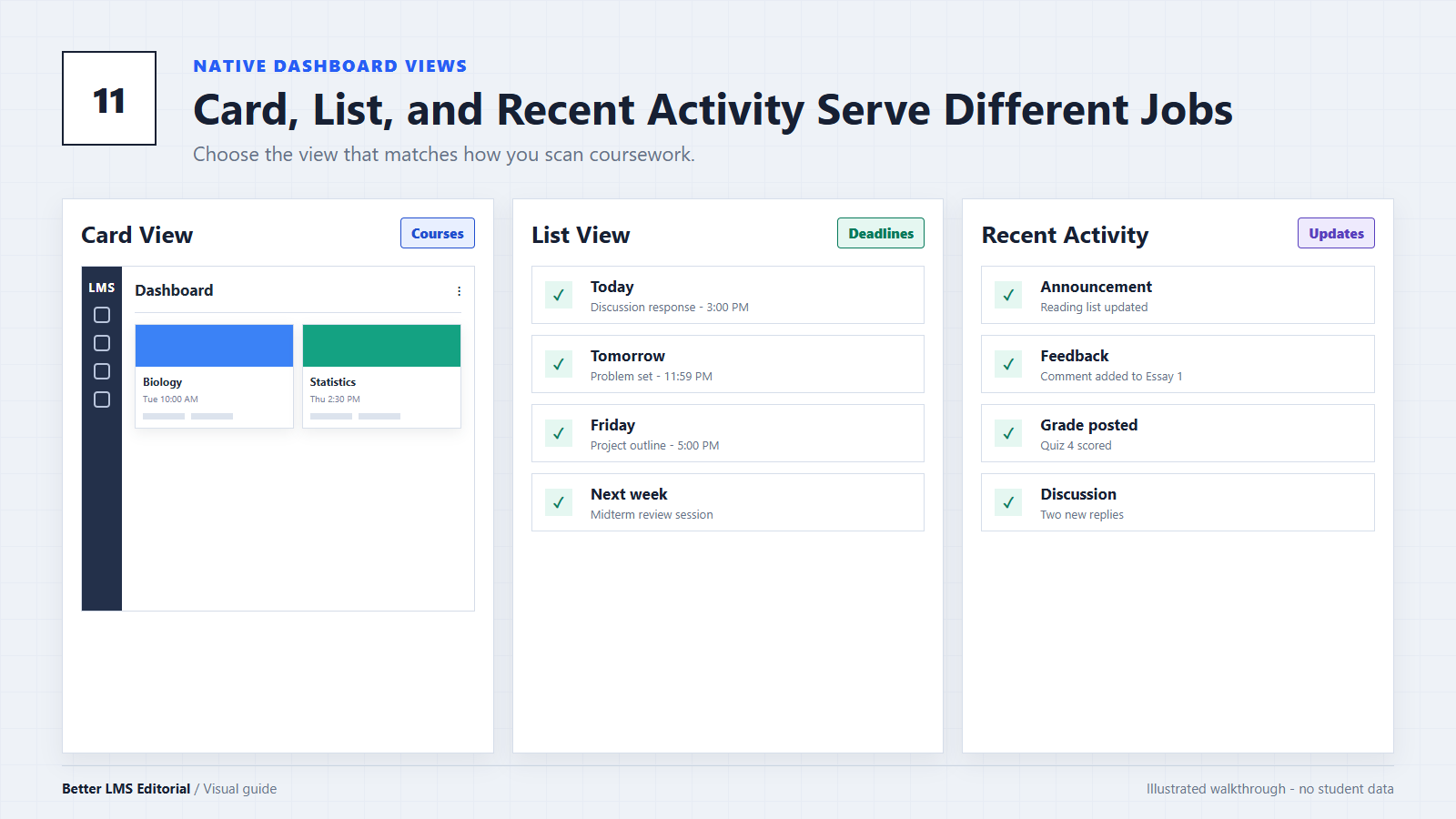
The classic Canvas Dashboard normally offers three views.
Card View
Card View displays your courses as visual cards. It is the best choice if you want to organize courses using colors, nicknames, images, and a custom order.
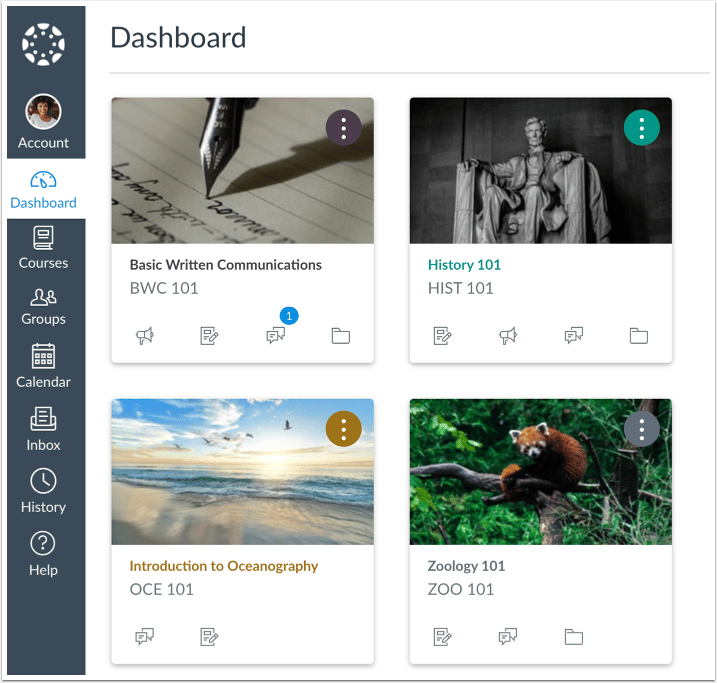
It also includes the Dashboard sidebar, where you may find the Canvas To-Do list, upcoming assignments, recent feedback, and a link to Grades.
List View
List View organizes course activity by date. It can display assignments, quizzes, discussions, announcements, calendar events, and status labels such as Missing, Late, or Unread.
Choose List View when deadlines are more important to you than course-card appearance. It is often the safest option for students who are worried about overlooking an assignment.
Recent Activity View
Recent Activity View focuses on changes across your courses, including new announcements, discussions, assignments, and other updates.
This view is useful when you want to see what has changed since your last visit, but it may feel busy during an active semester.
You can switch views through the Options menu on the Dashboard. Try each view before deciding which one supports your routine best.
Show Only the Courses You Currently Need
Removing old or inactive courses from Card View is one of the most effective ways to reduce clutter.
- Open Courses from the global navigation menu.
- Select All Courses.
- Find the courses you currently use.
- Select the star beside each course to mark it as a favorite.
After you manually favorite at least one course, Card View normally prioritizes your selected courses. This does not drop you from any course or delete course content. It only changes which courses appear prominently on your Dashboard.
Avoid hiding an active course simply because you do not use it every day. You may still need to check its announcements, modules, or grades.
Arrange Course Cards in a Useful Order
Course cards can be reordered by dragging them to a new position. You may also open a card’s Options menu and use the available move controls.
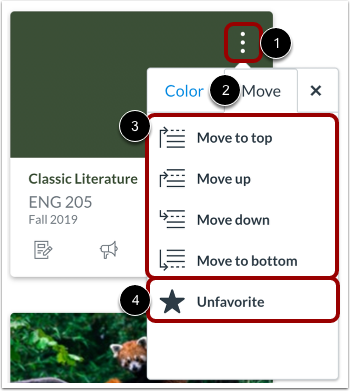
There is no single correct arrangement. Useful approaches include:
- Put courses with the nearest deadlines first.
- Arrange cards in the order of your weekly class schedule.
- Keep your most demanding courses in the first row.
- Group similar subjects together.
Do not rely on color alone. A deliberate card order remains useful for students with color-vision differences and when Canvas is viewed on a small screen.
Replace Long Course Names with Private Nicknames
Canvas courses created through a school’s Student Information System may have names such as MATH_101_SECTION_B_FALL_2026. You can replace these with shorter personal nicknames.
- Open the course card’s Options menu.
- Enter a name in the Nickname field.
- Select Apply.
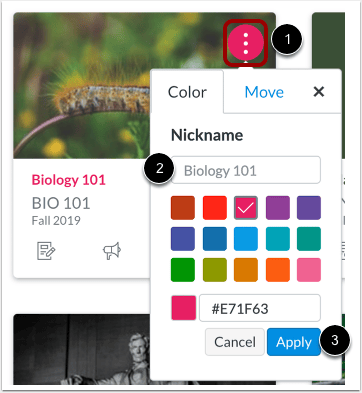
A nickname changes how the course appears to you. It does not rename the official course or change what your instructor and classmates see. Canvas also keeps the course code available, and you can view the original name by hovering over the nickname.
Keep nicknames recognizable. “Statistics” is more useful than an ambiguous label such as “Class 2.”
Create a Consistent Course Color System
Canvas lets you select a preset course color or enter a custom hexadecimal color code.
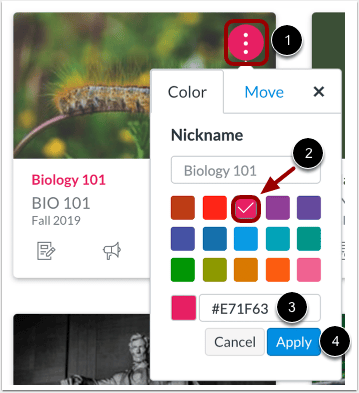
You might use one color family for each subject area, or assign contrasting colors to courses that have similar names. Course colors also appear in the Canvas Calendar, so a consistent system can make both pages easier to scan.
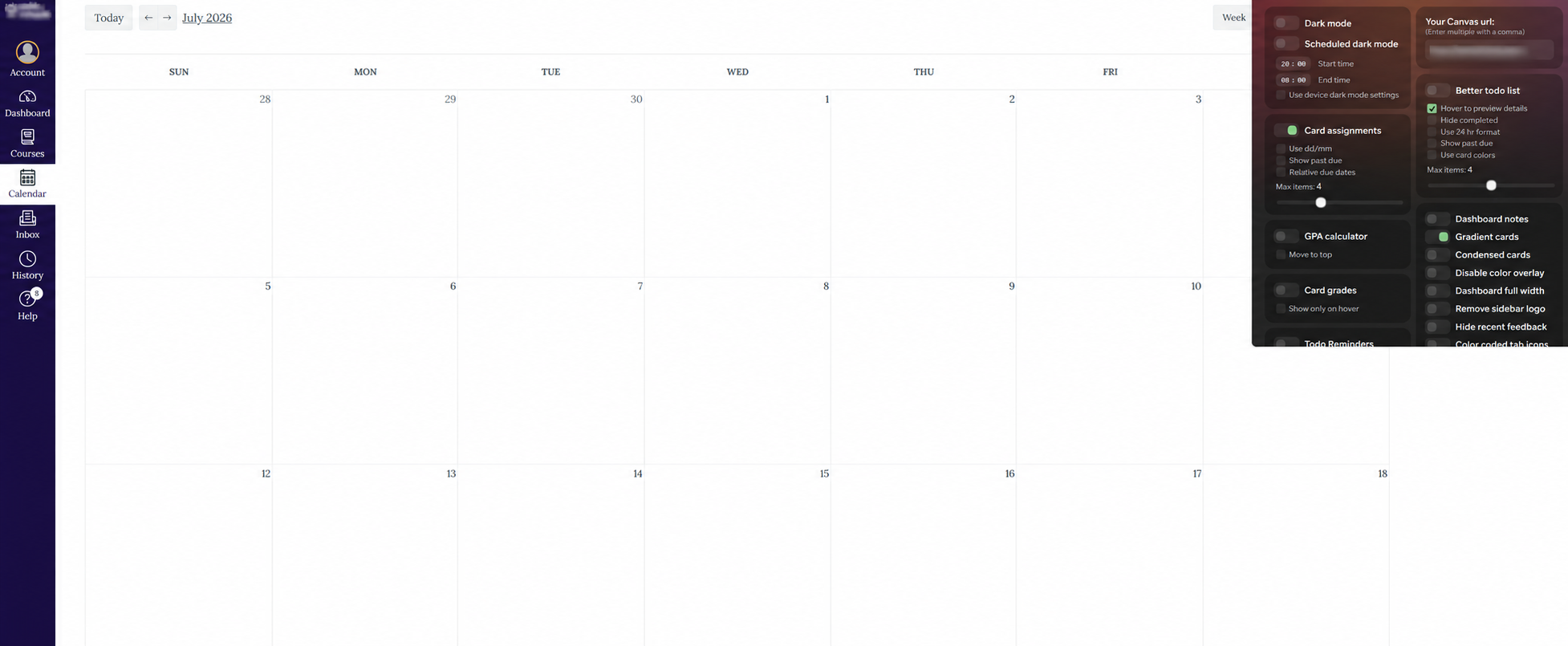
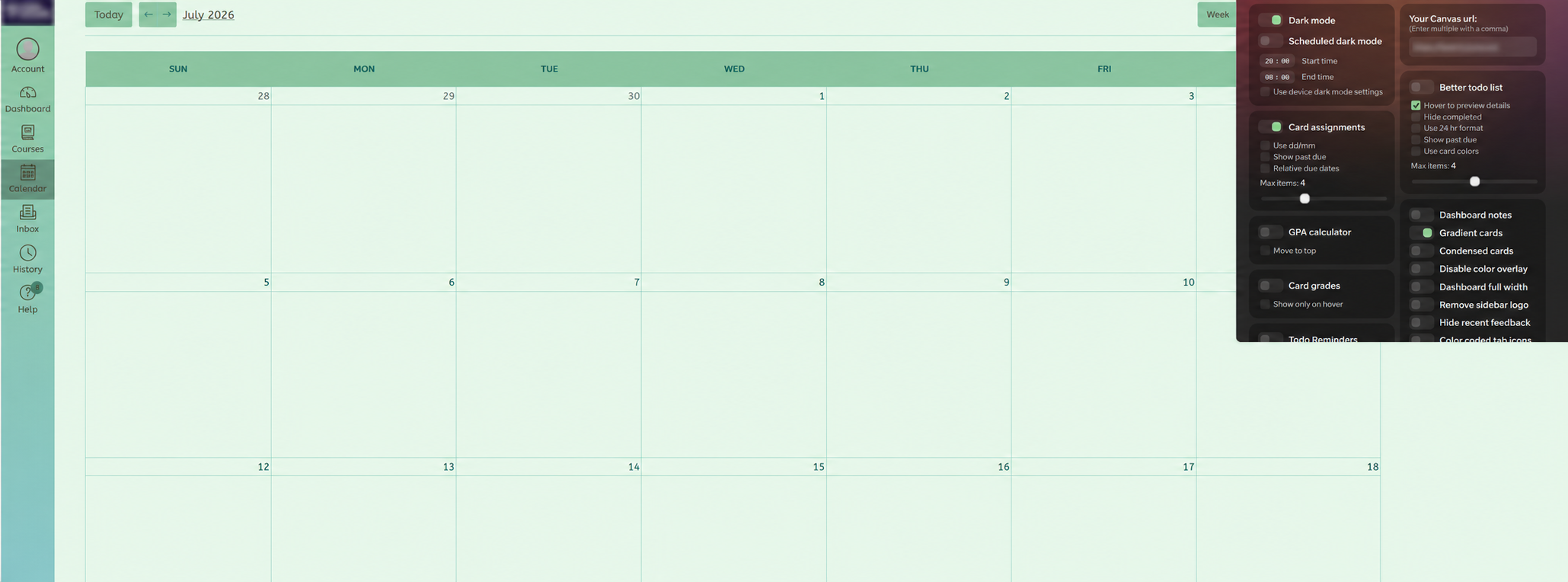
When selecting colors:
- Choose colors that are clearly different from one another.
- Check that text and icons remain readable.
- Avoid using several nearly identical dark or pale shades.
- Combine color with course nicknames and card order.
Canvas does not accept white and certain near-white values as course colors. If a custom hex code is invalid, the color field should display a warning.
Decide Whether to Use Color Overlay
Some course cards include images chosen by an instructor or institution. Canvas normally applies the course color as an overlay on top of these images.
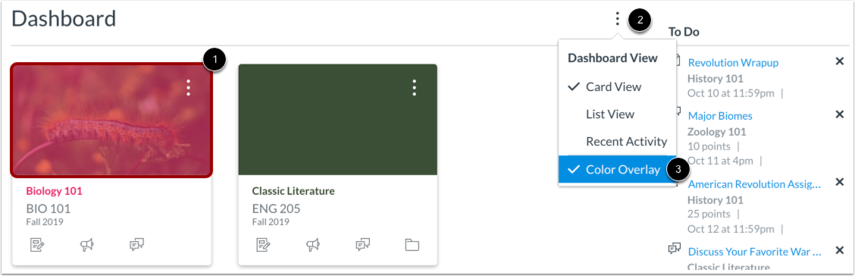
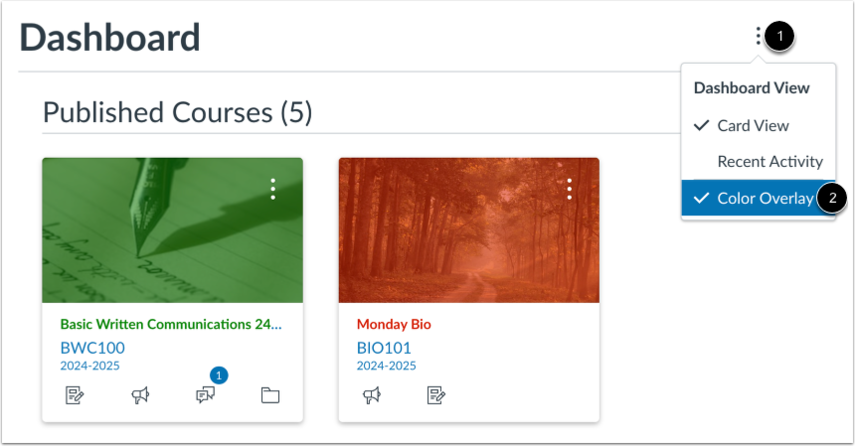
Open the Dashboard Options menu to find the Color Overlay setting.
- Keep Color Overlay enabled when you want consistent colors and less visual variation.
- Disable it when the course images themselves help you recognize each class.
This setting applies broadly to course cards with images. Try both options and keep the version that makes courses easiest to distinguish.
Keep Important Academic Information Visible
A minimal Dashboard is only useful if it still shows what requires action. After changing the layout, verify that you can still access:
- The To-Do list or Course Work widget
- Upcoming assignments and due dates
- Missing and late submission indicators
- Recent feedback
- Course grades, when your instructor allows totals to be shown
- New announcements and discussion indicators
- The Canvas Calendar
- Official course names or course codes
In Card View, course cards can include shortcuts for Assignments, Announcements, Discussions, and Files. An unread badge on Announcements or Discussions indicates new items in that area; it should not be treated as a general Inbox message.
Also remember that the To-Do list may not contain every piece of course content. An instructor may publish a page or module without adding a due date. Continue checking course Modules, Announcements, and the syllabus.
Optional: Add Better Canvas Customization
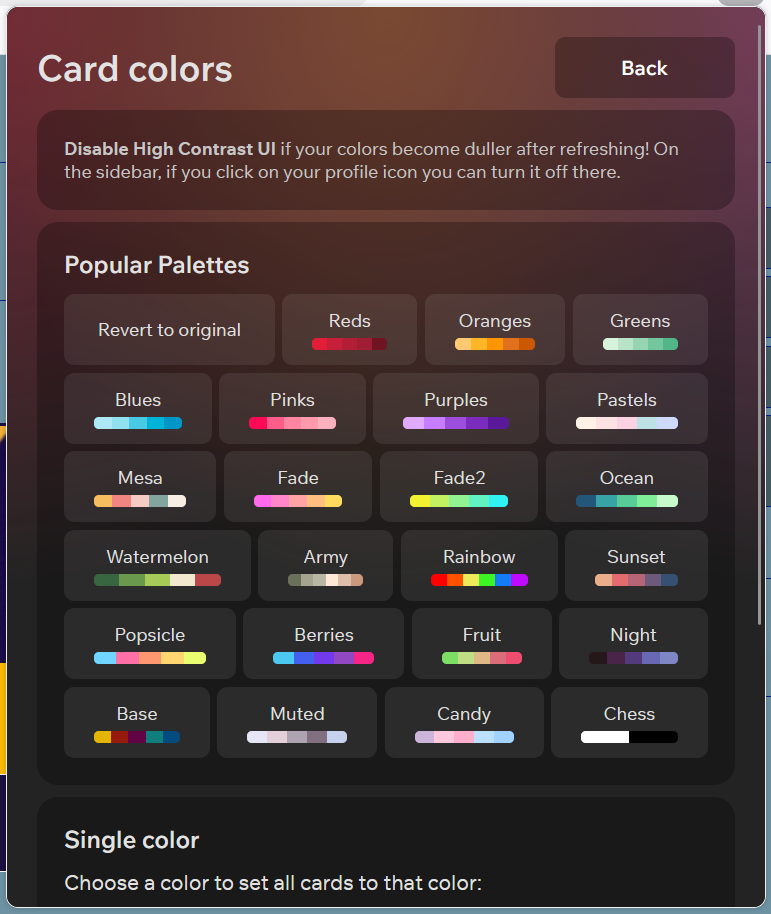
If you already use the Better Canvas browser extension, it can provide additional visual options beyond the classic Canvas interface. Its publicly documented features include dashboard color palettes, condensed cards, dashboard grades, dark mode, and advanced card customization. Compare Canvas themes before changing several appearance settings at once.
Use these controls conservatively:
- Change one option at a time.
- Reload the Dashboard and check the To-Do list, announcements, and course links.
- Confirm that text remains readable at normal browser zoom.
- Make sure the layout still works on a smaller laptop screen.
- Disable the most recent change if information disappears.
Before relying on a grade shown on the Dashboard, review how Canvas calculates grades. Dashboard grade features can only present information that Canvas makes available. They do not override grades or totals hidden by an instructor or institution, and they do not replace the official Grades page.
Feature names and availability can differ by extension version. Do not rely on an extension setting until you have verified it in your own browser.
A Practical Five-Minute Setup
For a simple and dependable Dashboard, use this order:
- Choose Card View, List View, or the new customizable Dashboard.
- Favorite only the active courses you need.
- Move important courses to the beginning.
- Add short, recognizable nicknames.
- Assign a distinct color to each course.
- Compare Color Overlay on and off.
- Confirm that To-Do, Grades, Announcements, and Recent Feedback remain accessible.
- Add optional extension customization only after the native layout works.
How to Undo Your Changes
If the Dashboard becomes harder to use, reverse one setting at a time:
- Switch back to Card View or List View.
- Turn Color Overlay back on.
- Remove a nickname to restore the original course name.
- Revisit All Courses and update your favorites.
- Drag course cards back into a familiar order.
- Temporarily disable the browser extension and reload Canvas.
Disabling the extension is also a useful troubleshooting step. Continue with Canvas troubleshooting if the problem affects the site outside the extension. If the missing information returns, an extension setting is probably responsible. If it does not, check your Canvas view or contact your school’s Canvas support team.
Conclusion
A useful Dashboard does not have to look crowded, and an attractive Dashboard should not hide academic information.
Begin with Canvas’s native tools: select the appropriate view, favorite active courses, reorder cards, create private nicknames, and use a consistent color system. After that, optional browser-extension features can provide additional customization.
The final check is simple: you should be able to identify your courses quickly while still seeing deadlines, announcements, grades, and unfinished work. For a separate estimate rather than a Dashboard display, use the Canvas Grade Calculator.
Editorial note: This guide distinguishes Canvas’s native Dashboard settings from optional browser-extension features. Availability may vary by institution, account role, browser, and software version. Better LMS is an independent editorial resource and is not the developer or official support provider of Canvas LMS or Better Canvas.