On this page
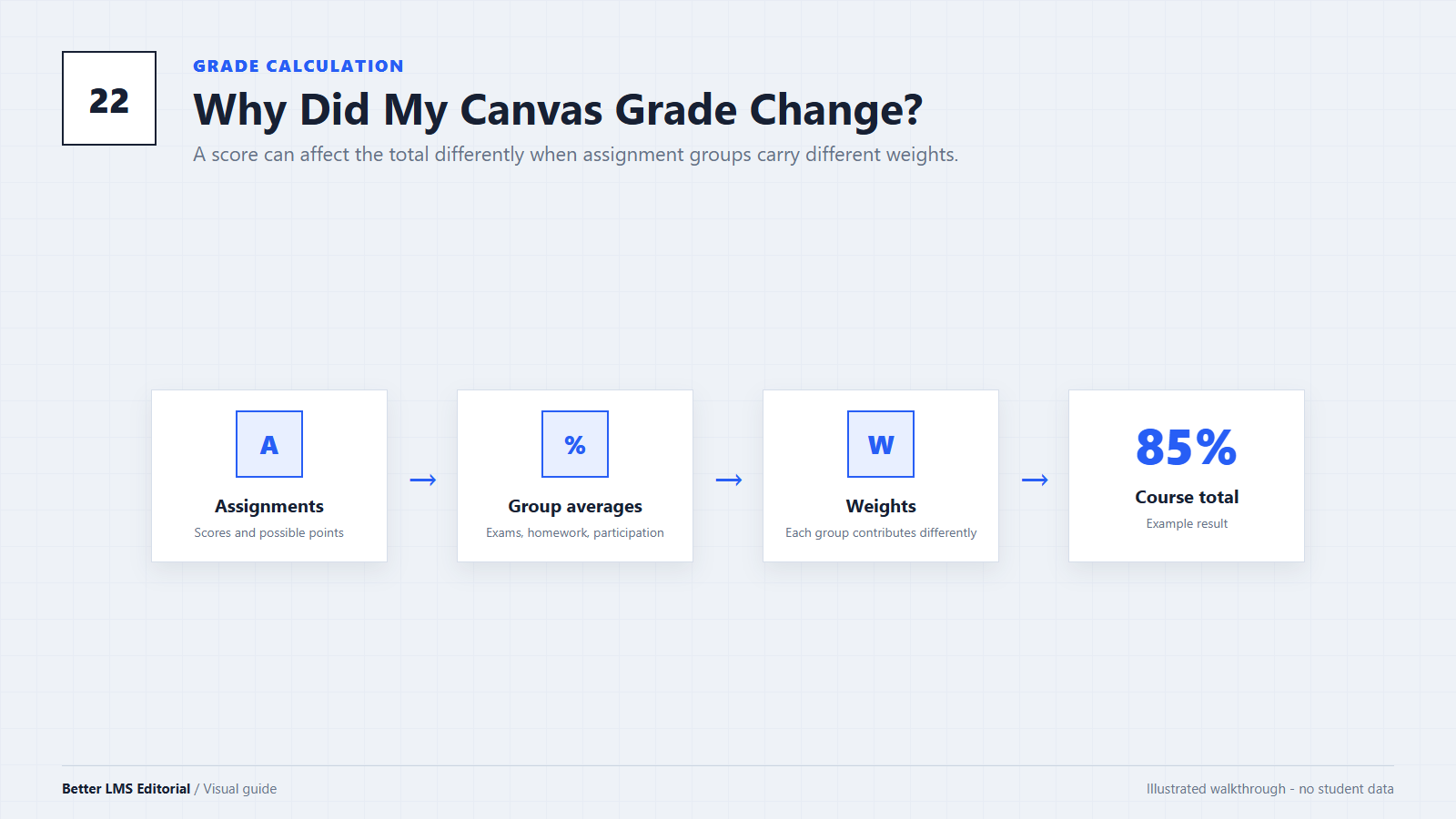
A Canvas grade does not always move the way you expect. You might earn 90% on an assignment but see your course grade increase by less than one percentage point. Another student might see an 87% without knowing whether the course treats it as an A, B, or something else.
This happens because Canvas does not use one universal grading formula. The result depends on how the instructor configured points, assignment groups, grading periods, drop rules, and the course grading scheme.
This guide explains how the main calculations work, how to test hypothetical scores, and why your Canvas percentage is not necessarily your official GPA.
Part 1: Point-Based Grades
The simplest grading method is based on total points.
Canvas adds the points you earned and divides that number by the points possible for the assignments included in the calculation.
For example:
| Assignment | Points Earned | Points Possible |
|---|---|---|
| Essay | 85 | 100 |
| Quiz | 18 | 20 |
| Homework | 47 | 50 |
| Total | 150 | 170 |
The calculation is:
150 ÷ 170 × 100 = 88.24%In an unweighted point-based course, each point generally has the same value. One point earned on homework contributes the same amount as one point earned on an exam.
However, the denominator can change when the course uses excused assignments, drop rules, or assignments that do not count toward the final grade.
Part 2: Current Grade vs Total Grade
Canvas normally calculates two different course grades:
Current Grade
The current grade is based only on assignments that have already been graded. Ungraded assignments are excluded from this calculation by default.
On the Grades page, this is usually shown when Calculate based only on graded assignments is selected.
Total Grade
The total grade includes both graded and ungraded assignments. Because no points have yet been earned on ungraded work, including those assignments may make the displayed total lower.
To compare the two calculations:
- Open the course.
- Select Grades.
- Find Calculate based only on graded assignments.
- Select it to view the current grade.
- Clear it to view the total grade.
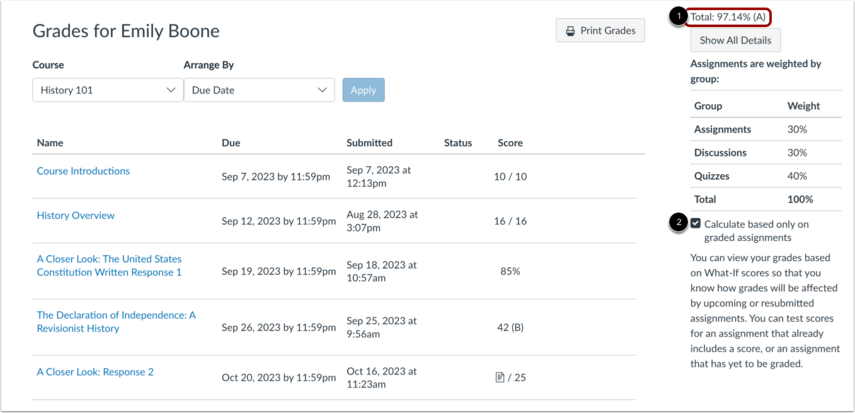
Your instructor may restrict students from seeing current grades, total grades, or assignment-group percentages. Multiple grading periods can also change which totals are available.
The current grade answers:
How am I doing on the work that has been graded?
The total grade answers:
What does the calculation look like when all currently listed work is included?
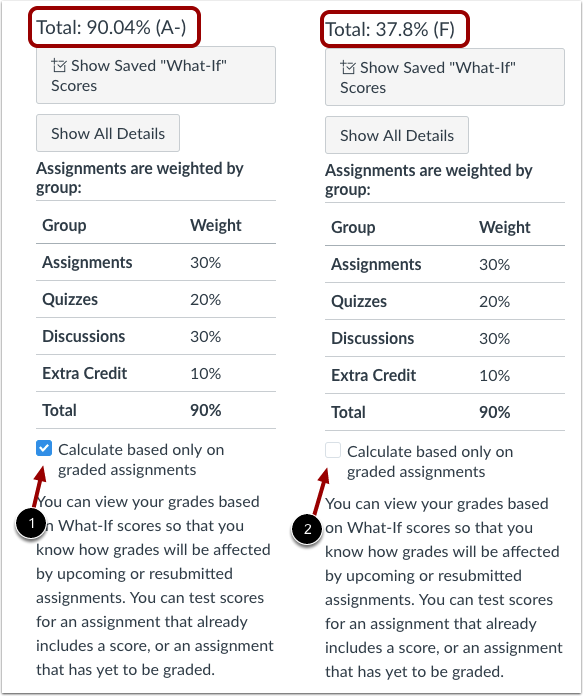
Neither number guarantees your final course grade. Future assignments, grade changes, extra credit, and instructor adjustments may still affect the result. If grades are displayed on your Dashboard, review Canvas Dashboard customization before treating that summary as the full grade record.
Part 3: Weighted Assignment Groups
Some courses divide assignments into categories and give each category a percentage of the final grade.
For example:
| Assignment Group | Course Weight |
|---|---|
| Exams | 50% |
| Homework | 30% |
| Participation | 20% |
Suppose your group scores are:
- Exams: 70%
- Homework: 100%
- Participation: 100%
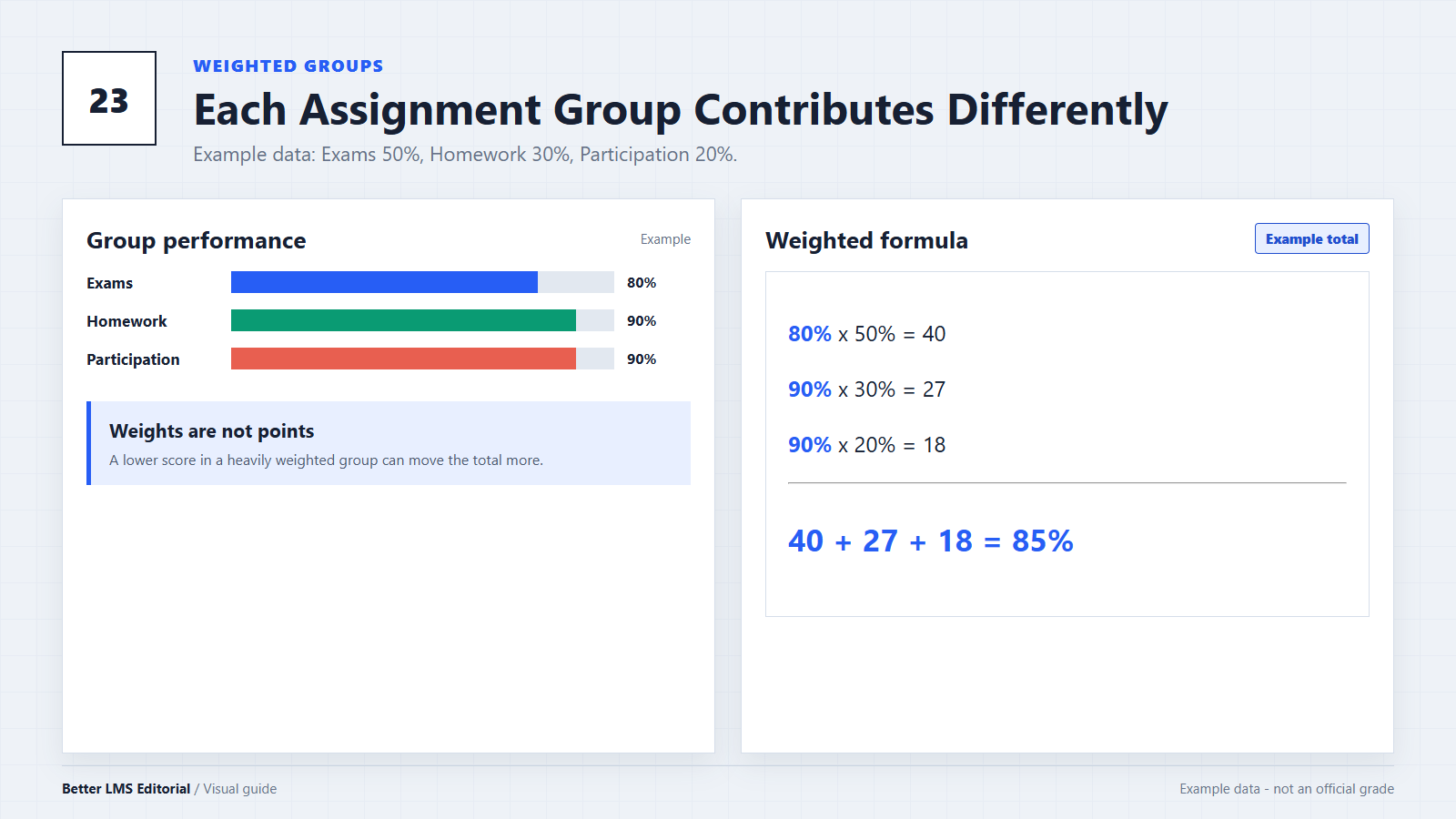
Canvas calculates the contribution from each group:
Exams:        70% × 50% = 35%
Homework:    100% × 30% = 30%
Participation:100% × 20% = 20%
The resulting course grade is:
35% + 30% + 20% = 85%Perfect homework and participation scores cannot completely offset the exam average because those two groups represent only half of the course grade.
The general formula is:
Group contribution = Group score × Group weightCanvas then adds the contributions from the applicable groups.
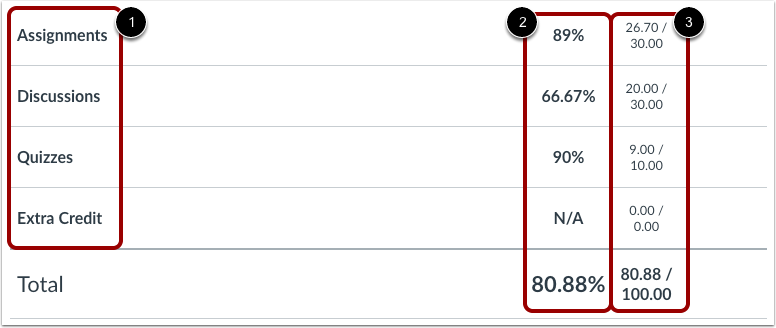
Part 4: How Points Work Inside a Weighted Group
Weighted groups do not normally make every assignment inside the group equal.
Canvas first calculates the score within a group using the points earned and points possible for the assignments included in that group.
Suppose the Exams group contains:
| Exam | Points Earned | Points Possible |
|---|---|---|
| Midterm | 80 | 100 |
| Short Exam | 18 | 20 |
| Total | 98 | 120 |
The Exams group score is:
98 ÷ 120 × 100 = 81.67%It is not calculated by averaging 80% and 90% equally. The 100-point midterm has more influence than the 20-point exam.
Canvas then multiplies the 81.67% group score by the group’s course weight.
This is why averaging all assignment percentages by hand often produces a different result from Canvas.
Part 5: How to Identify Your Course’s Grading Method
You can usually find the grading structure on the course Grades page.
- Open the course.
- Select Grades in Course Navigation.
- Look for the assignment groups shown in the grade summary.
- Check whether percentages appear next to the group names.
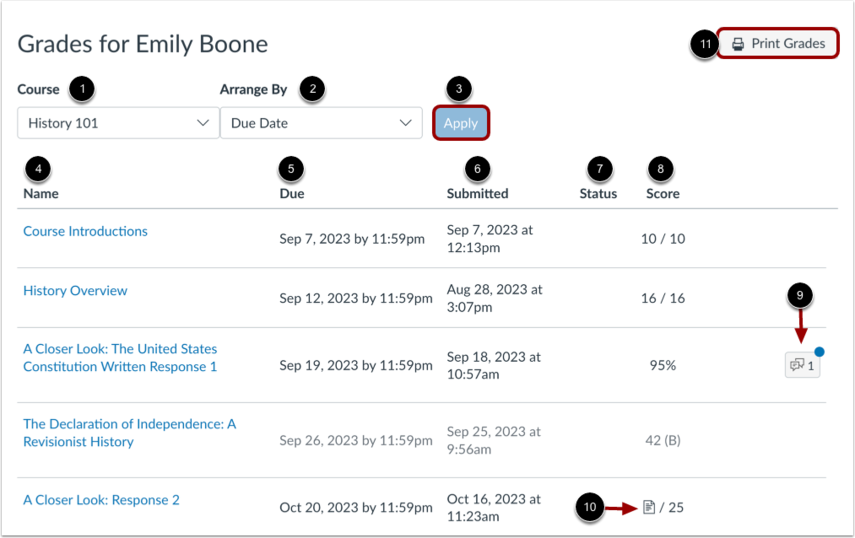
If you see categories such as Exams 50% and Homework 30%, the course is using weighted assignment groups.
If no group weights appear, the course may be using a point-based calculation. However, that is not guaranteed. The instructor may have hidden totals, restricted assignment-group percentages, or enabled grading periods that change what you can see.
The course syllabus and grading policy remain the best sources for confirming:
- Assignment-group weights
- Letter-grade boundaries
- Drop rules
- Extra-credit policies
- Rounding rules
- Final-grade adjustments
If the syllabus and Canvas appear to disagree, ask the instructor before relying on a manual calculation.
Part 6: Using What-If Scores
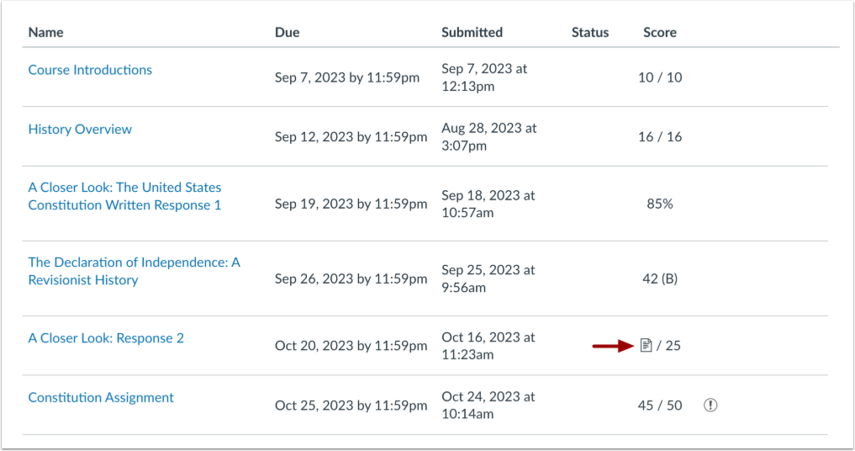
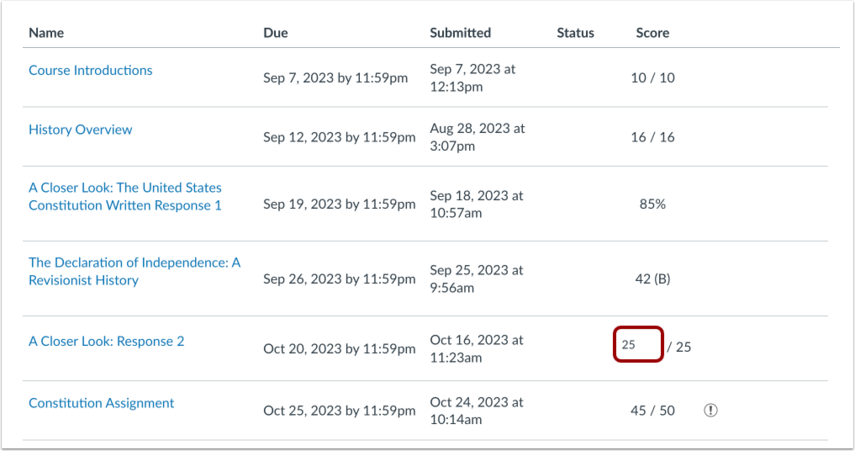
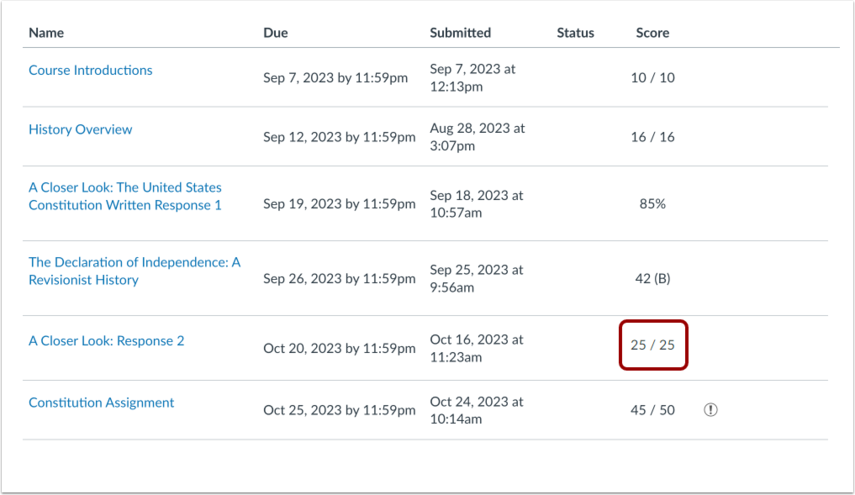
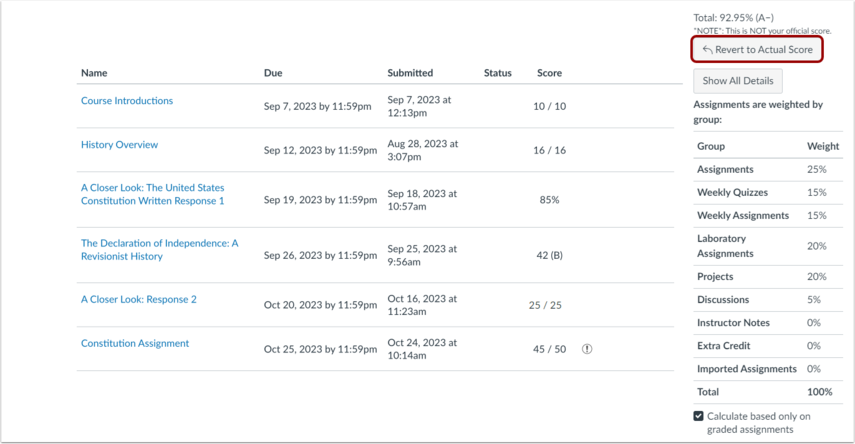
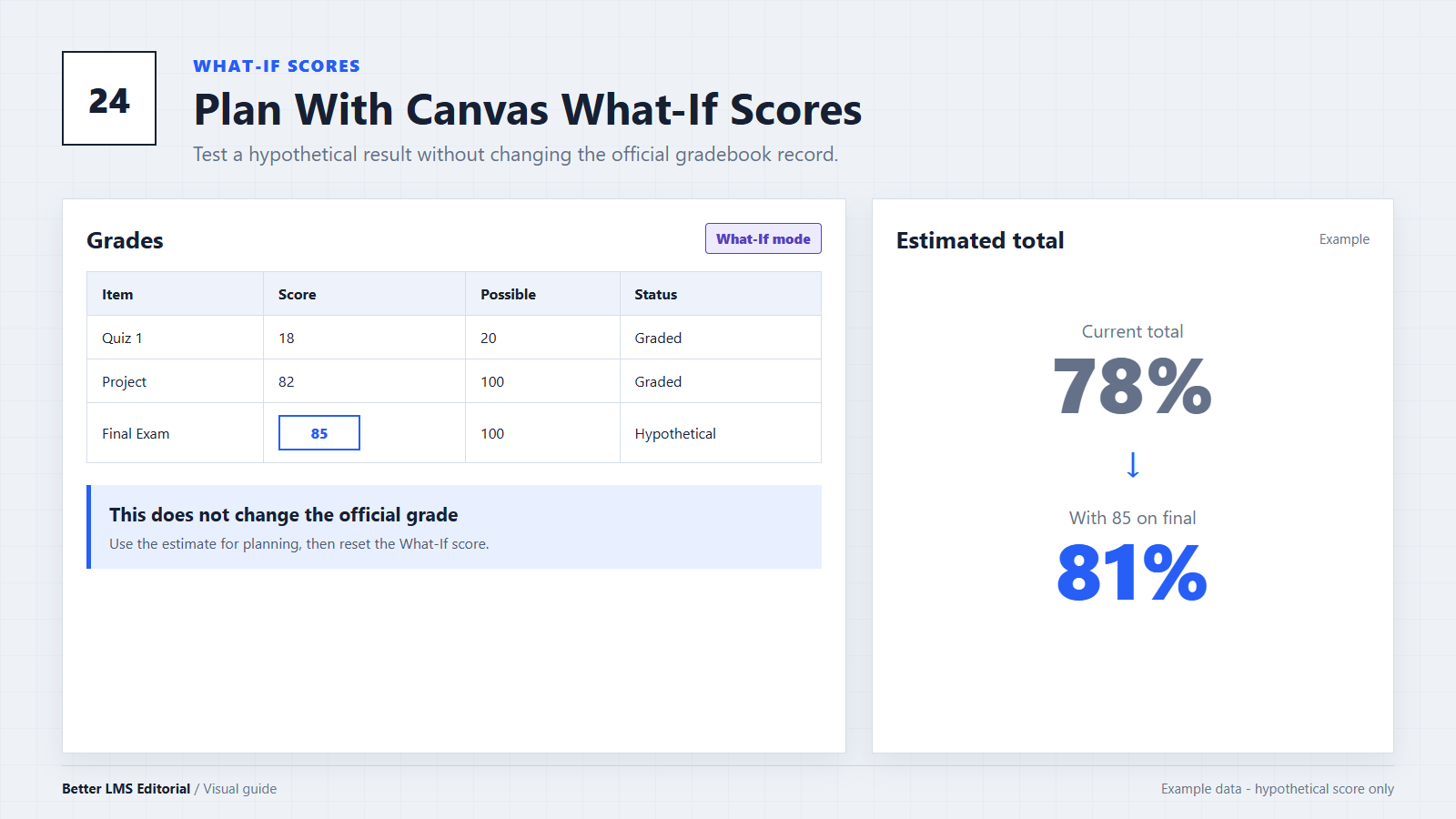
Canvas includes a student planning tool called What-If Scores. It lets you enter a hypothetical score and see how that score would affect the displayed course calculation.
To use it on the web version of Canvas:
- Open the course Grades page.
- Select the score field for a graded or ungraded assignment.
- Enter a hypothetical score.
- Review the updated current or total grade.
- Use Revert to Actual Score when you want to remove the hypothetical result.
What-If Scores do not:
- Change the grade recorded by the instructor
- Submit an assignment
- Guarantee a future course grade
- Account for an instructor changing the grading structure later
For example, suppose your syllabus defines 80% as the minimum for a B. You can enter several possible final-exam scores to estimate what result might raise your course calculation to 80%.
The web version of Canvas may retain saved What-If Scores until you revert them. The Canvas mobile app can behave differently and may not save hypothetical scores after you leave the page.
What-If availability and displayed totals may also be affected by hidden grades, grading periods, or institution-level settings.
Part 7: Drop Rules, Extra Credit, and Grading Periods
Basic formulas do not explain every Canvas grade. Several course settings can modify the result.
Drop Rules
An instructor can configure an assignment group to drop one or more of the lowest or highest scores.
When a score is dropped, it should no longer contribute to the group calculation. Canvas may visually mark the affected assignment on the Grades page.
Do not assume that the lowest percentage will always be dropped. Course rules and point values can affect which score Canvas removes.
Excused Assignments
An excused assignment is generally excluded from the student’s grade calculation. It should not be treated as an ordinary zero.
Extra Credit
Canvas instructors can implement extra credit in several ways. They may add bonus points, create an extra-credit assignment, or use a specially weighted assignment group.
Because the setup varies, the effect may not be obvious from a simple points calculation.
Grading Periods
Courses can divide assignments into grading periods, such as quarters or semesters. The Grades page may initially display only the current period.
When grading periods are enabled:
- Different periods may contain different assignments.
- Periods may have their own weights.
- The all-periods total may be unavailable.
- Hidden totals can also limit What-If calculations.
Always confirm which grading period you are viewing before comparing your result with the syllabus.
Part 8: Percentage Grades vs Letter Grades
An 87% does not have one universal letter-grade meaning.
A course might define:
| Percentage | Letter Grade |
|---|---|
| 93–100% | A |
| 90–92.99% | A- |
| 87–89.99% | B+ |
| 83–86.99% | B |
Another course may use different boundaries.
Canvas can display a letter grade when the course uses an enabled grading scheme. If no grading scheme is enabled, you may see only points or a percentage.
Do not assume that Canvas will round your displayed percentage into the next letter grade. Use the grading scheme in the syllabus and ask the instructor how rounding is handled.
Part 9: Why Your Canvas Grade Is Not Your Official GPA
The standard Canvas Grades page reports performance within individual courses. It is not normally the official system of record for a student’s cumulative GPA.
An official GPA usually requires information such as:
- Final letter grades
- Grade points assigned to each letter
- Credit hours for each course
- Pass/fail rules
- Repeated-course policies
- Transfer-credit policies
- Withdrawals and incomplete grades
- Institutional grade-replacement rules
A common GPA formula is:
GPA = Sum of (grade points × course credits) ÷ total GPA creditsBut the grade-point scale and the courses included in that formula vary by institution.
Some schools may add a custom GPA tool or integration to Canvas. Even then, the official result should be confirmed through the school’s:
- Student Information System
- Registrar portal
- Academic record
- Official transcript
For a separate estimate, enter the same values in the Canvas Grade Calculator, then compare the result with Canvas and your institution's official records. A third-party calculator cannot apply every institutional rule unless those rules and all official grades are entered correctly.
Part 10: Common Calculation Mistakes
Mistake 1: Averaging Assignment Percentages Equally
A 10-point quiz and a 100-point exam do not normally have equal influence inside the same group.
Use earned points divided by possible points for the group.
Mistake 2: Confusing Current Grade With Total Grade
A high current grade may exclude several ungraded assignments. Compare the current and total calculations when both are available.
Mistake 3: Treating Every Blank Score as a Zero
A blank or ungraded assignment is not necessarily an instructor-recorded zero. Check whether the assignment is ungraded, missing, excused, or assigned an actual zero.
Mistake 4: Ignoring Assignment-Group Weights
A strong score in a low-weight group may have less effect than a moderate score in a high-weight group.
Mistake 5: Forgetting Drop Rules or Grading Periods
The score you expect to count may be dropped, or you may be viewing only one grading period.
Mistake 6: Treating a Course Percentage as a GPA
A course percentage is only one input in a much larger institutional GPA calculation.
Conclusion
To understand a Canvas grade, start with four questions:
- Is the course point-based or group-weighted?
- Am I viewing the current grade or the total grade?
- Are drop rules, extra credit, or grading periods involved?
- Does the syllabus define a letter-grade scheme?
Use What-If Scores for planning, but treat them as estimates. For deadline planning around future assignments, compare the Canvas To-Do workflow. For more student-focused setup and troubleshooting, browse Canvas tutorials. For official course grades, contact the instructor. For an official cumulative GPA, use the school’s student information system or registrar records.
Understanding the calculation will not change the grade by itself, but it can help you identify where the number comes from and make better decisions about future assignments.
Editorial note: This guide is based on current Canvas documentation and worked calculation examples. Better LMS is an independent editorial resource and is not connected with Instructure or any educational institution. Course settings and institutional grading policies vary. Always use information from your instructor, registrar, or official student record when making academic decisions.