On this page
Canvas can display assignments, quizzes, announcements, and other course activity in several places. The small To-Do list on the Dashboard is the most visible, but it is only a summary of upcoming work. It is not Canvas’s complete task-management system.
Before installing an extension, identify what is actually missing from your workflow. You may only need Canvas List View, or you may benefit from better filters, weekly progress tracking, browser reminders, or integration with a separate planner.
This guide explains what Canvas already provides, what task extensions can add, and how to evaluate a tool without giving it unnecessary access to your school data.
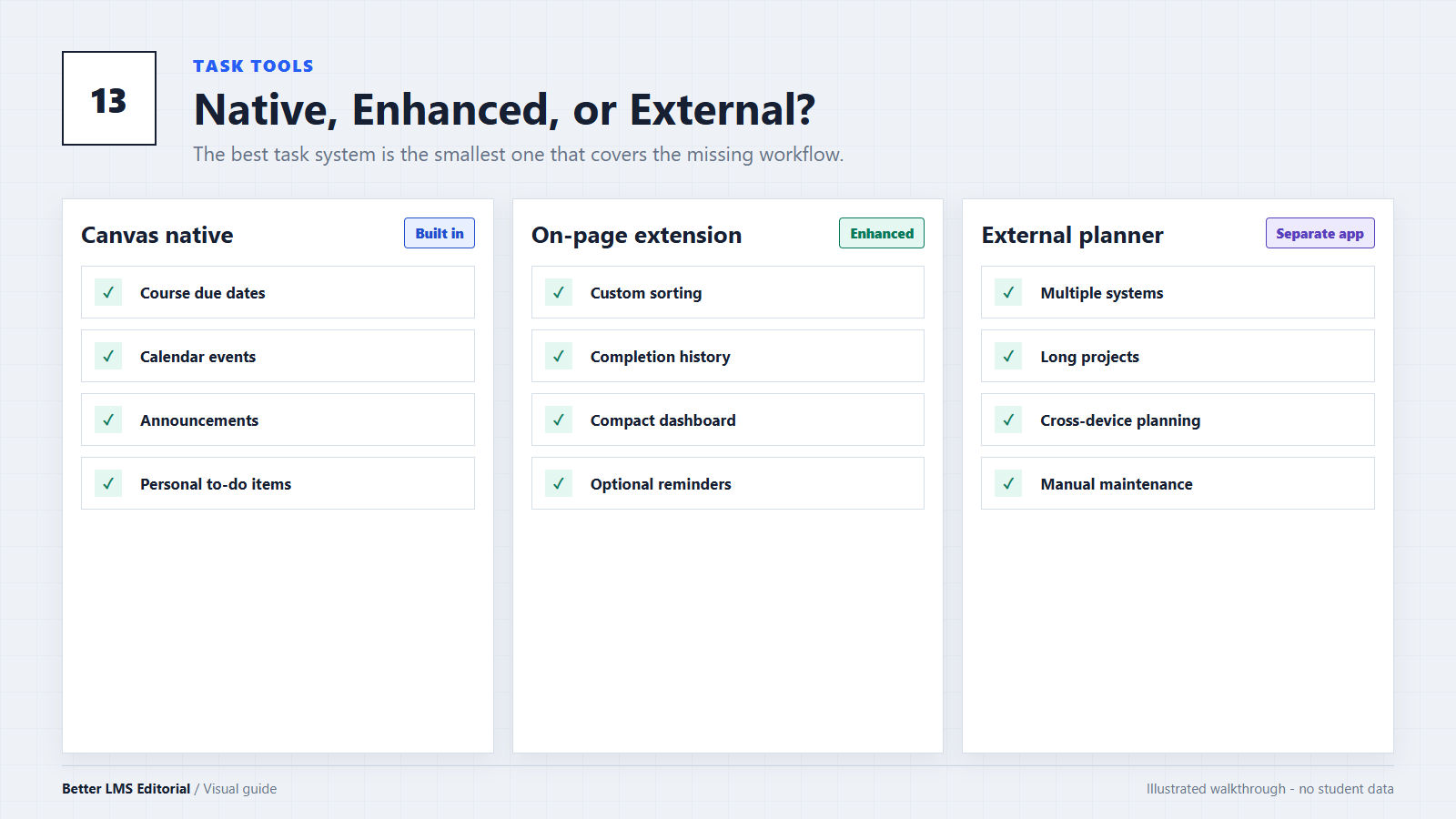
What Canvas Already Provides
The classic Canvas Dashboard has two task-related interfaces that are easy to confuse.
Dashboard Sidebar
The sidebar appears in Card View and Recent Activity View. It provides a short summary of upcoming assignments, events, announcements, and recent feedback across your active courses.
According to Canvas’s current documentation, the sidebar normally shows up to seven upcoming items. Selecting Show All opens the more complete List View.
The sidebar is useful for a quick check, but it is intentionally compact. A short list does not necessarily mean that Canvas has no additional tasks available.
List View Dashboard
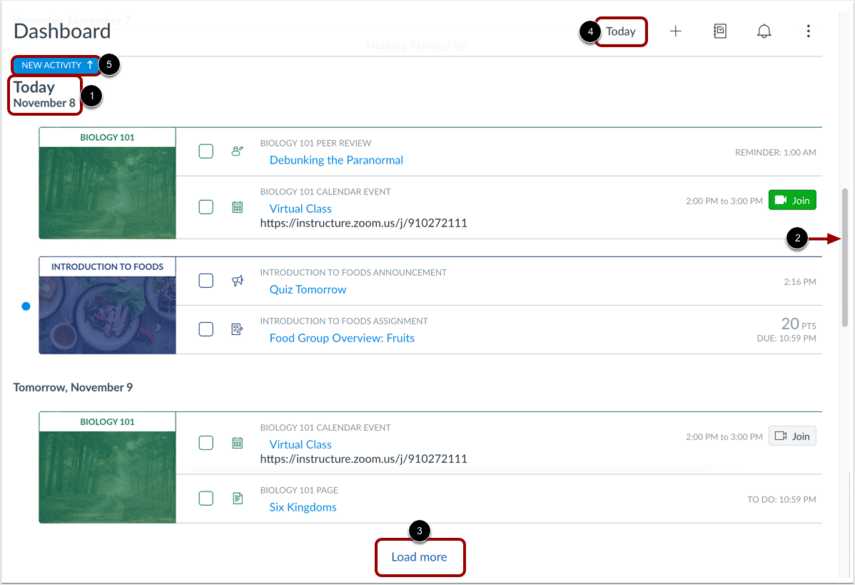
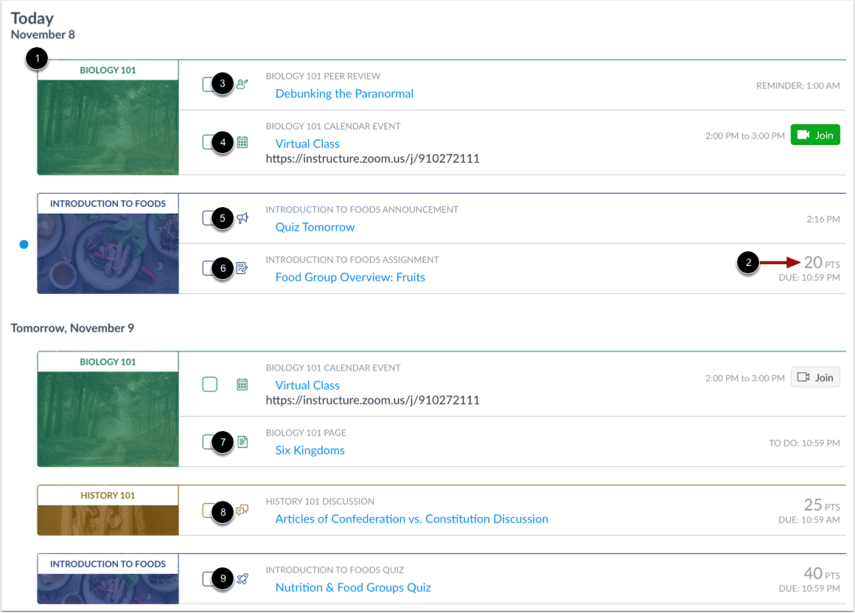
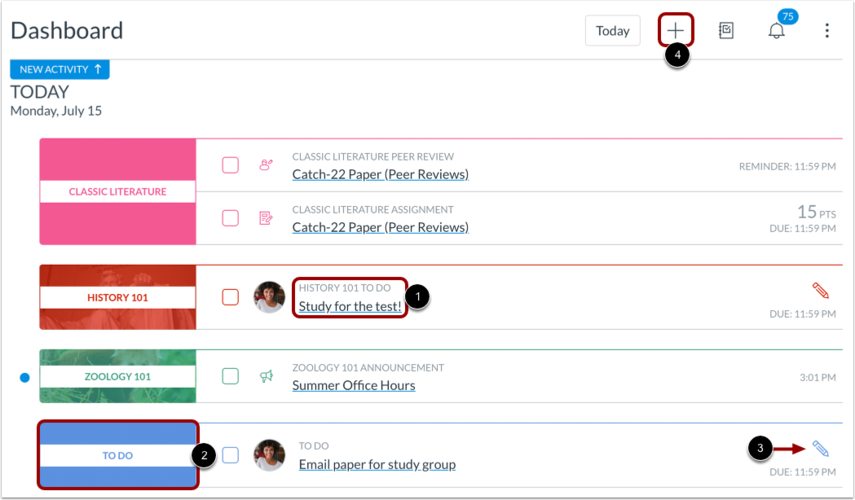
List View is Canvas’s more complete task interface. It can display assignments, quizzes, discussions, announcements, calendar events, and other course items in date order.
It also supports features that are sometimes mistakenly described as extension-only:
- Adding personal To-Do items
- Associating personal tasks with a course
- Creating general tasks that are not connected to a course
- Editing personal tasks
- Viewing future dates
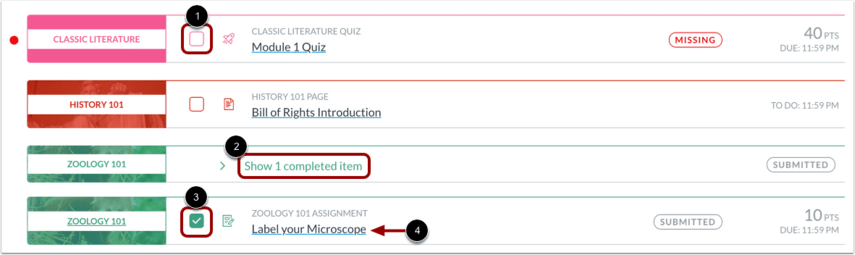
- Manually completing non-graded tasks
- Viewing previously completed items
- Identifying Missing, Late, Unread, Feedback, and Redo statuses
Submitted graded assignments are normally marked complete automatically. Personal and other non-graded tasks can be checked off manually.
To open List View, go to the Dashboard, open the Options menu, and select List View.
New Customizable Dashboard
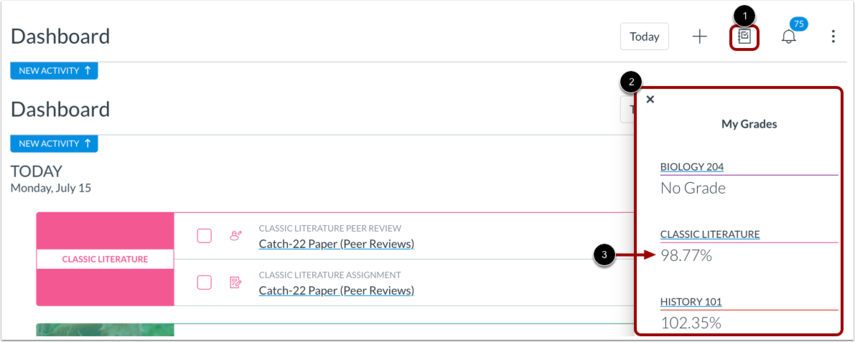
Some institutions also provide a newer Dashboard with widgets for Course Work, Course Grades, Announcements, and People. If you see Switch to new dashboard view, try its Course Work widget before adding an extension. For broader layout decisions, review Canvas Dashboard customization.
Availability depends on your school and account type.
When Is a To-Do Extension Actually Useful?
Canvas’s native tools may be enough if you only need assignment dates and occasional personal reminders. An extension becomes more useful when it solves a specific limitation, such as:
- Displaying an entire week in one compact panel
- Separating overdue, upcoming, and completed work
- Filtering assignments by course
- Showing progress totals or completion charts
- Providing clearer deadline countdowns
- Previewing assignments without leaving the Dashboard
- Sending browser reminders outside the Canvas tab
- Combining task information with other Dashboard enhancements
An extension cannot reveal an unpublished assignment or correct an incorrect due date entered by an instructor. Canvas, the course syllabus, and your instructor’s announcements remain the authoritative sources.
The Main Types of Canvas Task Tools
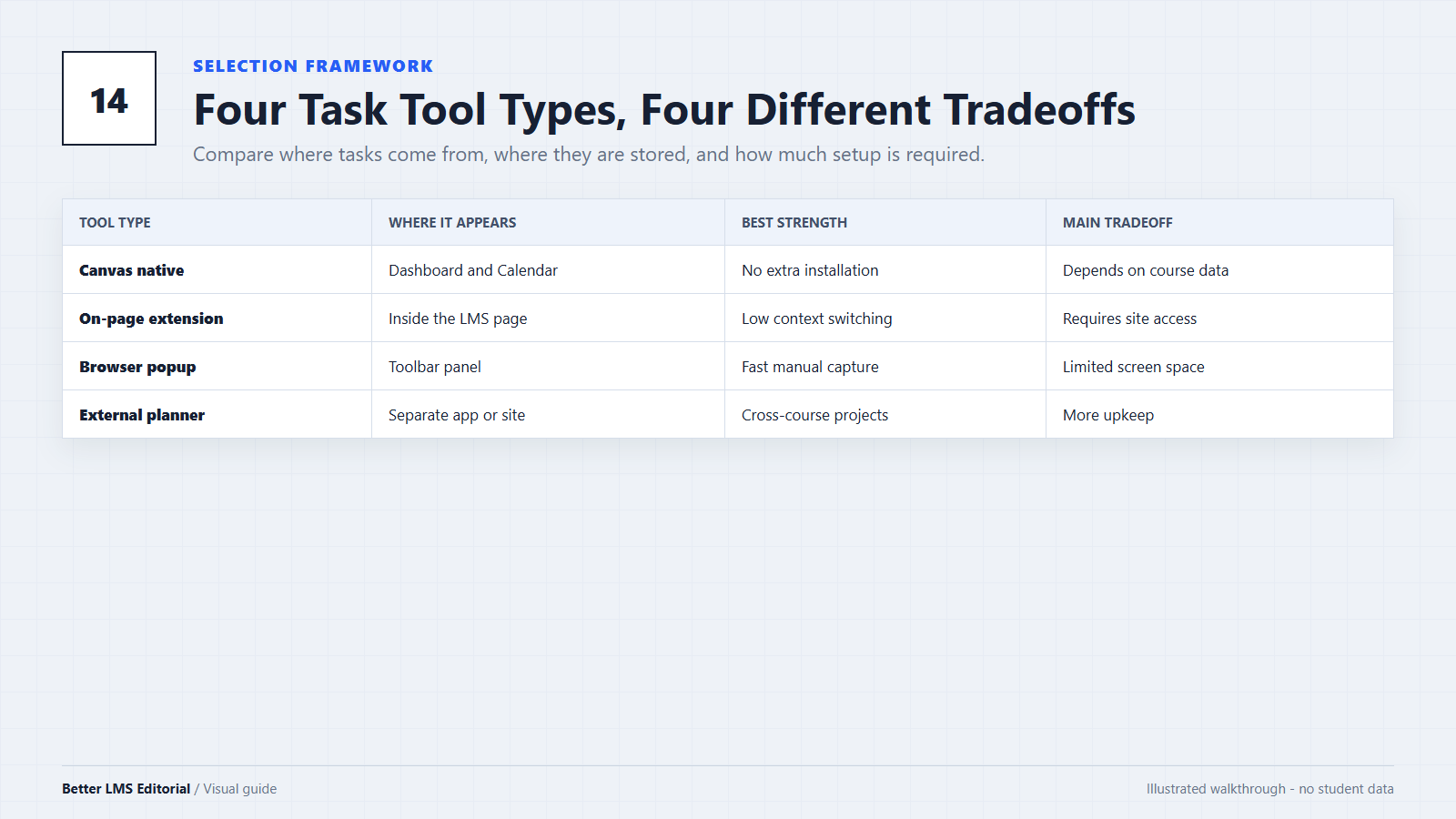
Task tools generally fall into four categories.
1. On-Page Task Extensions
These extensions replace or expand part of the Canvas sidebar. They usually read assignment information from the page or the student’s Canvas session and present it in a different layout.
They are best for students who want a clearer weekly list without leaving Canvas.
Potential advantages include course filters, progress summaries, completed-task sections, and custom reminders. Because they modify Canvas directly, they may also conflict with school-specific themes or other extensions.
2. Multifunction Canvas Extensions
These products combine task management with other features such as Canvas dark mode, Dashboard grades, card customization, Canvas themes, or assignment previews.
Better Canvas belongs in this category. Its public feature documentation includes an assignments-due list, an enhanced To-Do list, Dashboard grades, assignment previews, and browser reminders.
A multifunction extension can be convenient if you want several of those features. If you only need a task list, however, a single-purpose extension may be easier to configure and troubleshoot.
Exact features can change between versions, so verify the current store listing instead of relying on an old screenshot or tutorial.
3. Browser Popup Task Tools
These tools open from the browser toolbar instead of modifying Canvas itself. Some require manual entry, while others import information from supported websites.
They keep the Canvas interface unchanged, but they may require an extra step whenever you want to review or update tasks.
4. External Planners and Calendars
External tools manage schoolwork alongside personal projects, work shifts, appointments, and other responsibilities. They may use a Canvas Calendar feed, an institution-approved integration, or manual task entry.
Check how synchronization works. A calendar subscription may only copy dates from Canvas to the external tool; it does not necessarily provide two-way task synchronization.
Eight Questions to Ask Before Installing
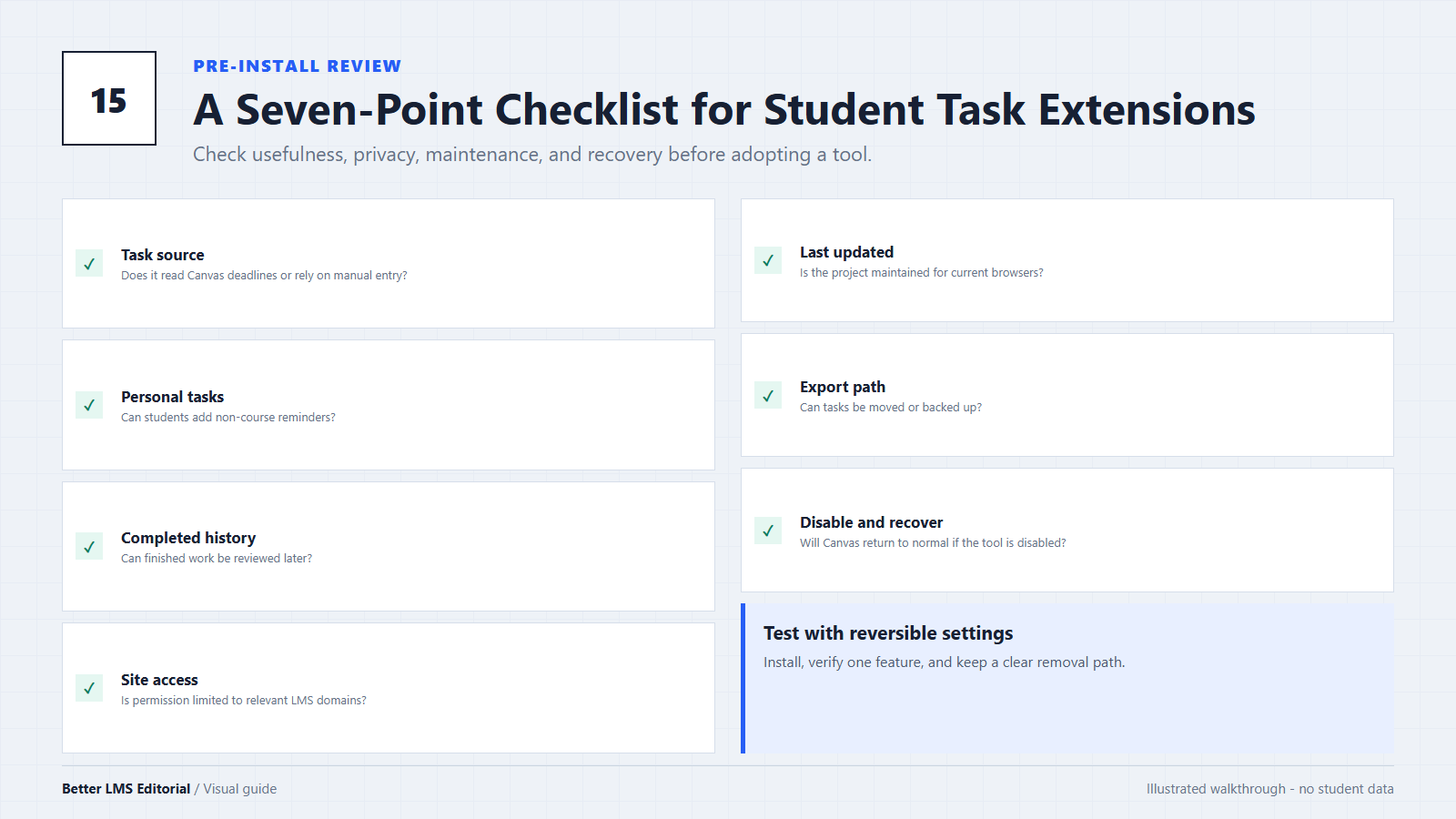
1. What Problem Am I Trying to Solve?
Start with one concrete problem:
- I cannot see enough upcoming assignments.
- I want a clearer weekly overview.
- I need personal study reminders.
- I want browser notifications.
- I need to combine schoolwork with non-school tasks.
Avoid installing a large extension when switching to Canvas List View already solves the problem.
2. Where Does the Task Data Come From?
Determine whether the tool reads:
- The current Canvas page
- Canvas API data
- Calendar feeds
- Information you enter manually
- A combination of these sources
The source affects accuracy, refresh speed, and what happens when your school changes its Canvas configuration.
3. Which Tasks Can It Display?
Test more than one ordinary assignment. Check whether the tool correctly handles:
- Quizzes
- Discussions
- Assignments without online submissions
- Assignments with no due date
- Missing and late work
- Reassigned work
- Announcements
- Personal reminders
No task tool should be treated as reliable until you have compared its results with the official course pages.
4. Can I Add and Recover Personal Tasks?
If personal planning is important, confirm that you can add, edit, complete, and review your own tasks.
Also check where those tasks are stored. Removing an extension may delete locally stored reminders. A useful tool should explain whether data is stored in the browser, synchronized through an account, or sent to an external server.
5. What Permissions Does It Request?
A Canvas extension may need permission to read and modify pages so it can change the Dashboard. Before granting access, learn how to evaluate an LMS browser extension by reviewing its requested domains, publisher, privacy disclosure, and maintenance history. Some request access to a specific Canvas domain, while others request access to a broader range of websites because schools use different Canvas addresses.
Broad access is not automatic proof that an extension is unsafe, but it increases what the extension could access. Review:
- The requested websites
- The reason given for each permission
- The developer’s identity and history
- The privacy disclosure
- Whether data is collected or transmitted
- Whether access can be limited to your school’s domain
Chrome allows users to manage an extension’s site access through the extension details page. Restricting access may affect functionality, so test the tool again after changing the setting.
6. Is the Extension Actively Maintained?
Check the date of the latest update, recent reviews, unresolved problems, and whether the developer publishes support information.
Canvas changes throughout the year. An extension that worked during a previous semester may break after a Dashboard update. If a previously working tool disappears after an update, check whether the extension is installed but not showing before replacing it.
7. Does It Work With My School and Browser?
Canvas institutions can use different domains, authentication systems, themes, and custom navigation. Test the extension on the actual Canvas environment provided by your school.
Also verify support for your browser. Chrome-compatible extensions may work in some Chromium browsers, but that does not guarantee identical behavior. Compare Canvas browser compatibility before depending on the tool.
8. Can I Still Use Canvas Without It?
A task tool should improve your workflow without becoming the only place where important information exists.
You should be able to disable the extension, reload Canvas, and continue accessing assignments through List View, Calendar, Modules, and course pages.
Which Type of Tool Fits Your Workflow?
| Your main need | Start with |
|---|---|
| A simple list of assignments and personal reminders | Canvas List View |
| A clearer weekly summary inside Canvas | On-page task extension |
| Task tools plus themes, grades, and Dashboard customization | Multifunction Canvas extension |
| School, work, and personal projects in one system | External planner |
| Minimal changes to the Canvas interface | Browser popup or native tools |
| Mobile-first task management | Canvas mobile tools or a supported external app |
This is a starting point, not a product ranking. The best option depends on the features you will actually use and the level of access you are comfortable granting.
Test an Extension Before Depending on It
Use the extension alongside Canvas’s native task views for at least several days.
- Compare its assignments with Canvas List View and Calendar.
- Check assignments from more than one course.
- Add a personal reminder and edit its due date.
- Complete a task and confirm that you can find it again.
- Test Missing, Late, and no-due-date assignments.
- Check whether reminders use the correct time zone.
- Disable the extension and verify that Canvas returns to normal.
- Avoid running multiple Dashboard-modifying extensions during the first test.
This process reveals missing data and extension conflicts before you depend on the tool during exams or major deadlines.
Conclusion
Canvas already provides more task-management features than the small Dashboard sidebar suggests. List View supports personal To-Dos, completed items, future planning, and detailed activity statuses without requiring an extension.
Task extensions can still provide valuable improvements, especially better weekly layouts, course filters, progress tracking, previews, and browser reminders. Choose one according to a specific need, examine its permissions, and verify its task data against Canvas.
No tool can guarantee that you will never miss a deadline. A dependable system combines the official course information with a task view that you can review consistently.
Editorial note: This guide is based on current Canvas documentation and publicly available extension information. Features may change by institution, browser, and software version. Better LMS is an independent editorial resource and is not the developer or official support provider of Canvas LMS, Better Canvas, or any task extension mentioned.