On this page
Canvas supports the current or previous major releases of Chrome, Edge, Firefox, and Safari. For ordinary work such as reading modules, submitting assignments, checking grades, and joining discussions, an updated version of any of these browsers should provide the core Canvas experience.
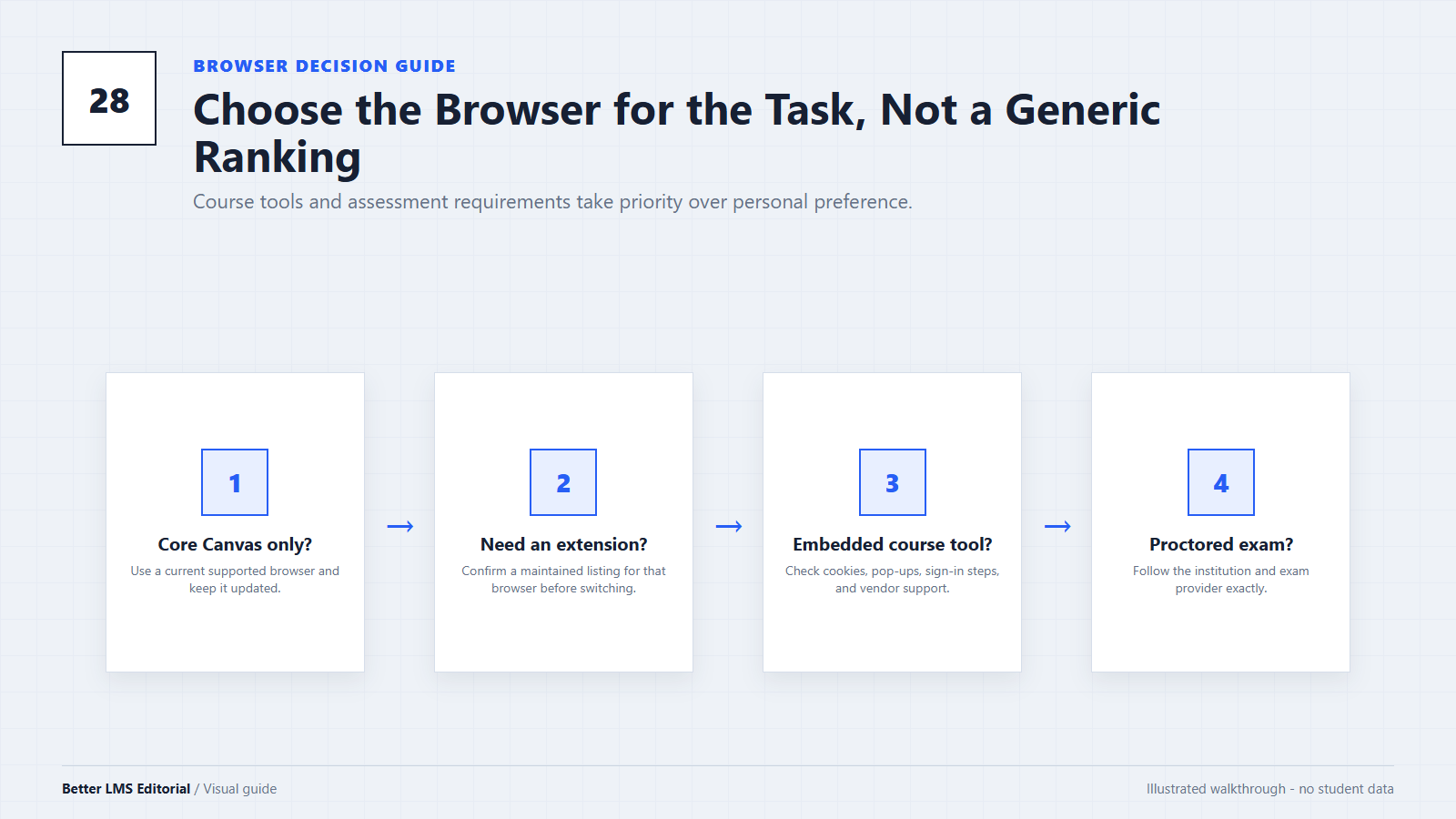
Differences matter more when a course uses extensions, embedded publisher tools, media recording, or exam software. In those cases, the right browser depends on the task and the school's requirements, not a general speed ranking.
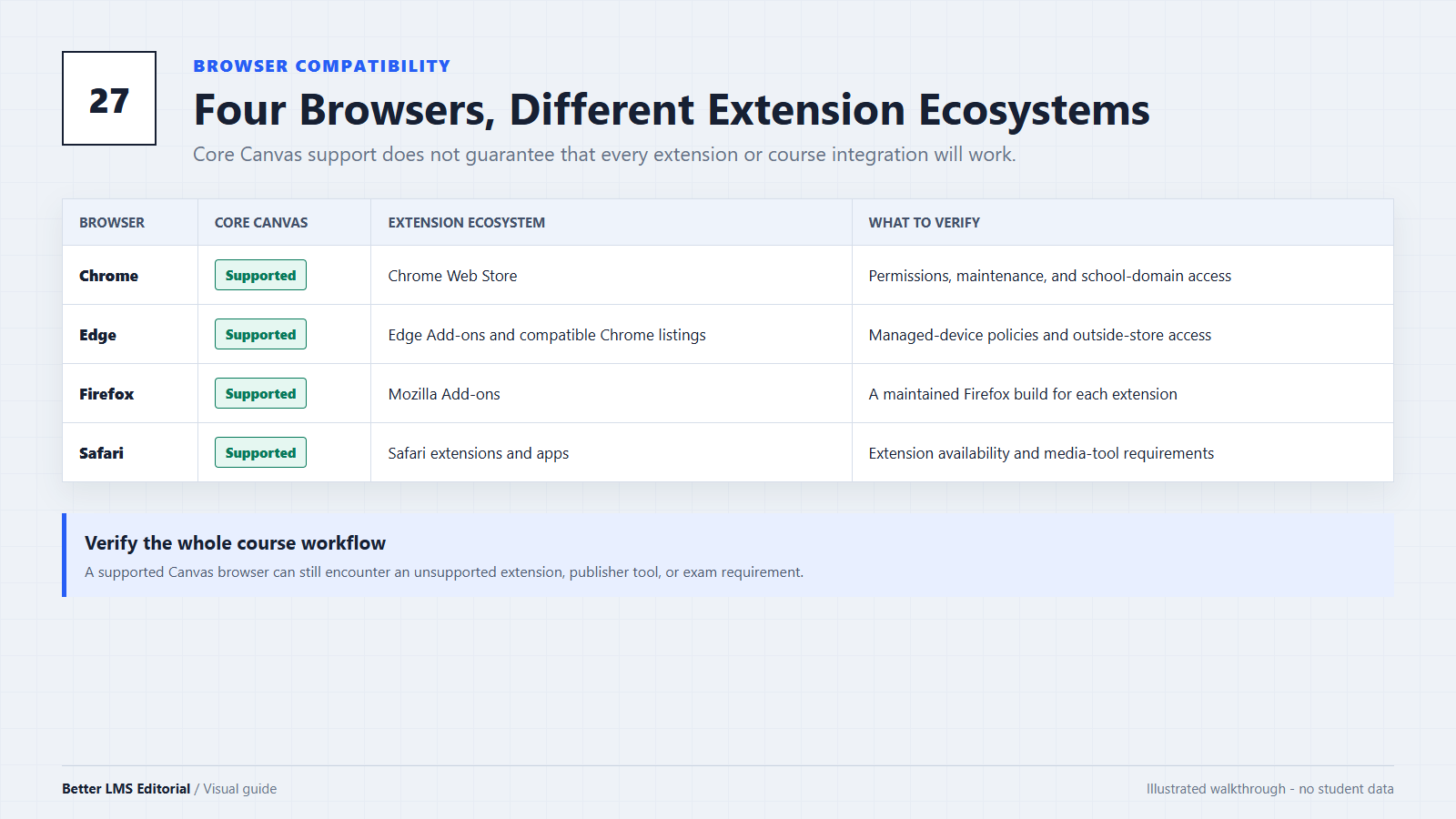
The Short Answer
- Chrome: broad extension availability and commonly documented by third-party education tools.
- Edge: similar extension compatibility because it is Chromium-based and can allow Chrome Web Store extensions.
- Firefox: officially supported by Canvas, with a separate extension ecosystem.
- Safari: officially supported on Apple devices, but fewer Canvas-related extensions are available and some media workflows have limitations.
For a high-stakes quiz or submission, use the browser and version recommended by your institution or exam provider. A browser that works for the Canvas dashboard may still be incompatible with a separate proctoring tool or publisher tool.
What Canvas Officially Supports
Instructure recommends the current or previous major releases of Chrome, Firefox, Edge, or Safari. Cookies and JavaScript should be enabled, and the operating system must be able to run a current supported browser.
This rolling policy is more useful than a fixed version list, which becomes outdated quickly.
Canvas documents some browser-specific behavior. For example, its current Basics Guide notes a limitation involving media recording in Safari. Schools may also connect Canvas to external tools that maintain their own browser requirements.
Chrome: Broad Extension Availability
Chrome is a practical choice for students who use browser extensions. The Chrome Web Store has a large catalog, and many extension developers release a Chrome version first or use Chromium-compatible code.
That does not mean every Canvas feature or extension works perfectly. An extension can be outdated, request excessive permissions, conflict with another extension, or fail on a school's custom Canvas domain. Before installing one, learn how to evaluate an LMS browser extension.
Chrome is a reasonable default when a school recommends it, a required extension is distributed through the Chrome Web Store, or a course tool publishes Chrome-specific instructions. Battery and memory use still depend on the computer, open tabs, extensions, and settings.
To compare tools published for that ecosystem, browse Canvas Chrome extensions.
Edge: Chromium Compatibility with Different Management Controls
Modern Microsoft Edge is based on Chromium. It can run extensions from the Microsoft Edge Add-ons store and, when the setting is allowed, extensions from the Chrome Web Store.
That makes Edge useful for Windows students who want Chromium extensions without another browser. It is especially practical when the school supports Edge and the required extension explicitly supports Edge or Chromium. Managed devices may still restrict extensions or browser settings.
Do not assume that every Chrome extension is guaranteed to work in Edge. Store availability and technical compatibility are separate questions. For Better Canvas-specific setup, see Better Canvas in Microsoft Edge.
Firefox: Official Canvas Support, Separate Extension Store
Firefox is also an officially supported Canvas browser. It uses a different browser engine from Chromium, but Canvas is built on web standards and supports current Firefox releases.
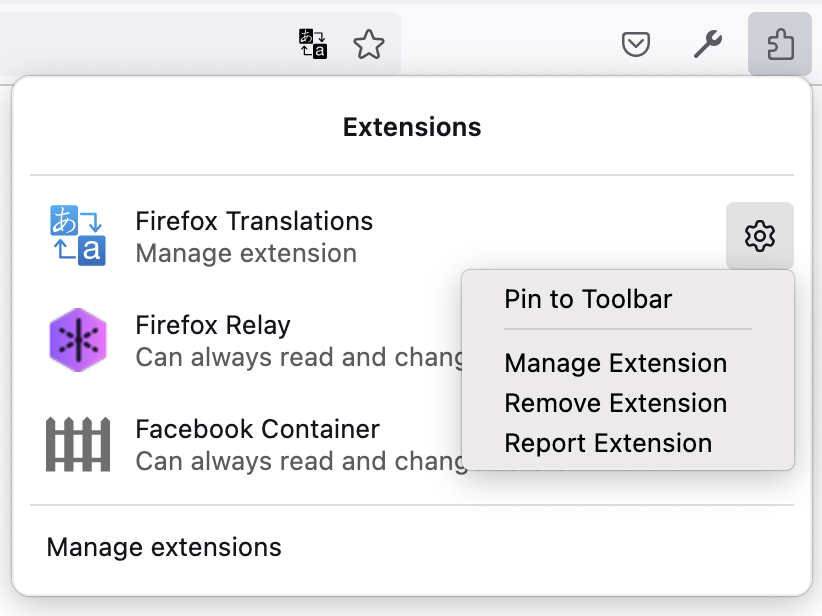
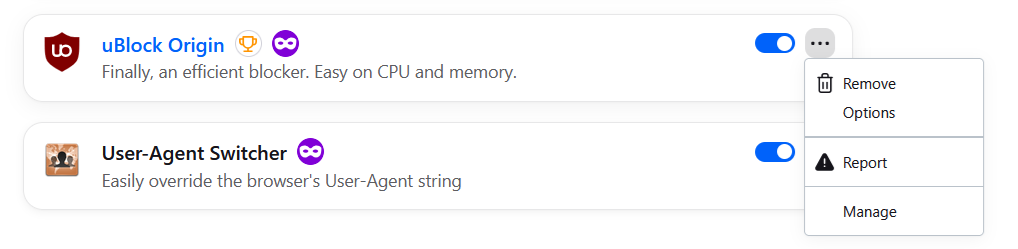
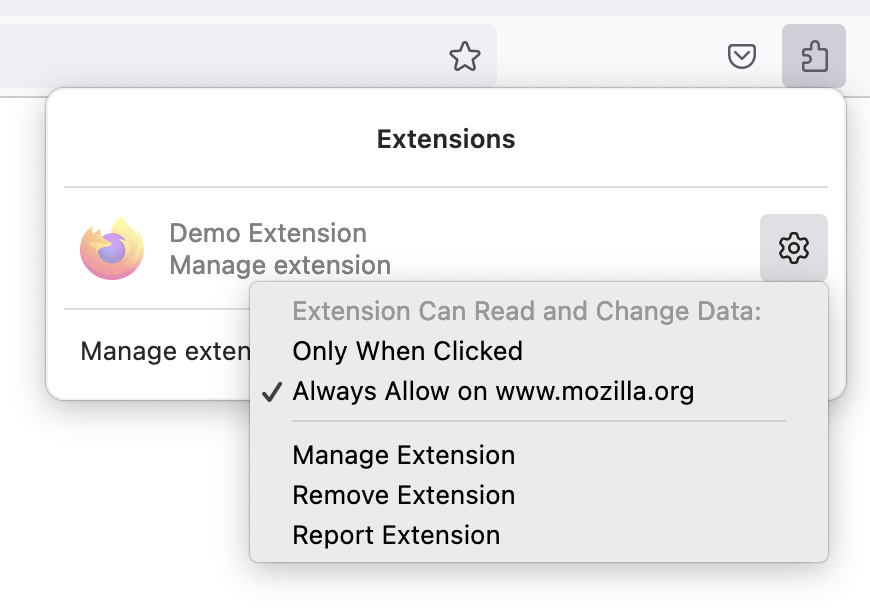
The main practical difference is extension availability. Firefox uses Mozilla Add-ons, so developers must publish or maintain a Firefox-compatible build. It is a reasonable choice when the extension and external tools you need explicitly support it.
Firefox's privacy and profile features do not make Canvas anonymous to your school. Canvas still receives the account and activity data needed to provide the service.
To see tools available through Mozilla's ecosystem, browse Canvas Firefox add-ons.

Safari: Supported Core Canvas, Smaller Extension Ecosystem
Safari is an officially supported browser for current Apple platforms. Students can use it for normal Canvas navigation, assignments, grades, announcements, and other supported workflows.
Safari becomes less convenient when a student depends on extensions that are not distributed for Safari. A Chrome or Firefox extension cannot simply be installed in Safari; the developer must provide a compatible Safari version. For Better Canvas-specific options, see Better Canvas on Safari and Mac.
Safari's privacy controls can also affect embedded content or single sign-on when a course relies on cross-site services. Do not disable privacy protections globally. Follow the school's instructions, open the tool in a new window if offered, or ask campus support for a site-specific solution. Safari is a reasonable choice for core Canvas use when required integrations support it and no unavailable extension is needed.
For recording audio or video inside Canvas, review the latest Canvas browser requirements because Instructure documents Safari-specific media limitations.
Comparison Table
| Question | Chrome | Edge | Firefox | Safari |
|---|---|---|---|---|
| Supported for current Canvas releases | Yes | Yes | Yes | Yes |
| Uses Chromium extension format | Yes | Yes | No | No |
| Can use Chrome Web Store listings | Yes | Often, when enabled | No | No |
| Separate extension listing may be required | Chrome listing | Edge or compatible Chrome listing | Firefox listing | Safari-compatible app or extension |
| Best use case | Broad third-party extension availability | Chromium extensions on Windows | Students already using supported Firefox tools | Core Canvas use on Apple devices |
| Main item to verify | Extension permissions and maintenance | School/device extension restrictions | Whether the required extension has a Firefox build | Extension availability and external-tool requirements |
This table describes ecosystems, not a performance benchmark.
Why Canvas Can Work While One Course Tool Fails
A course may include a publisher, video service, cloud-storage provider, plagiarism checker, or proctoring platform. These tools may use embedded frames, separate logins, cookies, or pop-ups.
As a result, Canvas may open normally while one textbook or quiz fails. Switching browsers can help diagnose the problem, but the cause may be the integration, school login system, or account configuration rather than Canvas itself.
If Canvas itself fails in more than one browser, check Canvas status before changing browser settings.
Before an Important Quiz or Submission
- Update the browser you plan to use.
- Read the course or institution browser requirements.
- Confirm that required extensions or exam software are installed and enabled.
- Test sample media, file uploads, or practice quizzes before the deadline.
- Avoid changing privacy or security settings without a documented reason.
- Keep another supported browser available for troubleshooting.
- Save error messages and contact support early if a required tool fails.
Conclusion
There is no single fastest or universally safest browser for every Canvas course. Chrome and Edge generally offer the broadest Chromium-extension compatibility. Firefox provides full core Canvas support when kept current, subject to the availability of each extension. Safari supports core Canvas use but has a smaller extension ecosystem and some documented media limitations.
Choose a current supported browser, then verify the specific extensions and external tools your course requires. For important assessments, the institution's instructions take priority over any general browser recommendation. For a broader platform view, see our student-focused Canvas, Blackboard, and Moodle comparison.
Editorial note: This guide compares documented browser support and extension availability. It does not present synthetic speed, memory, or battery measurements as hands-on test results. Browser versions, school policies, and third-party tool requirements can change.