On this page
Students rarely choose their learning management system. A college selects the platform, configures it, connects it to other campus services, and then asks students to use it for courses, assignments, grades, and messages.
That makes comparisons difficult. Canvas, Blackboard Learn, and Moodle can all support the same basic academic work, but the experience depends on more than the product name. Course design, school settings, third-party integrations, and instructor organization can matter as much as the LMS itself.
This guide compares the three platforms from a student's point of view. It focuses on everyday tasks rather than procurement features or vendor marketing.
What This Comparison Covers
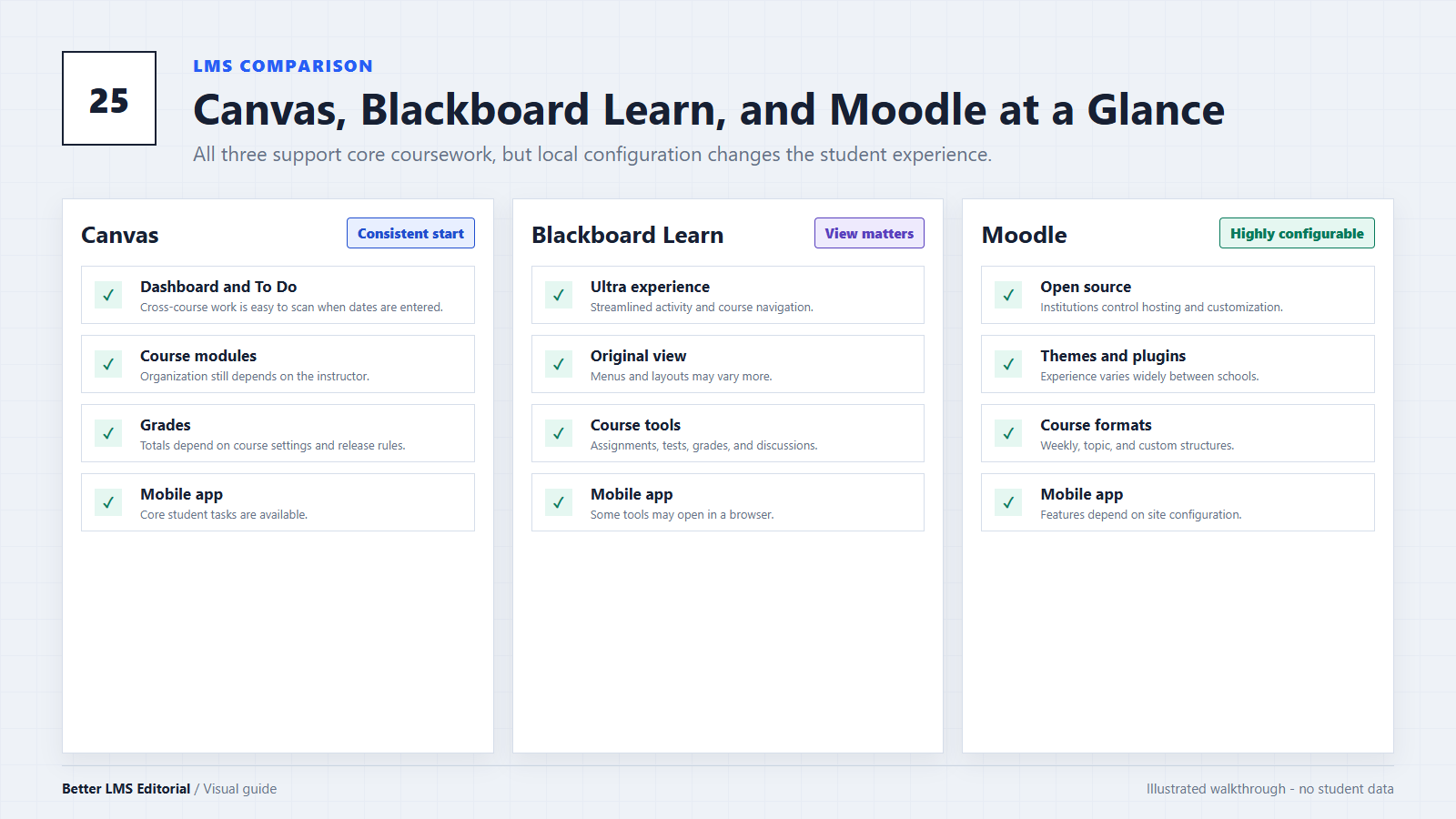
We compare how easy it is to understand a course, find upcoming work, submit assignments, review grades, and move between classes. There is no universal winner: course design and school configuration can outweigh the platform itself.
Canvas: A Consistent Starting Point
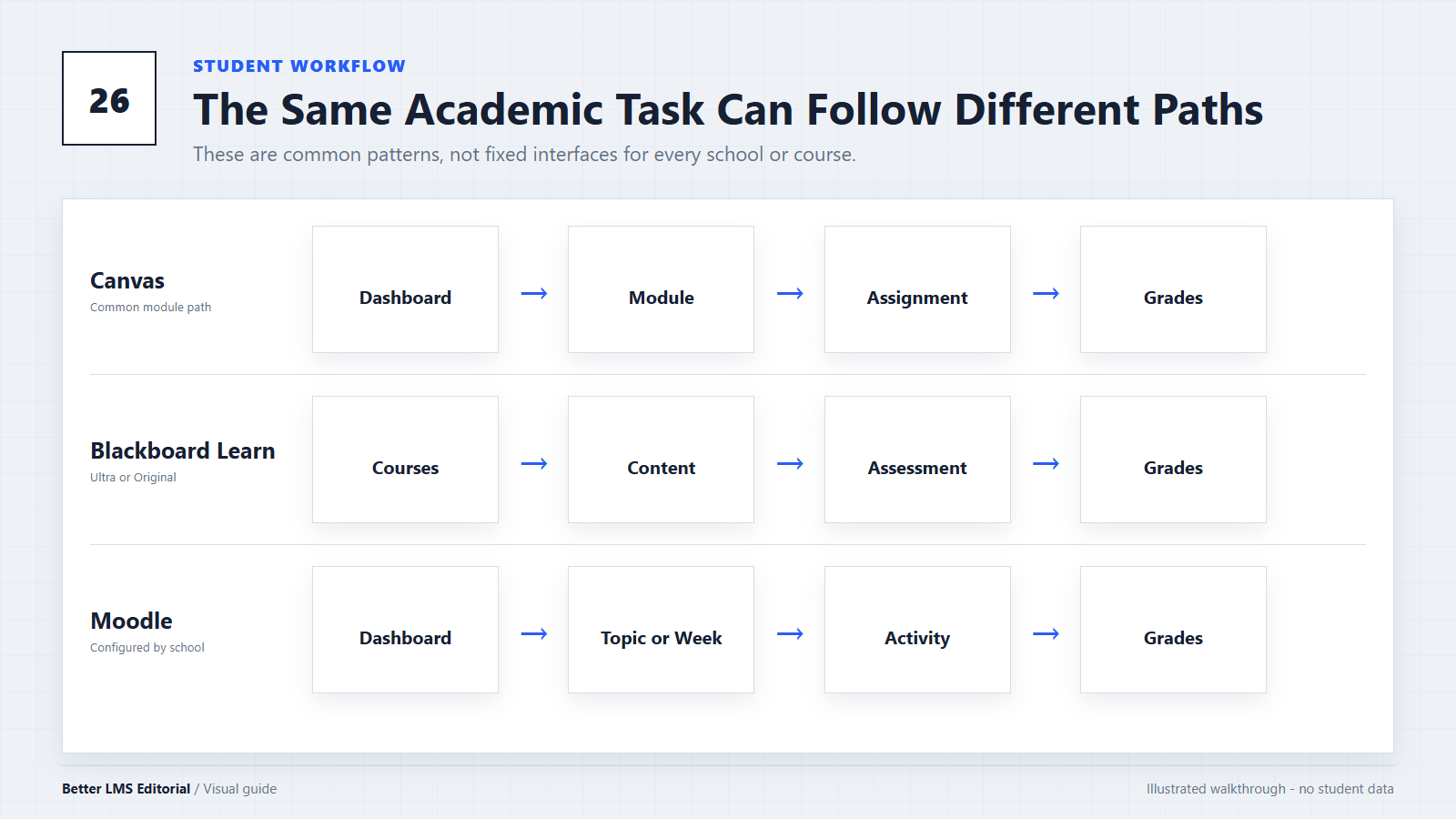
Canvas usually gives students a recognizable starting structure: global navigation, a Canvas Dashboard, course pages, a calendar, and a To-Do list. That consistency can reduce the time needed to learn the basic interface. Students who want optional browser tools can compare Canvas browser extensions separately from the LMS itself.
The dashboard, calendar, and To-Do list can bring work from multiple courses together when instructors enter due dates correctly. The Grades page provides a useful summary, although totals depend on how grades are configured and released.
Canvas is not automatically organized. Instructors decide how modules, pages, files, and external tools are arranged. One course may guide students through weekly modules, while another may place most materials in Files or use links to outside systems. A missing item may therefore be a course-design issue rather than a Canvas failure.
The Canvas Student app supports common tasks, but some embedded tools still open in a browser or behave differently from the desktop site. Compare Canvas browser compatibility before relying on an embedded course tool.
Blackboard Learn: Check Whether It Is Ultra or Original
Students should not treat every Blackboard installation as the same product experience. Blackboard Learn may use the newer Ultra experience, the older Original course view, or a combination selected by the institution.
Ultra uses a more streamlined course list, activity stream, and course layout. Original courses may use deeper menus and a structure that varies more between instructors. This difference is important: a complaint about an older Original course does not necessarily describe Blackboard Ultra.
Blackboard supports the expected assignments, tests, grades, discussions, announcements, and integrated tools. Its mobile app covers many common activities, although some Original-course features and third-party tools have limited mobile support or open in an in-app browser.
The experience is most predictable when an institution uses Ultra consistently. Moving between Original and Ultra courses, or relying on older integrations, can make navigation less uniform.
Students comparing browser add-ons for that platform can browse Blackboard LMS extensions.
Moodle: The Most Configurable Experience
Moodle is open-source software. Schools can download and manage it themselves, subscribe to MoodleCloud, or work with a service provider. The software does not require a proprietary license fee, but hosting, maintenance, security, support, and customization can still cost money.
That deployment flexibility explains why Moodle experiences vary so widely. Administrators can change themes, navigation, plugins, authentication, and course defaults. Teachers can organize content by week, topic, activity, or a custom format. Two schools may both use Moodle while presenting students with noticeably different interfaces.
This flexibility is useful when a school maintains a coherent theme and course structure. It becomes a weakness when themes are outdated, plugins conflict, or layouts vary widely between courses.
The Moodle app supports course content, messaging, calendars, grades, and some offline access, subject to the school's configuration.
For examples of browser tools organized around Moodle, browse Moodle extensions.
Side-by-Side Comparison
| Student concern | Canvas | Blackboard Learn | Moodle |
|---|---|---|---|
| Starting point | Dashboard, calendar, and To-Do list | Activity stream and course list in Ultra; Original varies | Dashboard and navigation depend heavily on configuration |
| Course consistency | Usually consistent at the platform level | Depends on Ultra versus Original and school setup | Most variable because themes and plugins are customizable |
| Assignments and grades | Clear core workflow, subject to instructor settings | Full workflow in both views, with different navigation | Full workflow, but layout and terminology may vary |
| Mobile experience | Dedicated student app; integrations may open externally | Dedicated app; some tools have partial support | Dedicated app; capabilities depend on site configuration |
| Browser-extension ecosystem | Relatively visible student-extension ecosystem | Smaller selection of student-facing extensions | Smaller and more site-specific extension ecosystem |
| Institutional control | School controls settings and integrations | School controls experience, course view, and integrations | School or provider can control hosting, code, plugins, and themes |
The table describes common platform patterns, not a guaranteed experience at every school. Before adding a browser tool to any LMS, learn how to evaluate an LMS browser extension.
What Matters More Than the LMS Name
A weekly module with clear names and due dates is easier to follow than loosely organized files on any LMS. Single sign-on, video platforms, publisher content, and other integrations can add browser or login requirements. Instructor settings also control grade totals, assignment availability, notifications, and navigation. A missing item may therefore be a local course or integration issue rather than a platform limitation.
Which Platform Is Easier for Students?
Canvas often provides the most consistent starting point for common student tasks. Blackboard Ultra can be similarly streamlined, while schools that still use Original courses may show more variation. Moodle has the widest range of possible experiences because institutions can customize it extensively.
Practical Tips for Any LMS
- Confirm that your browser is current and supported by your school.
- Review notification settings instead of relying on defaults.
- Check both the LMS calendar and the course syllabus for deadlines.
- Learn where each course places modules, files, and external tools.
- Contact the instructor or help desk when required content is unavailable.
Conclusion
Canvas, Blackboard Learn, and Moodle can all support the core work students need to complete. Canvas emphasizes a consistent general interface, Blackboard's experience depends strongly on Ultra versus Original, and Moodle offers the greatest institutional flexibility.
The best student experience comes from the combination of a maintained platform, sensible school settings, organized courses, and clear instructor communication. The LMS name matters, but implementation matters more.
Editorial note: This independent comparison is based on current public documentation from Instructure, Anthology, and Moodle. School configurations and product features can change. Better LMS does not claim undocumented hands-on testing and has no commercial relationship with the LMS vendors discussed here.