On this page
Many students use Microsoft Edge for coursework and want to know whether they can also use Better Canvas in that browser.
The short answer is: Better Canvas can generally be installed in the desktop version of Microsoft Edge through the Chrome Web Store. Edge is based on Chromium and supports many extensions made for Google Chrome. However, the extension's public documentation currently lists Chrome and Firefox, rather than Edge, as supported browsers. For that reason, Edge compatibility should not be treated as guaranteed official support.
This guide explains how to install the extension in Edge, what to check after installation, and how to troubleshoot common compatibility problems.
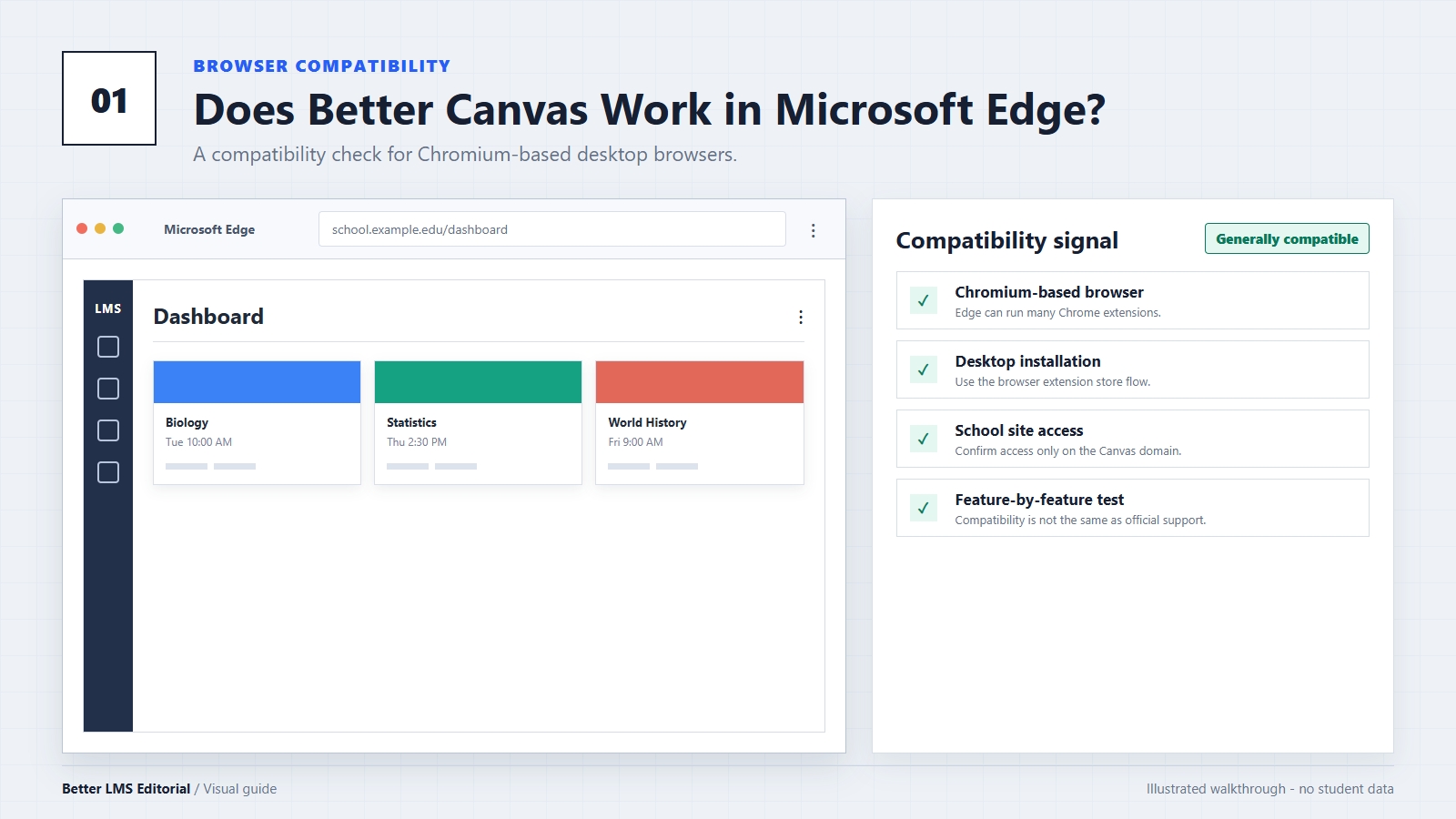
Why Chrome Extensions Can Work in Microsoft Edge
Microsoft Edge and Google Chrome are both based on Chromium. Microsoft therefore allows Edge users to install many Chrome extensions from the Chrome Web Store. Students comparing tools for that ecosystem can also review Canvas Chrome extensions.
That shared foundation makes Better Canvas installation possible in Edge, but it does not guarantee that every feature will behave exactly as it does in Chrome. Browser updates, extension updates, school-specific Canvas configurations, and managed-device policies can all affect the result. For a wider comparison, see Canvas browser compatibility.
Microsoft provides its own instructions for installing Chrome Web Store extensions in Edge. The extension's public repository currently identifies Chrome and Firefox as supported browsers.
What You Need Before You Start
Before installing the extension, check the following:
- Use the latest stable version of Microsoft Edge. Enter
edge://settings/helpin the address bar to check for updates. - Make sure you can sign in to your school's Canvas LMS website.
- If Edge says it is "managed by your organization," your school or employer may restrict extensions from outside the Microsoft Edge Add-ons Store.
- Open the Chrome Web Store listing from our download page and confirm that you are viewing the intended extension before installing it.
This guide applies to desktop versions of Edge. Mobile browsers use different extension systems, so the same installation steps should not be assumed to work on a phone or tablet.
How to Install Better Canvas in Microsoft Edge
The wording of Edge and Chrome Web Store buttons can change over time. Depending on your current browser version, you may see Get, Get extension, or a similar installation button.
Step 1: Update Microsoft Edge
Open Microsoft Edge and enter edge://settings/help in the address bar. Edge will check for updates automatically. Restart the browser if an update is installed.
Step 2: Open the Chrome Web Store Listing
To continue, download Better Canvas from the current Chrome Web Store listing. Review the listing before continuing, especially the extension name, publisher information, requested site access, and privacy details.
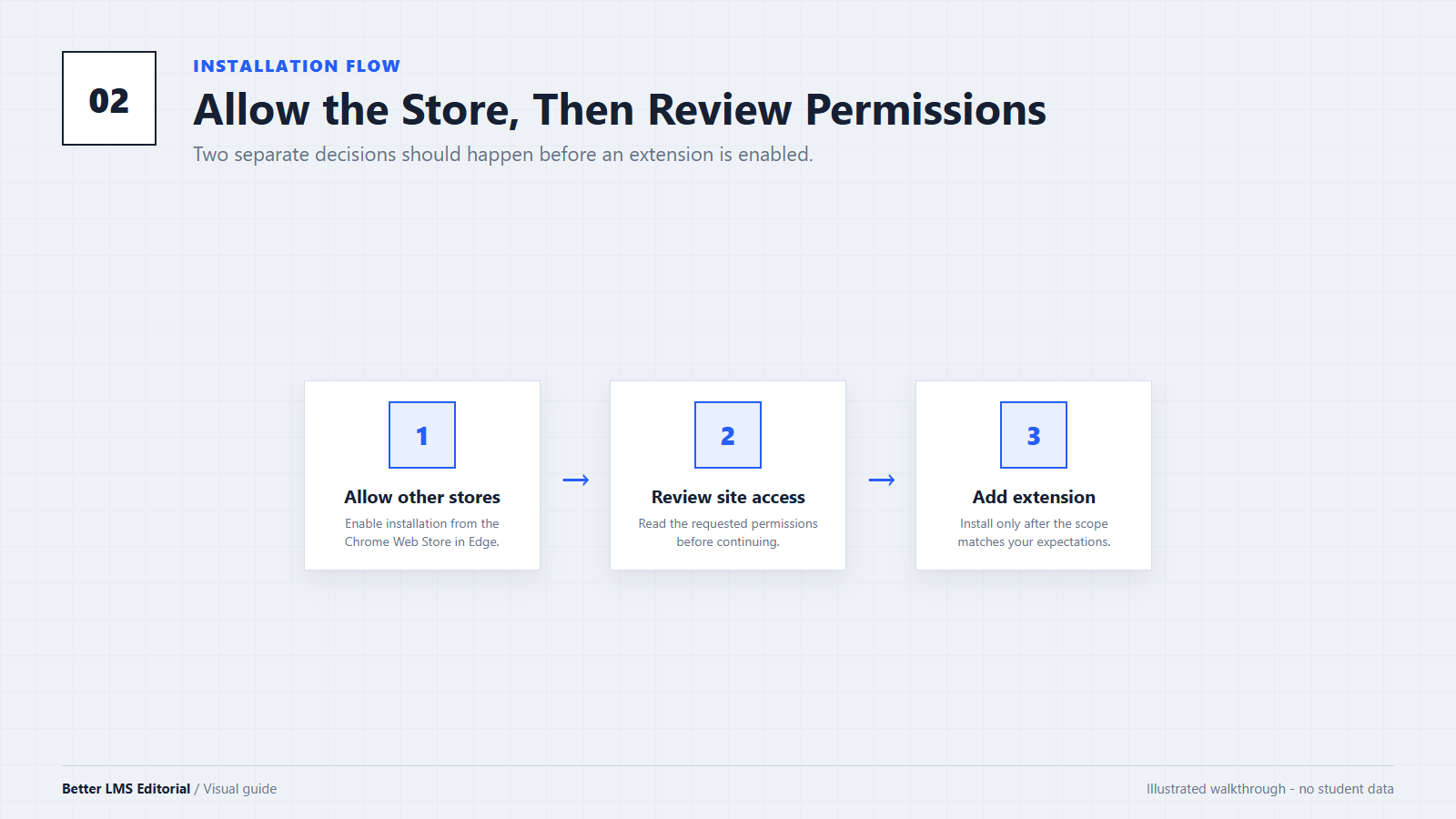
Step 3: Allow Extensions From Other Stores
If Edge has not previously been allowed to install Chrome Web Store extensions, it may ask you to allow extensions from other stores. Select Allow only after reviewing the notice.
This prompt may not appear if the setting has already been enabled.
Step 4: Start the Installation
Select the installation button shown by the Chrome Web Store. Edge may label it Get, Get extension, or another similar phrase rather than Add to Chrome.
Step 5: Review the Permissions
Edge will display the permissions and site access requested by the extension. Read them before selecting Add extension. If the requested access is broader than you expect, pause and review the store listing and privacy information before proceeding.
Step 6: Confirm That the Extension Is Enabled
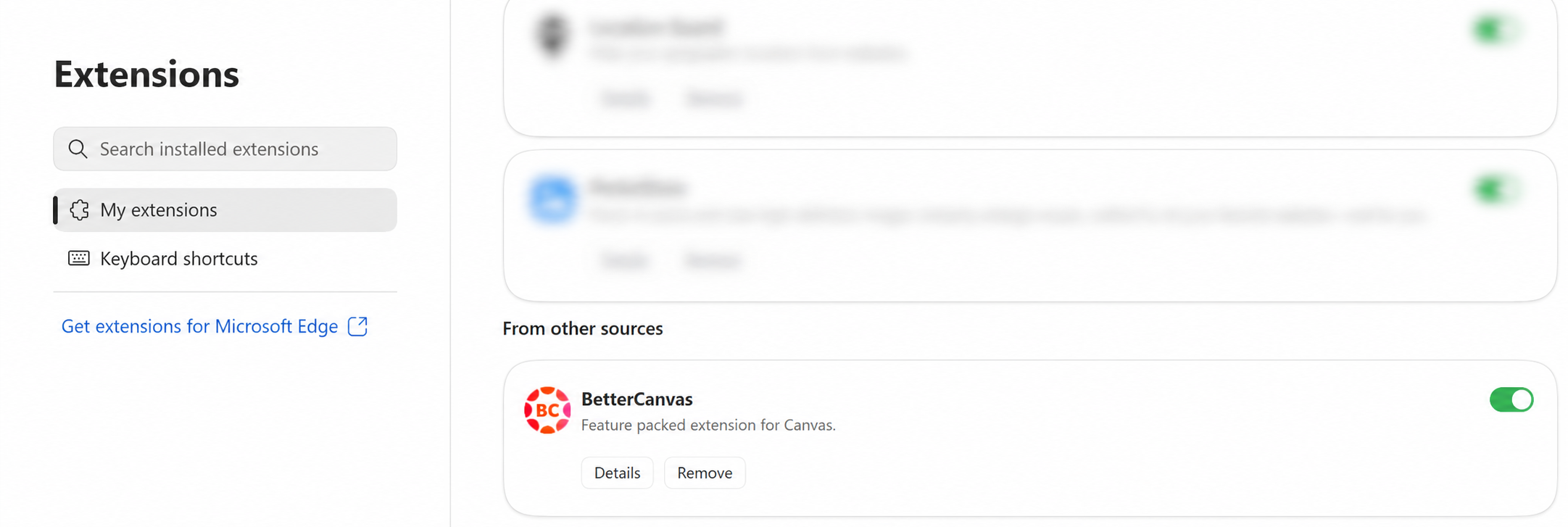
Open edge://extensions and find the extension in the list. Confirm that its toggle is enabled. You can also open the Extensions menu near the address bar and choose the option to show the extension on the toolbar, if available.
Step 7: Open Your School's Canvas Website
Sign in to your normal Canvas website and open the extension from the Edge toolbar. Enable one setting at a time, then reload the Canvas page and confirm that the selected change appears.
Do not assume that installation alone will immediately change the page. Some features must first be enabled in the extension's settings.
What to Check After Installation
Compatibility can change between browser and extension versions. Test the features you actually plan to use instead of assuming that every option works in Edge.
| Feature | What to check |
|---|---|
| Dark mode | Text, menus, assignments, and discussion pages remain readable after dark mode is enabled. |
| Dashboard customization | Course cards load correctly and remain clickable after colors or layouts are changed. |
| Themes | A selected theme remains active after the Canvas page is reloaded. |
| GPA or grade tools | Calculations display correctly and do not hide native Canvas information. |
| Fonts and interface options | Text remains readable and controls do not overlap at your normal zoom level. |
| Sidebar changes | Hidden items can be restored and important Canvas navigation remains accessible. |
If a feature does not work, turn it off before testing another one. This makes it easier to identify whether the problem comes from a specific setting, another extension, or the browser itself.
Troubleshooting Common Problems
The Extension Icon Is Missing
Open the Extensions menu near the Edge address bar and find the extension. Depending on your Edge version, use Show in toolbar, the pin control, or the extension's menu to make it visible.
If it is not listed, open edge://extensions and confirm that the installation completed successfully.
The Canvas Page Has Not Changed
If installation finishes but Canvas does not change, check Better Canvas installed but not showing before reinstalling. Confirm that the extension is enabled and that at least one feature has been turned on, then reload Canvas.
If the page still does not change:
- Open
edge://extensions. - Select the extension's details.
- Review its site access and confirm that it is permitted to run on your school's Canvas domain.
- Close and reopen the Canvas tab.
- Temporarily disable other Canvas customization extensions to check for a conflict.
You can also use Ctrl + Shift + R to request a fresh reload of the current page. This does not erase all browser data or remove your Canvas account information.
A Theme or Individual Feature Does Not Load
If Better Canvas themes are not loading, update Edge, reload Canvas, and test the feature again. If the problem continues, disable the feature, restart Edge, and then enable it again.
Themes and interface modifications can be affected by changes to Canvas itself. A feature that worked previously may temporarily stop working after Canvas or the extension is updated.
Edge Blocks the Installation
Check whether Edge displays Managed by your organization. A managed browser can use administrative policies that restrict third-party extensions or control which websites an extension may access.
If the relevant controls are unavailable on a school-managed device, contact the institution's IT department. Do not attempt to bypass an organizational policy.
Edge Displays a Security or Permission Warning
A warning is a reason to review the installation, not proof that an extension is either safe or dangerous. Verify the store listing, publisher information, requested permissions, privacy disclosure, and extension ID before continuing.
The project has a publicly viewable source repository, but public source code alone does not prove that every published build is risk-free or identical to the repository. Install only after you are comfortable with the permissions being requested.
Is Better Canvas Free to Use in Edge?
The extension can currently be installed from the Chrome Web Store without an upfront purchase. However, the current store listing indicates that in-app purchases may be available. That means some optional services or features may not be included in the free installation.
Review the current store listing for the latest pricing and feature information before installing, because these details can change.
Frequently Asked Questions
Do I Need Google Chrome Installed?
No. Microsoft Edge can access compatible extensions directly through the Chrome Web Store after you allow extensions from other stores. Chrome does not need to be installed on the same computer.
Is Edge an Officially Listed Better Canvas Browser?
The extension's public repository currently lists Chrome and Firefox as supported browsers. Edge can install many Chrome extensions because it is based on Chromium, but that is not the same as a formal guarantee of Edge support.
Will the Extension Slow Down Edge?
The effect depends on your computer, the Canvas page, the enabled features, and other installed extensions. If Edge becomes slower after installation, disable the extension temporarily and compare performance on the same Canvas page. This is more reliable than assuming that the extension has no performance impact.
Does the Desktop Installation Work on Mobile Edge?
Do not assume that it does. Mobile Edge uses a different extension environment, and extension availability can vary by device and platform. This guide covers desktop Edge only.
What If It Works on One Canvas Page but Not Another?
Canvas pages do not all use the same layout, and schools may use different Canvas domains or integrations. Check the extension's site access, test the feature on the main dashboard, and disable other Canvas customization extensions while troubleshooting.
Conclusion
Better Canvas can generally be installed in desktop Microsoft Edge because Edge supports extensions from the Chrome Web Store. That makes Edge a practical option for users who do not want to install Chrome.
Compatibility should still be treated as browser-based rather than guaranteed. Keep Edge and the extension updated, review permissions carefully, and test the features you need on your own school's Canvas website.
For installation links, use the download page. For additional setup help, use the FAQ page.
Editorial note: This independent guide was prepared by the Better LMS Editorial Team using Microsoft Edge documentation, the current Chrome Web Store information, and the extension's public repository. Better LMS is not the developer, owner, or official support provider of the extension. Browser interfaces, store information, pricing, and compatibility can change after publication.