On this page
Many students use Safari as their main browser on a Mac and want to know whether they can add Better Canvas to it.
The short answer is: the project's current public documentation does not list an official Better Canvas extension for Safari. However, this does not mean that Mac users cannot use the extension. Better Canvas can be installed through a supported desktop browser on macOS, with Chrome and Firefox being the clearest options in the project's public documentation. For platform-by-platform choices, compare Canvas browser compatibility.
The important distinction is between the computer and the browser:
- Mac compatibility: Better Canvas can be used through a compatible browser installed on a Mac.
- Safari compatibility: The current public documentation does not identify a Safari release that can be installed directly in Safari.
This guide explains why Safari requires a separate extension release, which Mac browsers are the most practical alternatives, and how to move your bookmarks when switching browsers.
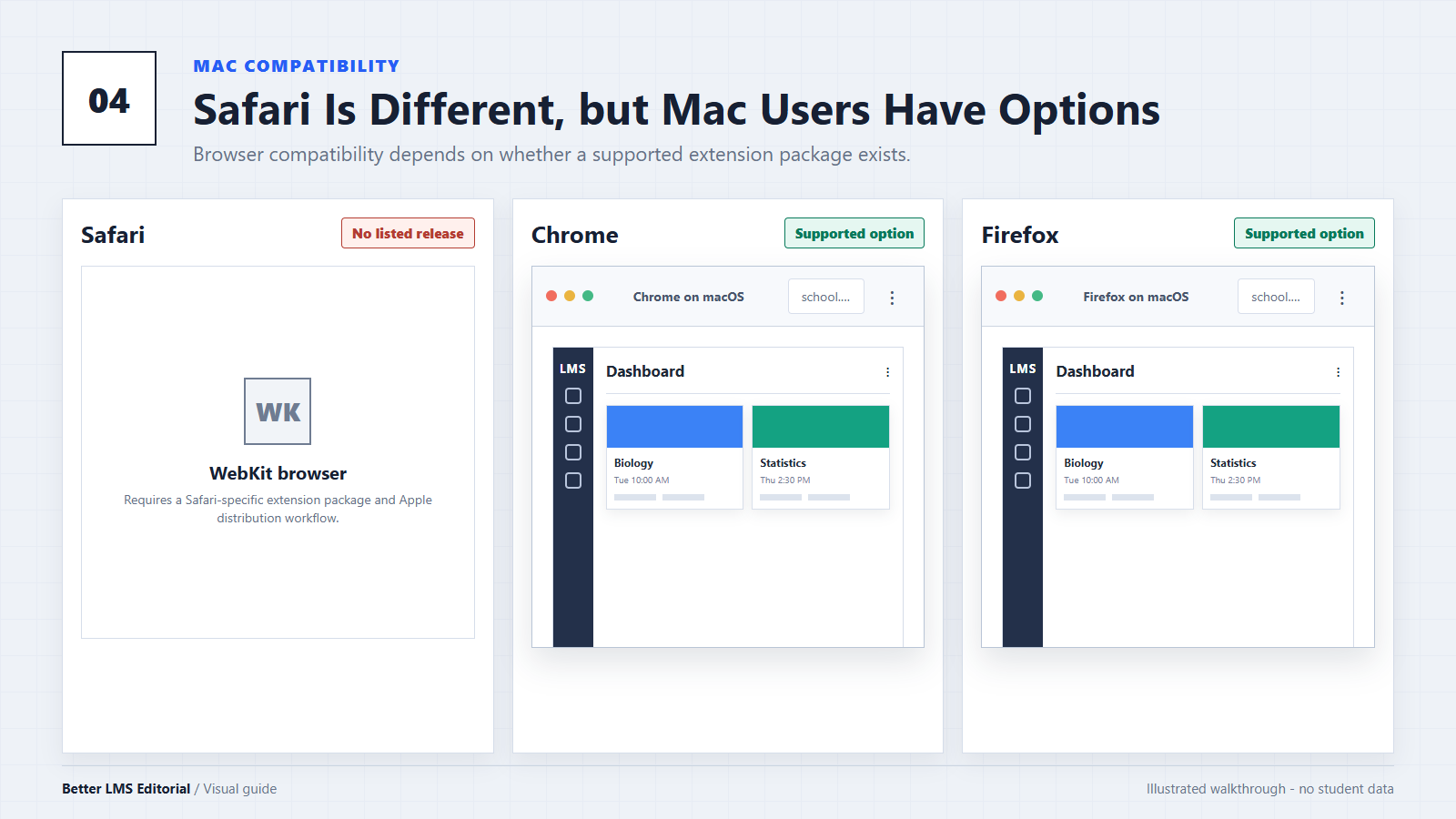
Why a Chrome or Firefox Extension Does Not Automatically Work in Safari
Browser extensions are not ordinary webpages. Each browser controls how extensions are packaged, installed, granted permissions, and distributed.
Safari uses Apple's Safari Web Extension system. Apple supports common WebExtension technologies and provides tools that can help developers convert extensions from other browsers. Even so, a developer still needs to prepare a Safari-compatible build, test its behavior, configure the required permissions, and package it for Safari distribution.
That means a Chrome or Firefox extension cannot simply be installed in Safari in its existing store format. Safari users need a version specifically prepared and distributed for Safari.
Apple explains the current development and conversion process in its Safari Extensions documentation. The Better Canvas public repository currently lists Chrome and Firefox as supported browsers, but it does not list Safari.
The absence of a Safari version should not be attributed to a particular cost, technical limitation, or developer decision unless the extension developer has publicly provided that explanation.
Can You Use Better Canvas on a Mac?
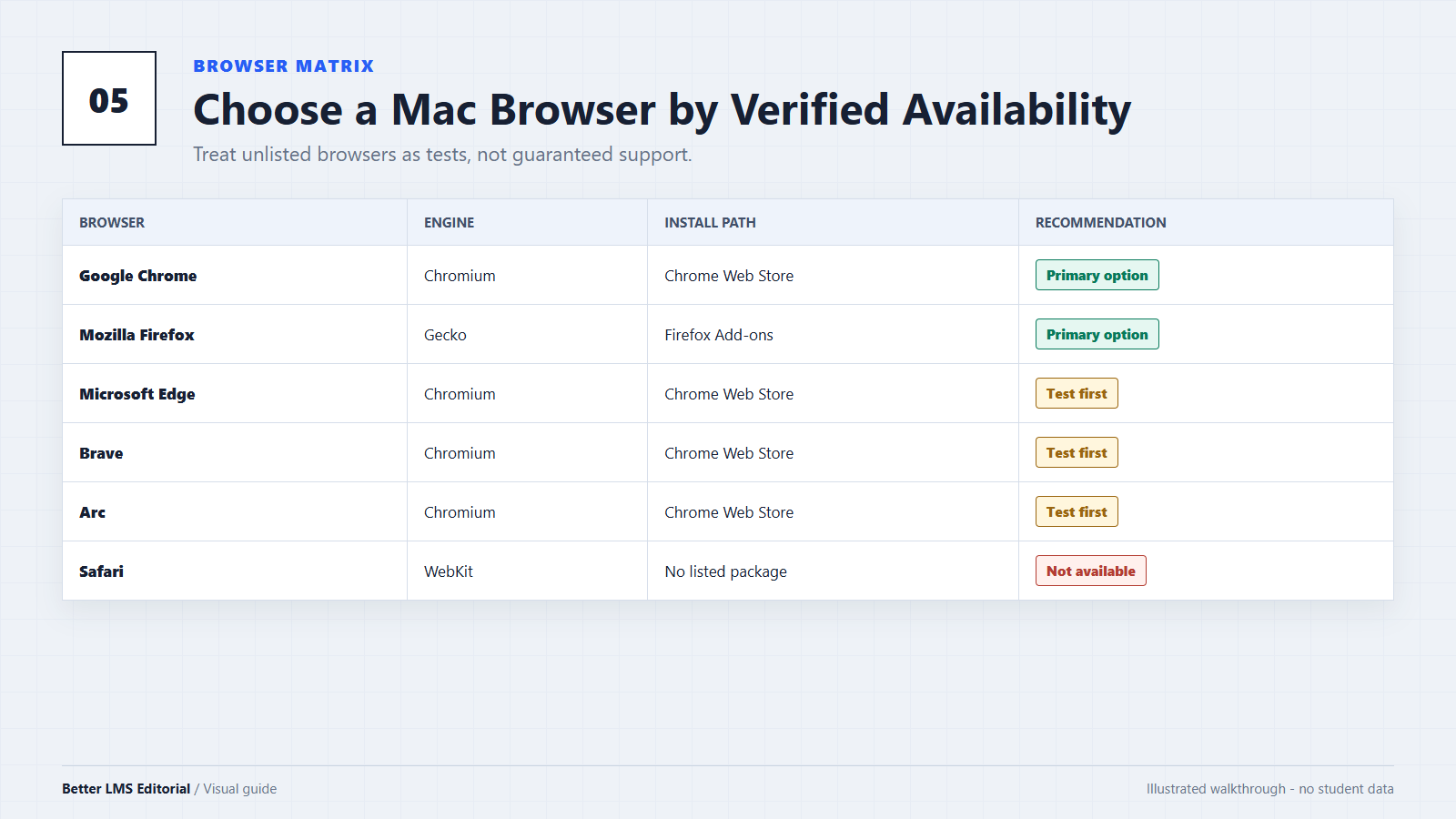
Yes. A Mac can run several desktop browsers in addition to Safari. The browser you choose determines which extension store and extension format are available.
Mac Browser Compatibility Overview
| Browser on Mac | Better Canvas status | Recommended approach |
|---|---|---|
| Google Chrome | Listed by the project | Use the Chrome Web Store listing reached through our download page. |
| Mozilla Firefox | Listed by the project | Use the Firefox Add-ons listing reached through our download page. |
| Microsoft Edge | Compatibility-based | Edge can install many Chrome Web Store extensions, but Better Canvas is not currently listed as officially supported on Edge. |
| Brave | Compatibility-based | Brave supports most Chromium extensions, but individual Better Canvas features should be checked after installation. |
| Arc | Compatibility-based | Arc supports Chrome extensions, but Better Canvas-specific compatibility should not be assumed without testing. |
| Safari | No listed release | The project's current public documentation does not provide a Safari installation option. |
For the lowest-uncertainty route, use Chrome or Firefox because those are the two browsers named in the project's public documentation.
Option 1: Use Better Canvas With Chrome on a Mac
Chrome is the most direct option for installing the Chrome Web Store version. You can review Canvas Chrome extensions before choosing which tools to install.
- Download Google Chrome from Google's official website and install it on your Mac.
- Open Chrome and download Better Canvas from the current Chrome Web Store listing.
- Review the extension name, publisher information, requested permissions, privacy details, and any current pricing information.
- Select the store's installation button and confirm the permissions if you decide to continue.
- Sign in to your school's normal Canvas website.
- Open the extension and enable one feature at a time so that you can confirm how it behaves on your school's Canvas pages.
Installing the extension does not guarantee that every feature will behave identically across all schools or browser versions. Canvas configurations, browser updates, and extension updates can affect individual functions.
Option 2: Use Better Canvas With Firefox on a Mac
Firefox is also identified in the project's public documentation and has its own extension format and add-on store. Browse Canvas Firefox add-ons when you want tools published specifically for Mozilla's extension system.
- Download Firefox from Mozilla's official website and install it on your Mac.
- Use our download page to reach the Firefox Add-ons listing.
- Review the developer information, permissions, privacy details, and current version.
- Select Add to Firefox and confirm the requested permissions if you decide to install it.
- Open your school's Canvas website and test the features you plan to use.
Do not try to install the Chrome package directly in Firefox or the Firefox package directly in Chrome. Use the listing made for the browser you have selected.
What About Edge, Brave, and Arc on a Mac?
Microsoft Edge, Brave, and Arc are Chromium-based browsers that support Chrome extensions in different ways. This makes installation technically possible in many cases, but generic Chrome-extension support is not the same as confirmed support for every Better Canvas feature. For Better Canvas-specific setup, see Better Canvas in Microsoft Edge.
If you choose one of these browsers:
- Install only through a recognized browser-store listing.
- Review the requested permissions before continuing.
- Confirm that the extension is enabled for your school's Canvas domain.
- Test important features individually instead of assuming complete compatibility.
- Keep both the browser and extension updated.
Edge users can consult Microsoft's instructions for adding Chrome Web Store extensions to Edge. Brave and Arc also publish their own extension-installation documentation.
Avoid Unverified "Safari Versions"
You may encounter a website or download that uses phrases such as "Better Canvas for Safari," "Better Canvas for Mac," or "Safari edition."
The name alone does not establish that a download comes from the extension's verified publisher. Before installing any browser extension or Mac application, check:
- Whether the download can be traced to a recognized browser store or verified developer.
- Whether the developer and signing information match the expected publisher.
- Which websites and data the extension requests permission to access.
- Whether a privacy policy and support contact are provided.
- Whether the file type and installation process are appropriate for a Safari extension.
Do not install an unverified .app, .dmg, .zip, or extension package merely because its filename includes Better Canvas. An unfamiliar download is not automatically malicious, but it should not be trusted without verifying its source, signature, and permissions.
Our download page provides links to the relevant browser-store listings. Better LMS is an independent directory and is not the extension developer or an official software distributor.
Could a Safari Version Be Released Later?
Apple provides tools for developers to convert and package web extensions for Safari, so a Safari release is technically possible. Whether one will be released is a decision for the extension developer.
As of the date this guide was last checked, the project's public documentation did not identify a Safari version or announce a confirmed Safari release date. Check the extension's current store listings and public project documentation for any later changes.
How to Move Safari Bookmarks to Another Browser
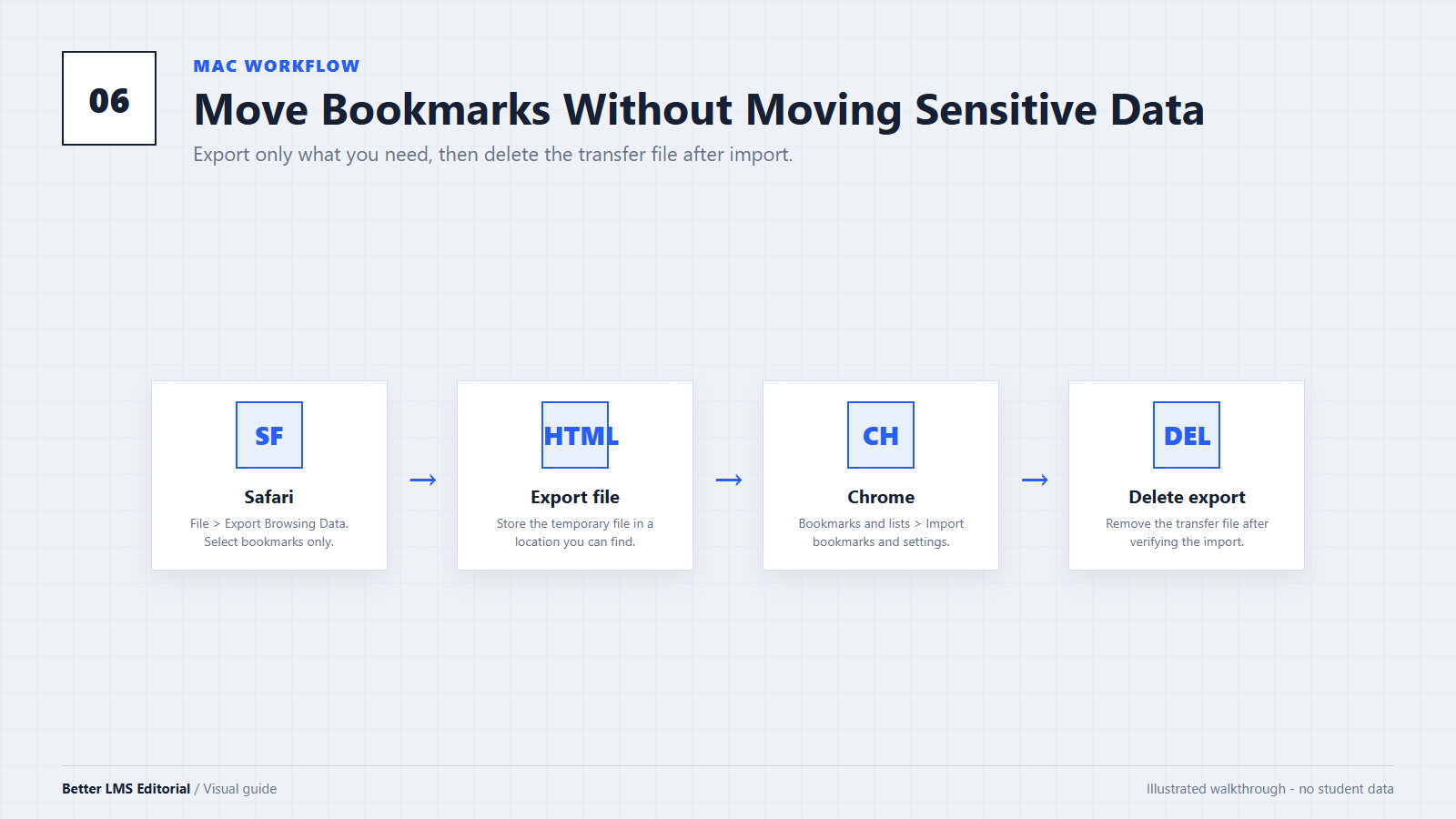
Switching browsers does not require you to rebuild every school bookmark manually. The available import options can vary by macOS and browser version, so check the current menus before beginning.
Move Bookmarks to Chrome
- In Safari, use its current export option to export your bookmarks or selected browsing data.
- Open Chrome.
- Open the Chrome menu and choose Bookmarks and lists > Import bookmarks and settings.
- If Chrome does not offer Safari as a direct source, select the exported bookmarks file.
- Confirm that your school links appear in Chrome before deleting the exported file.
Apple provides current instructions for exporting Safari data, and Google documents how to import bookmarks into Chrome.
Exported browsing data may contain private information and may not be encrypted. Store it securely and delete the export after confirming that the import succeeded.
Move Bookmarks to Firefox
Firefox includes an import tool for bookmarks and other supported browser data. Open Firefox's import or migration settings, select Safari when available, and review which data will be copied.
Bookmark migration does not automatically install browser extensions. After importing your bookmarks, install the Firefox version separately through its browser-store listing.
Frequently Asked Questions
Does Better Canvas Work on an M-Series Mac?
The Mac processor is not the main compatibility question for a browser extension. The more important factors are the browser, browser version, extension version, macOS version, and the way your school's Canvas site is configured. Use a currently supported browser and test the features you need.
Can I Convert the Extension to Safari Myself?
Apple provides development tools for converting web extensions, but conversion is a software-development process rather than a normal installation method. It may require code changes, permission review, testing, signing, and repeated updates. Most students should use a listed browser version instead of attempting to maintain an unofficial conversion.
Can I Use the Safari Version on an iPhone or iPad?
The project's current public documentation does not identify an official Safari release for macOS, iPhone, or iPad. Do not assume that a desktop browser extension is available on mobile Safari.
Will Switching Browsers Change My Canvas Account?
No. Your Canvas account and course data are associated with your school account, not with Safari. You will need to sign in again in the new browser, and your school's authentication system may require multi-factor verification.
Should I Choose Chrome or Firefox on a Mac?
Both are listed in the project's public documentation. Choose the browser you already trust and use, then install the corresponding extension version from that browser's store. Firefox users should use the Firefox listing, while Chrome users should use the Chrome Web Store listing.
Conclusion
Better Canvas does not currently have a Safari release identified in its public documentation, but Mac users still have practical options. Chrome and Firefox are the strongest choices because the project explicitly lists both browsers.
Edge, Brave, and Arc may also install Chrome extensions, but their Better Canvas compatibility should be treated as browser-based and verified feature by feature. Avoid unverified downloads that present themselves as Safari or Mac editions without a traceable publisher and installation source.
For current browser-store links, visit our download page. For additional installation and compatibility questions, see the FAQ page.
Editorial note: This independent guide was prepared by the Better LMS Editorial Team using the project's public documentation and current browser-vendor guidance. It does not claim official Safari support or undocumented first-hand testing. Better LMS is not the developer, owner, or official support provider of the extension. Browser support, store listings, and installation interfaces can change after publication.