On this page
Students often hear two conflicting claims about Canvas: that it can see everything on their computer, or that it cannot detect anything beyond a submitted answer. Neither description is accurate.
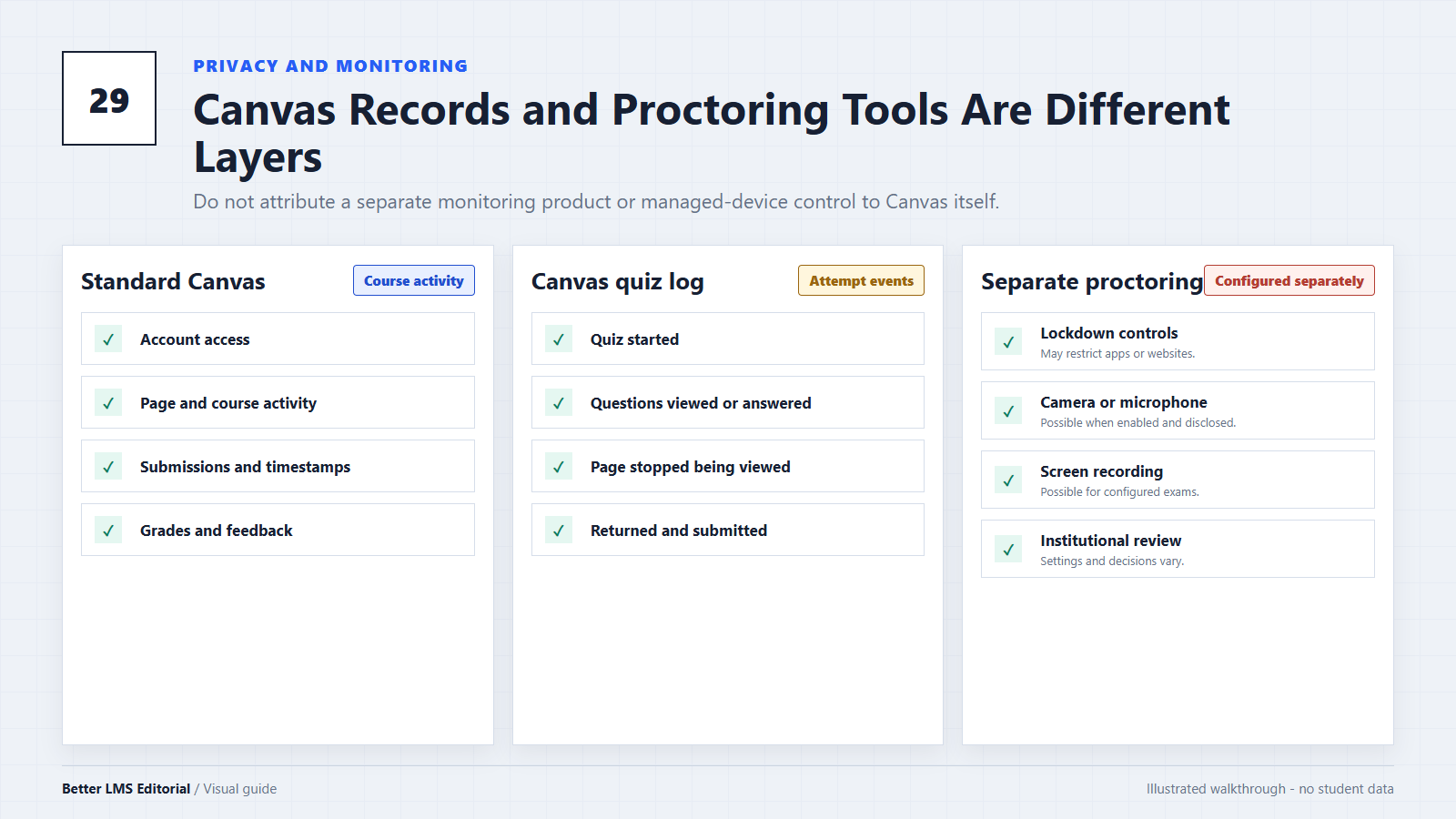
A normal Canvas session records account and course activity. Some quiz logs may report that a student stopped viewing a quiz page. Separate proctoring or lockdown tools can do more, depending on the product and institutional settings.
This guide explains the difference without treating routine activity data as proof of misconduct.
The Short Answer
- Can standard Canvas see your entire screen? Not by itself during ordinary course use.
- Can Canvas record course activity? Yes. Depending on settings, it can retain logins, page views, submissions, and assessment activity.
- Can a quiz log show that you left the quiz page? Some Canvas quiz logs can report that the quiz page stopped being viewed and was viewed again.
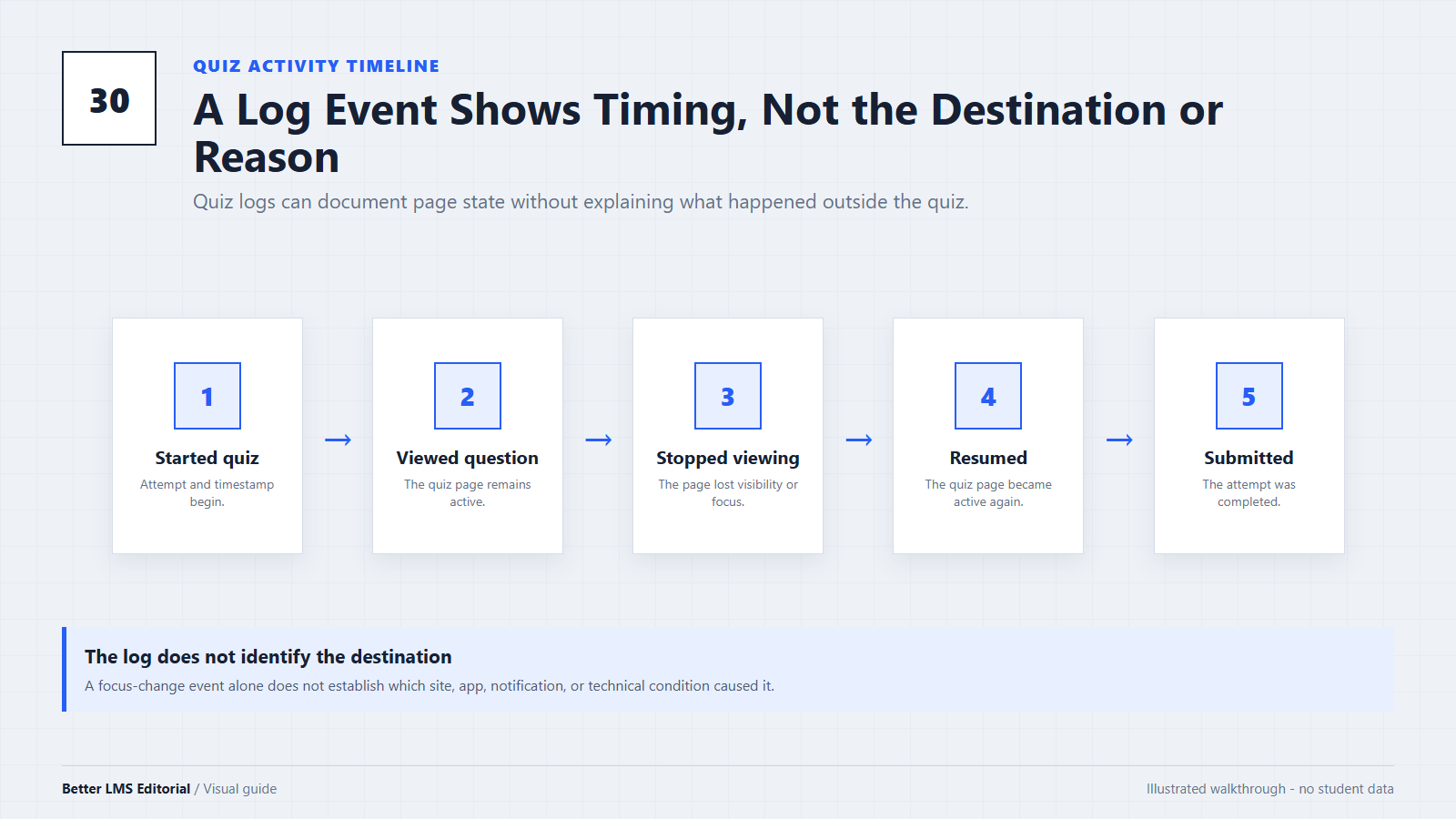
- Does that reveal the other website or application? A standard quiz-log event does not identify the destination.
- Can proctoring software record more? Yes, when the institution enables recording, lockdown, identity-verification, or monitoring features.
The exact result varies by quiz type, school configuration, user role, and connected tools.
What Standard Canvas Records
Depending on institutional settings and permissions, records may include:
- account sign-ins and access information;
- pages or course resources requested through Canvas;
- assignment submission timestamps and attempt information;
- quiz starts, answers, and submissions;
- grades, feedback, and course participation events;
- device, browser, session, and network information used for security and operation.
Not every instructor can see every system record. Access depends on the user's role and the analytics or administrative tools enabled by the institution.
Schools may connect Canvas to other services. Data handled by an external integration may be governed by that tool and the school's agreement, not only by Canvas.
What a Canvas Quiz Log Can Show
Canvas documentation describes quiz logs as a way to investigate technical problems and understand quiz activity. A log may show an attempt starting, questions being viewed or answered, the quiz page no longer being viewed, a return to the page, and submission.
A “stopped viewing” event can be associated with the quiz page losing visibility or focus. It does not tell the instructor which website, document, notification, or application was involved. It also does not explain why the event occurred.
Instructure warns that quiz logs are not intended to validate academic integrity or identify cheating. A focus-change event lacks context and should not be treated as proof of what a student did.
Logs and reports can differ between assessment systems, so consult the documentation for the quiz type the institution uses.
Can a Normal Canvas Page Use Your Camera, Microphone, or Screen?
A normal Canvas page does not silently become a full-device screen recorder. Browser-based camera, microphone, and screen-sharing features are controlled by browser security mechanisms and site permissions.
However, an embedded external tool may request camera or microphone access, a permission may have been granted earlier, and a school-managed device may run software outside Canvas. Students can review browser permissions and installed extensions, exam instructions, and institutional device policies. Before accepting optional access, learn how to evaluate an LMS browser extension.
Proctoring and Lockdown Tools Are Separate Systems
An instructor can deliver an assessment through Canvas while requiring a separate proctoring or lockdown product. The Canvas page and the monitoring tool may appear in one workflow, but they do not have the same capabilities.
Proctorio
Proctorio states that recording occurs only during an exam and only when the institution enables the relevant audio, video, or screen-recording settings. Its FAQ says it does not track eye movements, although enabled settings may use face or gaze detection to flag conditions for review. The institution decides how to assess possible misconduct.
Respondus LockDown Browser and Respondus Monitor
Respondus LockDown Browser restricts actions such as opening other applications, visiting other sites, copying, printing, or using certain shortcuts during an assessment. Respondus Monitor is an additional component that may use webcam or screen recording, depending on the exam setup.
Capability Comparison
| Capability | Standard Canvas use | Canvas quiz activity log | Separate proctoring or lockdown tool |
|---|---|---|---|
| Records submissions and timestamps | Yes | Yes, for the quiz attempt | Usually receives or works alongside assessment data |
| Reports that a quiz page stopped being viewed | Not as a general screen-monitoring feature | May be available, depending on quiz type and settings | May monitor or block switching, depending on configuration |
| Identifies the destination of a focus change | No | No | Screen or activity recording may reveal more when enabled |
| Records the full screen | No, not during ordinary use | No | Possible when the selected product and exam settings enable it |
| Uses camera or microphone | Only for features or tools that request access | Not a basic quiz-log function | Possible when enabled and required by the exam |
| Restricts other applications | No | No | A lockdown application may do so |
| Same at every school | No | No | No; institutions select products and settings |
Different proctoring products and exam settings can collect different information. A school-managed device may also include security or monitoring controls at the operating-system or network level; those controls should not be attributed to Canvas itself.
Preparing for an Online Assessment
These steps improve reliability without attempting to bypass monitoring. Before exam day, compare Canvas browser compatibility with the institution's instructions:
- Read the assessment rules and identify any required browser or proctoring software.
- Complete the official system check or practice quiz before the exam date.
- Review the permissions and data notice shown by the required tool.
- Close unrelated applications and follow the instructor's rules.
- Record the time and exact error message if a tool fails.
- Contact the instructor or campus support promptly when a failure affects an attempt.
If a required browser or tool fails, use Canvas troubleshooting and record the exact error. If the Canvas site itself is unavailable in more than one browser, check Canvas status. If a quiz log is later questioned, provide factual context such as a crash, connection loss, accessibility tool, or support ticket. The event itself does not establish what happened outside the quiz page.
Conclusion
Canvas records meaningful course and assessment activity, but a standard Canvas page is not the same thing as full-screen proctoring software. Quiz logs may show that the quiz page stopped being viewed, yet they do not identify the destination and are not intended to prove cheating.
Broader monitoring comes from separately configured proctoring, lockdown, device-management, or institutional systems. Students should review the requirements for the specific exam and the policies of their school instead of relying on general claims that Canvas either “sees everything” or “sees nothing.”
Editorial note: This article summarizes public documentation from Instructure, Proctorio, and Respondus. Monitoring capabilities depend on institutional choices, assessment settings, device management, and product updates. This article is informational and does not provide instructions for avoiding academic-integrity controls.